Quick Answer: PS5 error SU-1014 indicates a failed or corrupted system software update — typically trapping the console in a reboot loop where it can't complete installation or roll back cleanly. The fastest path out is entering Safe Mode and either reinstalling via USB or rebuilding the database. Corrupted downloads, interrupted installs, and storage failures are the most common culprits.
There's a particular kind of dread that sets in when your PS5 finishes a system update, restarts, and then just... sits there. The loading dots spin. The console reboots. The dots spin again. Maybe error code SU-1014 appears on screen. Maybe it doesn't — sometimes the console just loops silently, which is arguably worse because you don't even have a number to Google.
SU-1014 is Sony's error code for a system software update failure — specifically one where the update process itself has broken down in a way the console can't self-recover from. It's not a hardware death sentence, but it is one of the more disorienting failure states a PS5 can enter; much like an LG G4 OLED stuck on a logo, the console often looks like it's working while being completely non-functional.
This error has been surfacing in PlayStation support forums, Reddit's r/PS5 and r/playstation, and scattered Discord servers since the PS5 launched, with notable spikes every time Sony pushes a major firmware revision. The pattern is consistent enough that it's less a random hardware failure and more a predictable consequence of how system architecture handles edge cases—much like why Wi-Fi 7 mesh nodes keep dropping connections due to similar architectural bottlenecks.
Understanding why it happens matters as much as knowing how to fix it, because people who only learn the fix often end up in the same loop three firmware versions later.
What SU-1014 Actually Means at the System Level
The PS5's operating system — a heavily modified FreeBSD derivative Sony calls "Orbis OS" (a name that has leaked consistently through developer documentation and SDK references) — uses a staged update process. When you accept a system update, the console downloads the package, verifies its integrity via checksum, stages it to a dedicated partition, and then executes the install during reboot.
SU-1014 triggers when this process breaks down at or after the execution stage. The old firmware has already been partially overwritten or flagged for replacement, but the new firmware hasn't cleanly installed. The console's bootloader then faces a choice it can't cleanly make: boot into a half-installed state, or fail out.
The error code itself is part of Sony's SU- (System Update) error family, which covers a range of update-related failures. SU-1014 specifically indicates a problem with the update package application — not the download itself (that would typically produce a different code) and not the network (which produces CE- prefix errors).
What makes SU-1014 particularly frustrating is that the console's built-in recovery logic isn't robust enough to always self-correct, similar to how users feel when they see an Apple TV 4K Error 5013 that causes constant streaming crashes. Unlike some modern operating systems that maintain a full fallback partition with the previous firmware version, the PS5's update architecture doesn't always guarantee a clean rollback. Depending on exactly when the failure occurred during the install sequence, you may be stuck in a state where neither the old nor the new firmware is fully operational.

The Common Causes — and Why They're Not Always Obvious
Interrupted Power During Install
This is the most catastrophic cause and also the most avoidable. During the actual firmware write operation — the phase that happens during reboot, before the UI loads — you might experience similar power-related frustrations elsewhere, much like when your Brother printer is offline and requires a permanent fix. a power interruption or forced shutdown can corrupt the partition table or the firmware image itself. Gaming on an uninterruptible power supply sounds excessive until it happens once.
The problem is that users often don't realize this is the cause. The power may have flickered briefly. A surge protector may have tripped. A family member may have hit the power strip. By the time the loop starts, the connection to cause isn't obvious.
Corrupted Download Cache
If the firmware package downloaded correctly but the PS5's internal cache or staging partition became corrupted before or during the write — due to marginal NAND storage sectors, an earlier storage error that hadn't yet manifested, or a rare but documented bug in the download manager — the checksum verification passes but the actual install fails.
This is more common than Sony's documentation acknowledges. Reports on r/PS5 (particularly threads like "SU-1014 out of nowhere, console was fine yesterday") consistently describe scenarios where the console had been running normally for months, auto-downloaded an update overnight, and then failed to complete it on the morning reboot.
Storage Degradation or Failing SSD
The PS5 uses a proprietary high-speed NVMe SSD that, like all flash storage, has a finite number of write cycles. Consoles that have been running for several years, or that have seen heavy download activity, may have sectors that are beginning to fail in ways that don't yet trigger hard storage errors — but do produce write failures during the precise operations required for a firmware update.
This is an underreported failure mode because the console often passes the built-in storage diagnostics while still failing on specific write patterns. Firmware updates write to specific protected partitions using operations that differ from game data writes, and a sector that's fine for game saves might fail on a firmware write.
Firmware Package Corruption Mid-Download
Particularly relevant for users on congested or unstable Wi-Fi: the PS5's download verification isn't always sufficient to catch certain types of partial corruption. In documented edge cases, packages that appeared to download successfully (the console reported "ready to install") contained corrupted data that only manifested during the extraction and write phase.
The 5 GHz band interference issues that plague many home networks compound this. PS5's Wi-Fi has had documented stability complaints in high-interference environments — particularly around the 5 GHz band where the antenna design reportedly causes more variation than comparable devices.
Safe Mode: The Primary Tool
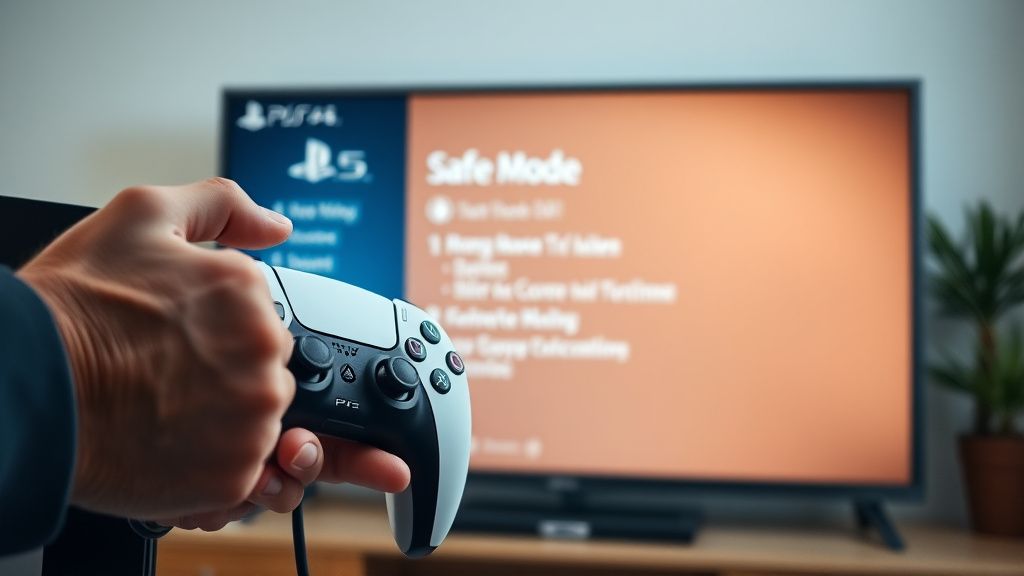
Almost every fix for SU-1014 runs through Safe Mode. Understanding how to reliably access it — and what each option actually does — is essential.
How to Access PS5 Safe Mode
- Fully power off the PS5 — not rest mode. Hold the power button until you hear two beeps (the second beep confirms full shutdown). If the console is in a loop and won't fully shut down, hold the button for approximately 7-10 seconds until it forces off.
- With the console powered off, press and hold the power button. Keep holding it after the first beep. Release after the second beep (roughly 7 seconds into the hold). The second beep signals Safe Mode boot.
- Connect your DualSense controller via USB cable — Safe Mode does not function with a wireless controller. This trips people up every time. Bluetooth is disabled in Safe Mode.
- Press the PS button on the controller.
If this doesn't work on the first attempt, it's usually because the user released the button too early (after the first beep) or the console didn't actually fully power off before the attempt. With a console in an update loop, the "power off" step frequently requires the hold-until-two-beeps approach rather than a brief press.
Safe Mode Options: What They Actually Do
The Safe Mode menu presents several numbered options. In the context of SU-1014, three are relevant:
Option 3: Update System Software
This is typically the first thing to try. It lets you initiate a fresh update install either via internet or USB. If the previous update's install files are corrupted but the console's core system is intact, this can complete what the original update failed to do.
Option 4: Restore Default Settings
This resets system settings without deleting game data or user data. It's often misunderstood — people either think it will delete everything (it won't, in most cases) or that it will fix deep system corruption (it won't). For SU-1014, it's rarely the solution on its own, but it can clear certain configuration states that are causing the update process to fail.
Option 5: Clear Cache and Rebuild Database
This is more useful than its description implies. The "clear cache" portion removes temporary files including partially downloaded update packages. The "rebuild database" scans the SSD and reconstructs the system's index of stored data. In cases where corrupted update cache files were preventing a fresh install from starting, this often resolves the issue before you need to go to the USB reinstall route.
Option 6: Reset PS5
Full factory reset. Deletes everything. This is the nuclear option — it resolves the SU-1014 loop by essentially starting from scratch. Your games are gone (though PS Plus or PlayStation's cloud backup may have saved your save data). Avoid this unless Options 3-5 have all failed.
Option 7: Reset PS5 (Reinstall System Software)
This is the "wipe and reinstall from scratch" option that requires a USB drive with the full system software package. Unlike Option 6 (which uses whatever's already on the console), this option completely reinstalls the OS from the USB. It's the most reliable fix for SU-1014 when the firmware partition itself is corrupted, but it also deletes all data.
The USB Reinstall Method: Step by Step
When Safe Mode's online update option fails or isn't available, the USB reinstall method is the most reliable path to resolution.
What You Need
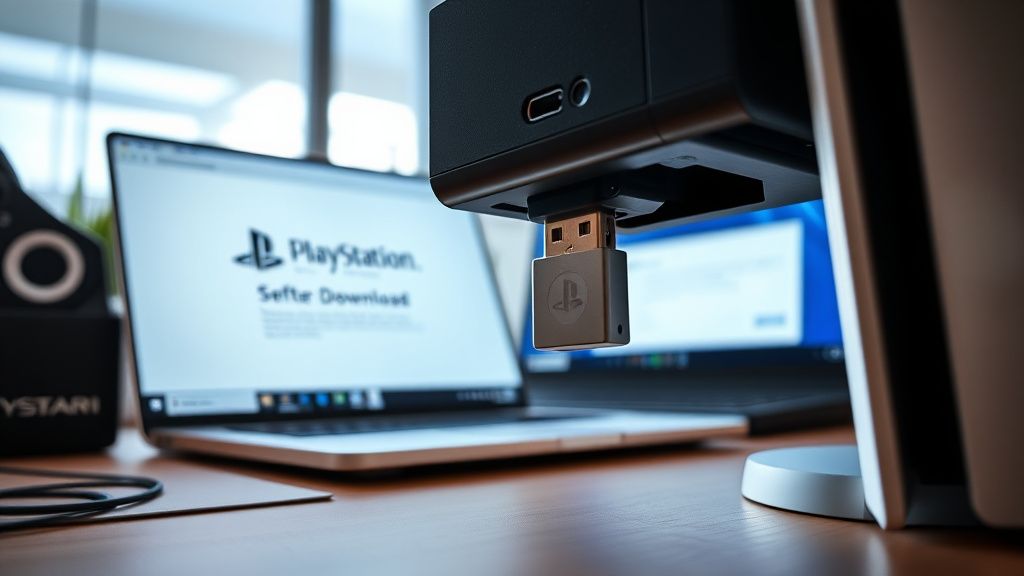
- A USB drive formatted to exFAT or FAT32, minimum 1GB free space (FAT32 has a 4GB file size limit which can be a problem — use exFAT)
- A computer with internet access
- The PS5 system software reinstall package from PlayStation's official software update page
Preparing the USB Drive
This step is where a surprising number of people fail, and the failure is almost always in the folder structure. The PS5 is extremely specific about this:
USB Root
└── PS5
    └── UPDATE
        └── PS5UPDATE.PUP
The folder names must be exactly PS5 and UPDATE in uppercase. The file must be named exactly PS5UPDATE.PUP. Any deviation — a space, a lowercase letter, a different enclosing folder — and the PS5 will not recognize the drive. This is documented but Sony's official instructions present it in a way that many users miss.
There are two versions of the update package on Sony's site:
- Update File (smaller, typically 1-2GB): For updating an existing installation. Use this with Safe Mode Option 3.
- Reinstall File (larger, approximately 1.1GB compressed but the full system software): For complete reinstall via Safe Mode Option 7. Make sure you're downloading the correct one for your intended operation.
Using the update file when you need the reinstall file is an extremely common mistake that results in Safe Mode reporting it can't find a valid update package, which then sends people into a spiral of thinking their USB drive is faulty.
Executing the Reinstall
With the correctly prepared USB drive:
- Insert the USB drive into the PS5 while in Safe Mode
- Select Option 3 (to update) or Option 7 (to fully reinstall)
- The console will detect the package, display version information, and ask for confirmation
- Do not interact with the console during installation. Do not turn it off. If the estimated time seems stalled, give it at least 15-20 minutes before considering an intervention
If the console fails to detect the USB drive even with correct formatting and folder structure, try the other USB ports (PS5 has ports on both the front and back). Some users have also reported that USB 3.0 drives occasionally cause detection issues, with USB 2.0 drives working reliably — the opposite of what you'd expect, but consistent enough to be a known workaround.
Real Field Reports: What Users Are Actually Experiencing
The academic version of SU-1014 is "update failure." The lived version is considerably messier.
On r/PS5, threads about SU-1014 follow a predictable arc: initial post expressing panic ("my PS5 is bricked"), a wave of responses recommending Safe Mode, several follow-up comments from OP saying Safe Mode also loops or the USB isn't being recognized, eventual resolution or — in a minority of cases — resignation to sending the unit to Sony.
A thread from early 2024 (one of the more substantive ones, sitting at several hundred upvotes with detailed comment chains) described a situation where a user's PS5 entered SU-1014 after the 23.02-08.40.00 firmware update. The Safe Mode USB method failed three times with correctly formatted drives. The eventual resolution involved a combination of rebuilding the database first, then attempting the USB install — a sequence that isn't in Sony's official documentation but appeared repeatedly as a community-discovered fix.
Another documented failure mode: the console appears to complete the USB reinstall successfully, reboots into the setup screen, and then fails again with SU-1014 on the next automatic update. This typically indicates the underlying storage issue hasn't been resolved — the reinstall completed because it wrote to healthy sectors, but the same failing sectors caused the next update to break. For these users, the console needs hardware service.
Discord communities focused on PS5 troubleshooting (there are several, some linked from subreddits) maintain pinned threads specifically for SU-1014 variants, including edge cases like "SU-1014 with rest mode enabled" and "SU-1014 after extended storage expansion." The rest mode variant is particularly interesting: Sony has known for several firmware generations that initiating a system update while the console is entering or exiting rest mode can corrupt the staging process. This is a software-level race condition that should have been patched but apparently resurfaces in different forms with new firmware versions.
Counter-Arguments and Contested Diagnoses
Not everyone agrees on the cause-and-effect here. There's a recurring debate in PlayStation communities about whether SU-1014 is predominantly a software bug Sony needs to fix or whether it genuinely reflects user-side conditions (power, storage, network).
Sony's official position, expressed through its support documentation and support agent responses, consistently points toward user-side causes: network instability, USB formatting errors, unauthorized hardware modifications. This is frustrating to users whose PS5s entered the loop on stable connections with no modifications, which is a real phenomenon.
The counter-position — that Sony's update architecture has robustness problems that cause failures under conditions that should be handled gracefully — is harder to prove without access to Sony's firmware engineering internals, but the evidence is circumstantial and consistent. Production-quality software shouldn't require a power surge or a 5GHz Wi-Fi hiccup to trigger a loop that requires manual intervention. The rollback problem is particularly notable: a well-designed update system should be able to revert to the previous state when an install fails. The PS5's apparent inability to always do this is a design gap, not just a user error.
There's also a known pattern specific to the PlayStation ecosystem: Sony tends to address widely-documented bugs with firmware updates rather than public acknowledgment. Issues get quietly fixed without appearing in the official firmware patch notes, which are notoriously sparse. This makes it difficult to track whether SU-1014's rate of occurrence has actually decreased over firmware generations or remained constant.
Some repair technicians who work on PS5 units (documented in YouTube repair content and in r/consolerepair discussions) note that they see SU-1014 units where the SSD is in early-stage failure, units with no storage problems whatsoever, and units where the issue appears to be in the system's BIOS/CMOS-equivalent flash — a much harder fix than an OS reinstall. The error code covers too wide a failure surface to be reliably diagnosed without hands-on inspection.
When It's Not Fixable at Home
There's a threshold where SU-1014 stops being a firmware problem and becomes a hardware problem, and the indicators are:
- Safe Mode itself loops or fails to display consistently
- USB reinstall fails repeatedly across multiple drives and ports
- Console displays SU-1014 immediately after a completed reinstall
- The console makes unusual sounds (clicking, repeated clicking from the SSD area) during boot
At this point, you're likely dealing with failing storage or, in some cases, a corrupted secondary processor firmware that controls the boot sequence — a repair that requires specialized equipment and isn't within the scope of home troubleshooting.
Sony's official warranty repair process will cover SU-1014 if the console is within warranty and shows no signs of physical damage or unauthorized modifications. Out-of-warranty repairs through Sony cost a flat service fee that varies by region. Third-party repair shops can sometimes address storage-related failures at lower cost but with no Sony warranty backing.
If your console is still within its warranty period, contact PlayStation Support before attempting anything beyond the basic Safe Mode steps — particularly before opening the case, which voids the warranty. Sony's support documentation explicitly states that internal modifications forfeit warranty coverage, and repair technicians
Bu makale affiliate linkleri içermektedir.