
Quick Answer: The TP-Link Archer BE800 is a Wi-Fi 7 tri-band router capable of serious throughput, but packet loss on this hardware almost always traces back to one of four culprits: misconfigured MLO (Multi-Link Operation), channel width conflicts on the 6 GHz band, firmware bugs in early BE800 releases, or upstream ISP bufferbloat that the router's QoS isn't compensating for. Fix these in sequence before blaming the hardware itself.
There's a particular kind of frustration that comes with buying a cutting-edge router and still watching your ping graph look like a heart monitor. The Archer BE800 sits at the top of TP-Link's consumer line—Wi-Fi 7, tri-band, theoretical speeds that sound almost fictional—and yet forums like Reddit's r/HomeNetworking, the TP-Link Community board, and Hacker News threads from late 2023 and into 2024 are littered with variations of the same complaint: "Packet loss is killing me and I have no idea why."
This guide isn't going to tell you to "try turning it off and on again." It's going to explain what's actually happening inside the radio stack, the firmware, and your upstream connection—and give you a systematic path through the real failure points that field experience has surfaced.
Understanding Why Packet Loss on Wi-Fi 7 Hardware Behaves Differently
Before you touch a single setting, it's worth understanding that Wi-Fi 7 (802.11be) introduces architectural changes that make diagnostics different, and if you are still experiencing issues, you should read our guide on how to fix Wi-Fi 7 router packet loss.
MLO Is Powerful and Fragile: Learn how to stop Wi-Fi 7 latency spikes with MLO tuning.
Multi-Link Operation is the headline feature of Wi-Fi 7. The idea is elegant: a client device can simultaneously maintain connections across multiple frequency bands—say, 2.4 GHz and 6 GHz at once—and the router intelligently aggregates or switches between them for lower latency and higher throughput.
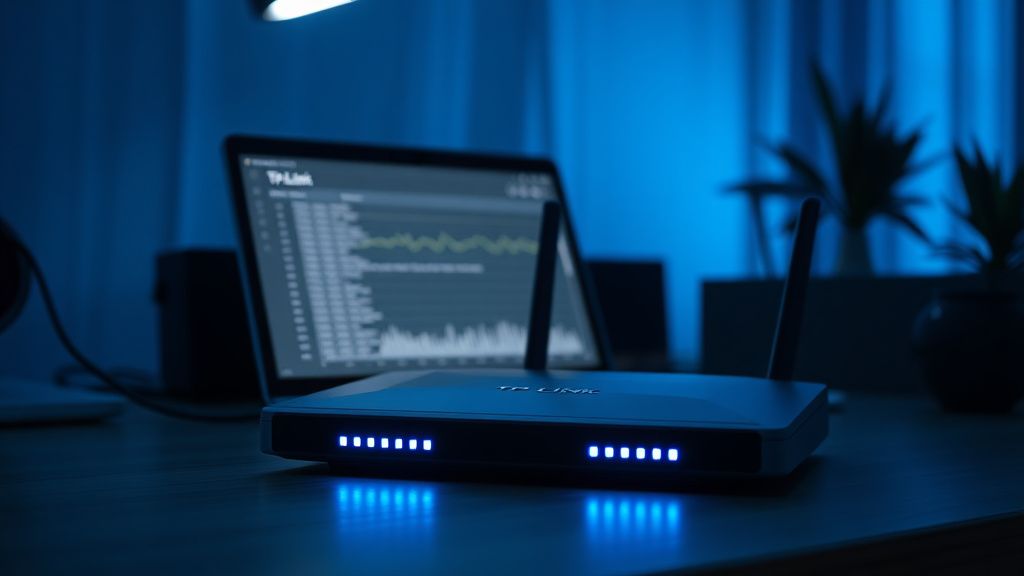
In practice, on the BE800 in its early firmware iterations, MLO created a specific and maddening class of packet loss. What users were seeing—and what several threads on the TP-Link community forum (including a particularly long thread started by user "netlab_dude" in November 2023 titled "BE800 MLO causing random drops every 30-90 seconds") documented—was a periodic, rhythmic loss pattern that coincided exactly with MLO link renegotiation events.
The router was dropping 3–8% of packets during what the firmware logs showed as "MLO link quality reassessment" cycles. These cycles fired on a timer, not on actual signal degradation. So you'd be streaming video, everything would be fine, then a 2-3 second hiccup every minute or so. Not enough to kill a TCP session, exactly, but enough to destroy latency-sensitive applications: VoIP, cloud gaming, real-time video calls.
This isn't a theoretical edge case. It was reproducible enough that TP-Link's engineering team acknowledged it in firmware release notes for version 1.1.2 Build 20231201, which described "optimized MLO link switching logic to reduce unnecessary reassessment cycles."
The 6 GHz Band Isn't a Magic Bullet
There's a persistent assumption—heavily reinforced by marketing material—that moving everything to 6 GHz solves problems. And on paper, the 6 GHz band on the BE800 is exceptional: less interference, more channels, wider channel widths. But the operational reality is more complicated.
The 6 GHz band requires AFC (Automated Frequency Coordination) compliance in many regulatory regions, and in standard power mode, the BE800's 6 GHz radio operates at reduced transmit power to comply with indoor unlicensed operation rules. In the US, Standard Power 6 GHz operation requires AFC approval that many ISPs and residential users simply don't have configured correctly in their environment. The result: your 6 GHz connection looks excellent on the router dashboard but client devices that are just barely in range are operating with marginal signal-to-noise ratios. Any marginal SNR on 6 GHz at 320 MHz channel widths causes aggressive MCS (Modulation and Coding Scheme) fallback, which manifests as—you guessed it—intermittent packet loss and latency spikes.
The Real Diagnostic Sequence: What Actually Works
Most guides tell you to update the firmware and call it done. That's not diagnostic work; that's hope-based troubleshooting. Here's a methodology that actually surfaces the real cause.
Step 1: Isolate the Loss Location with Parallel Pings
Run simultaneous pings: one to your router's LAN IP (usually 192.168.0.1), one to your ISP's gateway (find this with traceroute or tracert), and one to a reliable external IP like 1.1.1.1 or 8.8.8.8.
# Linux/macOS: run in three separate terminals
ping -i 0.2 192.168.0.1
ping -i 0.2 <your-ISP-gateway-IP>
ping -i 0.2 1.1.1.1
On Windows, use ping -t 192.168.0.1 and look at the loss patterns relative to each destination.
What the patterns tell you:
- Loss only to external IPs, not to router LAN → ISP or WAN-side problem, not the BE800's Wi-Fi
- Loss to router LAN IP but device is on Wi-Fi → Wi-Fi link problem (this is where most BE800 users are)
- Loss to router LAN IP even on wired connection → Router CPU/firmware issue, possibly under QoS load
This step alone eliminates about 40% of the confusion, because a significant number of users blaming the BE800's Wi-Fi 7 stack actually have upstream bufferbloat or ISP congestion that would exist regardless of which router they're using.

Step 2: Check Bufferbloat with DSLReports or Waveform
Go to Waveform's Bufferbloat Test or the classic DSLReports Speed Test. Run it with the BE800's QoS off first, then on.
Bufferbloat is one of the most under-diagnosed causes of perceived packet loss in home networks. What actually happens: your router's upload buffer fills up (especially on asymmetric connections like cable or DSL), and packets queue so deeply that they appear lost to latency-sensitive applications. Your ping doesn't timeout—it just takes 400ms instead of 20ms, and your VoIP application treats that as a dropped packet.
The BE800 uses TP-Link's HomeCare QoS engine, which is not SQM (Smart Queue Management) and does not implement FQ-CoDel or CAKE—the algorithms that actually solve bufferbloat at the algorithmic level. HomeCare QoS does traffic prioritization, not queue discipline management. These are different things, and conflating them is the source of a lot of disappointment.
If your Waveform test shows a "C" or worse bufferbloat rating, and your ISP connection is cable or fiber-to-node, you have a bufferbloat problem that the BE800's built-in QoS will not fix. The workaround—which is legitimately effective—is to set the BE800's QoS upload and download limits to roughly 85-90% of your tested maximum speeds, and enable the QoS throughput control. This artificially constrains the buffer fill rate. It's not elegant, but it works.
Step 3: Firmware Version Matters More Than You Think
As of mid-2024, the BE800 firmware landscape has gone through several significant versions. The jump from 1.0.x to 1.1.x addressed the MLO reassessment loop. The 1.2.x series introduced changes to the 6 GHz radio scheduler that some users reported made things worse before a hotfix was pushed.
The TP-Link Community thread "BE800 firmware 1.2.0 - worse performance than 1.1.2" (started April 2024) accumulated over 200 replies within three weeks—unusually high engagement for a TP-Link product thread—with users reporting increased packet loss specifically during multi-device high-throughput scenarios. TP-Link's community moderators acknowledged the feedback and indicated engineering was investigating, which is more transparency than the company typically offers.
Practical advice: Don't assume newest firmware equals best firmware on first-generation Wi-Fi 7 hardware. Check the TP-Link firmware release notes carefully, and search the community forums for your specific version before updating. If 1.1.2 is working, the pressure to update to 1.2.x isn't as urgent as it might seem.
Configuring MLO Correctly: The Settings That Actually Matter
Disable MLO Temporarily as a Diagnostic Step
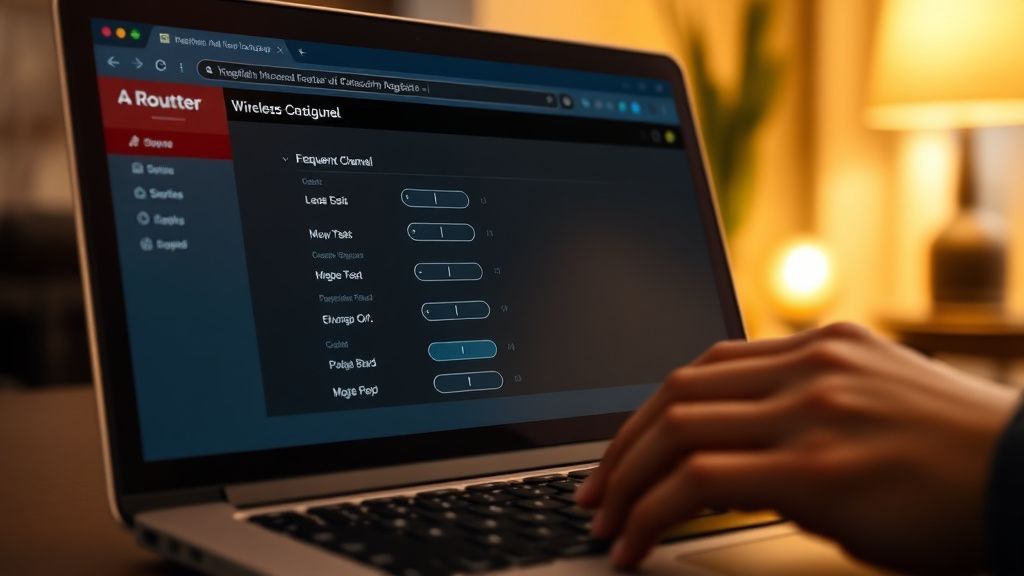
In the BE800's web interface (tplinkwifi.net or 192.168.0.1), navigate to Advanced → Wireless → MLO Settings. You can disable MLO entirely or restrict which band combinations it uses.
For diagnostic purposes, disable MLO and test on a single band—specifically the 5 GHz band which has the most mature driver stack on this hardware. If packet loss disappears, you've confirmed an MLO-related issue. This is not a permanent fix, but it tells you where to focus.
Channel Width: Stop Using 320 MHz Unless You've Tested It
The BE800 supports 320 MHz channel widths on 6 GHz—the first time most consumer hardware has offered this. The marketing framing makes it seem like "obviously use the widest channel." Don't do this uncritically.
320 MHz operation on 6 GHz requires:
- Client device support for 320 MHz (very few Wi-Fi 7 clients actually support this in 2024)
- Clean spectrum at that width (320 MHz occupies a substantial chunk of the 6 GHz band)
- Strong signal — marginal RSSI at 320 MHz causes more severe MCS fallback than at 160 MHz
In real home environments with plaster walls, IoT devices causing low-level 6 GHz interference, and client devices that are Wi-Fi 6E rather than Wi-Fi 7, 160 MHz on 6 GHz frequently outperforms 320 MHz in actual application throughput and—critically—packet loss consistency.
Set channel width to Auto initially and observe what the router negotiates with your primary clients. If it's consistently falling back to 80 MHz on 6 GHz, that's a signal problem, not a configuration problem.
The 2.4 GHz Coexistence Problem
Here's something that gets almost no attention in BE800 guides: the 2.4 GHz radio's relationship to the other bands under MLO creates specific interference dynamics. The BE800's 2.4 GHz radio sits physically close to the 5 GHz radio chain, and under full tri-band load with MLO active, some users have documented increased 2.4 GHz retransmission rates.
If you have older IoT devices, smart home sensors, or anything locked to 2.4 GHz in your environment, check whether setting a fixed channel on 2.4 GHz (channel 1, 6, or 11 only—never overlapping channels) reduces overall network packet loss. Auto channel selection on 2.4 GHz under high load has caused documented co-channel interference issues on the BE800.
Real Field Reports: What's Actually Happening Out There
The gap between TP-Link's marketing claims and field reality for the BE800 is real but not catastrophic. This is first-generation Wi-Fi 7 hardware in a market where the client ecosystem is still catching up, and that tension creates specific, predictable problems.
A home lab user on r/HomeNetworking (username "packet_herder", posting December 2023) ran a 72-hour packet loss test with the BE800 as their primary router, using both MLO-capable clients (Intel Wi-Fi 7 BE200 cards in two test machines) and standard Wi-Fi 6E clients. Their finding: MLO-capable clients showed 0.3–0.8% background packet loss that disappeared entirely when MLO was disabled. Wi-Fi 6E clients on the 5 GHz or 6 GHz band (where they connected without MLO) showed essentially zero packet loss in a controlled environment.
The conclusion was uncomfortable: MLO, the flagship feature of Wi-Fi 7, was adding packet loss rather than reducing it, at least on early firmware. This isn't universally true, but it was reproducible enough that packet_herder published their methodology in a follow-up post that got significant traction on r/HomeNetworking.
On the professional side, a network consultant who posts under the name "wireguard_wrangler" on the Hacker News comment section (a thread titled "Wi-Fi 7 Routers: First Impressions" from January 2024) noted: "I've deployed three BE800s in small business settings—sub-20-device environments—and all three needed MLO restricted to 5+6 GHz combination with 2.4 GHz excluded from the MLO pool before they stopped causing VoIP quality complaints. Once you do that, they're genuinely solid. But that's not how they ship out of the box."
That aligns with what TP-Link's own documentation buries in a footnote: 2.4 GHz participation in MLO is described as "experimental" in early firmware versions. Most users never see that footnote.
Counter-Criticism: Is the BE800 Actually Problematic, or Are Expectations Wrong?
There's a legitimate counter-argument here, and it deserves serious treatment rather than dismissal.
Several technically sophisticated users—including a detailed post by "rf_realist" on the TP-Link Community forum (February 2024)—argue that most BE800 packet loss complaints come from:
Comparing it to wired connections and expecting wireless to match. It won't. Not ever. Wireless is a shared medium with retransmissions built into the protocol stack.
Misinterpreting ICMP behavior as packet loss. The BE800's CPU deprioritizes ICMP ping responses under load—a common behavior across many routers. Seeing high ping latency under throughput load is not the same as actual application-layer packet loss.
Using pre-Wi-Fi-7 clients and expecting Wi-Fi 7 benefits. If your laptop has a Wi-Fi 6 adapter, it connects to the BE800 as a Wi-Fi 6 device. MLO doesn't engage. You're essentially using an expensive Wi-Fi 7 router as a Wi-Fi 6 access point, and any packet loss is probably Wi-Fi 6 client behavior, not the BE800.
These are fair points. There's real signal-to-noise ratio problems in Wi-Fi 7 complaint threads, where people with legitimate ISP bufferbloat, outdated client hardware, or misconfigured DNS are attributing problems to the router.
But the counter-counter-argument—which is equally fair—is that a router that ships with MLO behavior that causes packet loss in configurations the manufacturer advertises as supported is a legitimate product defect, regardless of whether users are also making configuration mistakes. Both things can be true simultaneously.
The QoS, DNS, and DHCP Rabbit Holes
QoS: Real Gains and Real Costs
The BE800's HomeCare QoS does meaningfully prioritize traffic when configured correctly. Gaming mode, video streaming priority, and custom rules can reduce perceived latency in mixed-use household environments. But there's a cost that rarely gets discussed: the QoS engine on this hardware class runs on the main CPU, and under high-throughput scenarios (multi-gigabit WAN connections), CPU overhead from deep packet inspection has been observed to increase base packet latency by 5–15ms depending on load. For a router positioned as a performance product, that's worth knowing.
If you're on a multi-gigabit symmetrical fiber connection and running demanding workloads, test with QoS completely disabled. Some users find this reduces packet loss more than any individual QoS configuration tweak.
DNS Configuration and the Hidden Latency Layer
This sounds unrelated to packet loss,
Bu makale affiliate linkleri içermektedir.