Quick Answer: The Xbox Series X Green Screen of Death (GSoD) is a firmware-level crash that freezes your console on a solid green display, rendering it unresponsive. It's typically triggered by corrupted system files, failed updates, storage faults, or hardware stress. Recovery usually involves a forced restart, offline system update, or factory reset via the Xbox Startup Troubleshooter — most cases are fixable without sending the unit in for repair.
There's a specific kind of dread that sets in when your Xbox Series X locks up on a flat, featureless green screen. Not a loading animation. Not an error code. Just green — and silence. The controller stops responding. The power button does nothing on the first press. The console is alive enough to display something, but not alive enough to do anything with it, a frustration similar to experiencing PS5 Error CE-108255-1: How to Tell if Your Console Needs Repair.
This is the Green Screen of Death, and it's been a persistent, poorly-documented failure mode since the Series X launched in November 2020. Microsoft hasn't given it a catchy official name. There's no dedicated support page that walks you through the specific behavioral chain, much like the confusion users feel when trying to decode PS5 Error CE-108255-1: What It Actually Means for Your Console. Most of the real recovery knowledge lives in Reddit threads, YouTube walkthroughs from bedroom technicians, and Hacker News comments from people who've been through it twice.
The irony is that, in many cases, it's recoverable. But the path to recovery is non-obvious, occasionally contradictory depending on your specific failure scenario, and almost never explained well by Microsoft's own support channels.
What the Green Screen Actually Represents at a System Level
Understanding what's happening under the hood changes how you approach the fix.
The Xbox Series X runs on a heavily customized version of the Windows kernel — closer to Windows 10/11 than Microsoft typically acknowledges in marketing materials. The green screen is essentially the console equivalent of a Windows BSOD, but at the bootloader or OS initialization layer. When the system encounters a fatal error during startup or mid-session that it cannot handle gracefully, it halts and presents this screen rather than entering a crash loop.
Unlike the Blue Screen of Death on Windows, the Xbox GSoD typically doesn't display error codes on the main screen. That's one of its most frustrating properties. You're staring at green and have almost no immediate diagnostic information.
The failure can occur at several distinct points:
- During boot sequence — before the Xbox OS fully loads
- Mid-session — after a game crash triggers a system-level fault
- During or immediately after a system update — when file writes are interrupted or corrupted
- After storage device degradation — particularly when the internal NVMe SSD begins reporting errors
Each scenario has slightly different recovery implications. A mid-session GSoD after a game crash is almost always a soft fault — recoverable with a hard restart. A GSoD that appears every time the console boots, or specifically after an attempted update, is a harder problem that usually requires the Xbox Startup Troubleshooter or an offline system update.
The Behavioral Pattern Most Users Actually Report
On Reddit's r/XboxSeriesX, the GSoD thread history is instructive. The most common user-reported sequence looks like this:
- Console is running normally, or user initiates a system update
- Screen freezes — sometimes with a brief flicker, sometimes instantaneous
- Solid green screen appears on the TV
- Controller connectivity drops
- Power button on the console appears unresponsive for 5–10 seconds
- Holding the power button for 10+ seconds eventually forces shutdown
- On next power-on attempt: either normal boot, or GSoD recurs immediately
The recurrence pattern is the critical diagnostic signal. One occurrence followed by normal behavior almost always means a transient OS fault — the kind of thing that happens and never happens again. Recurring GSoD on every boot attempt points to corrupted system software or storage issues that won't resolve without intervention.
A thread from late 2022 on r/XboxSeriesX ("Green screen every time I try to boot after update") accumulated over 400 comments, most documenting the same update-triggered GSoD scenario. The consensus recovery path that emerged from that thread — offline OSU (offline system update) via USB — predates Microsoft's own clear documentation of the process by months.
Step 1 — The Force Restart (Don't Skip This)
Before doing anything else, attempt a proper hard reset. This sounds obvious, but there's a specific procedure that matters here:
Hold the power button on the console for 10 full seconds. Not the controller. Not the remote. The physical button on the console body.
The console will shut off completely. Wait 30 seconds — not 5, not 10. Thirty. This allows capacitors to discharge and the system to fully reset its state.
Power back on normally. If the console boots to the dashboard, you're done. Monitor it for recurrence over the next few sessions.
If it returns to a green screen, or if it gets stuck on the Xbox logo without ever reaching the dashboard, you need to go deeper.
Step 2 — Accessing the Xbox Startup Troubleshooter
This is the most important tool in the recovery chain and also one of the least intuitive to access. Microsoft added it specifically to handle scenarios where the OS is too corrupted to boot normally.
How to reach the Startup Troubleshooter:
- Fully power off the console (10-second hold on the power button)
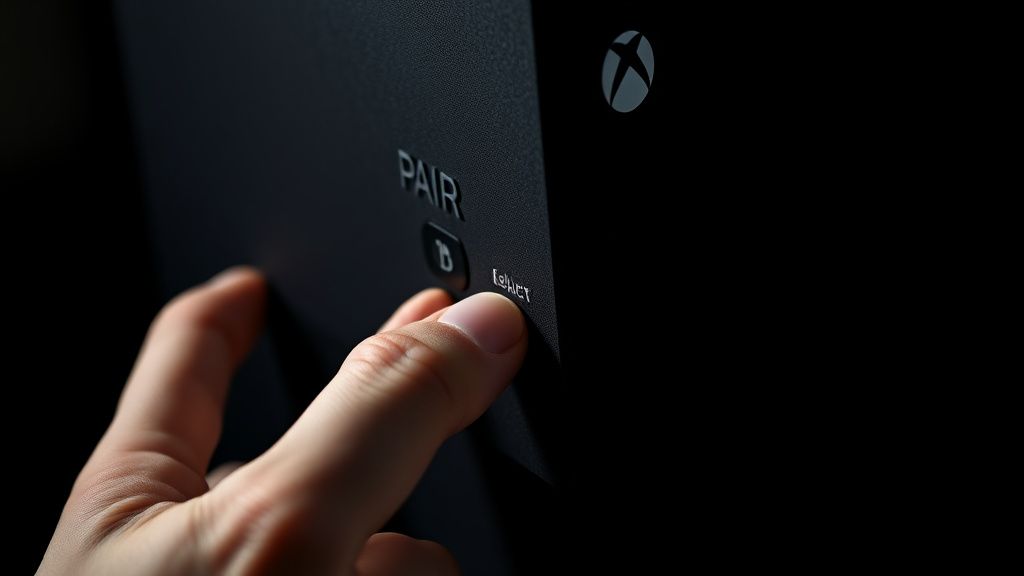
- Hold the Eject button and the Pair button simultaneously
- While holding both, press the Power button once
- Continue holding Eject and Pair for approximately 10–15 seconds
- You should hear two power-on tones from the console — the second tone confirms you've entered troubleshooter mode
- The display will show the Xbox Startup Troubleshooter interface
If you only hear one tone, the console booted normally. If you hear no tones and get a green screen, try again. This button combination is sensitive to timing.
Note for digital-only users: The Series X Digital Edition does not have an Eject button. In that case, use the Bind button (the small button on the left side of the console) in place of Eject. Hold Bind + Pair, then press Power.
What the Startup Troubleshooter Gives You
Once inside the Startup Troubleshooter, you'll see several options. Here's what they actually do and when to use each:
Restart Console (Xbox Startup Troubleshooter Reset Options)
"Restart console" — This is just a clean reboot from the troubleshooter environment rather than the OS. Try this first. It forces a different boot path and can clear transient corruptions.
Reset This Xbox (Keep My Games and Apps)
This option attempts to reinstall the system software while preserving your installed games, apps, and user data. This is the option to try before factory resetting. It takes longer — usually 20–40 minutes — and the console will restart multiple times.
The failure rate for this option isn't zero. If the storage device itself is degraded, this process may stall or fail. Users on GitHub discussions and Xbox support threads have reported the "keep games and apps" reset hanging at specific percentage points (commonly around 33% or 67%) for extended periods. If it exceeds two hours without movement, it's likely stuck.
Reset and Remove Everything
Full factory reset. Wipes all local data, reinstalls clean system software. This is the nuclear option and resolves most software-layer GSoD issues. Your games will need to be re-downloaded (they're tied to your account, not the hardware), and local save data that wasn't cloud-synced is gone.
The emotional cost here is real. People lose hours of offline-only save data this way. Microsoft's cloud save system is good but not universal — some games don't support it, and games played offline during a network outage may not have synced.
Step 3 — The Offline System Update (OSU1) via USB
If the Startup Troubleshooter itself is inaccessible, or if the reset options within it fail, the next layer is the offline system update via USB drive.
This process pushes a clean firmware image directly to the console from external media, bypassing whatever corrupted state the system is currently in.
What you need:
- A USB drive formatted to NTFS (not exFAT, not FAT32 — NTFS specifically)
- At least 6GB of free space on the drive
- A computer to download the update package
The process:
- On a separate PC, go to Xbox.com/xboxone/hardwareupdate (Microsoft's offline update page)
- Download the OSU1 file for Xbox Series X — this is a large file, usually 4–6GB
- The downloaded file will be a zip archive. Extract it — you'll find a folder called
$SystemUpdate - Copy the entire
$SystemUpdatefolder to the root of your NTFS-formatted USB drive. Do not put it inside another folder. - Insert the USB drive into the Xbox Series X while the console is powered off
- Enter the Startup Troubleshooter (Eject + Pair + Power button sequence)
- Select "Offline system update" from the troubleshooter menu
- The console will detect the USB drive and begin the update process
The update typically takes 5–15 minutes. The console will restart at least once. Do not interrupt the process or remove the USB drive.
Common failure point: Formatting the USB drive incorrectly is the single most common reason this process fails. exFAT-formatted drives will not be recognized. Windows formats drives as exFAT by default in some scenarios — always verify the format after completing it. Right-click the drive in File Explorer, select Properties, confirm it shows NTFS under "File system."
When It's Not Software: Recognizing Hardware-Layer GSoD
This is where the calculus changes. A significant subset of GSoD cases — difficult to quantify precisely without Microsoft's internal diagnostic data, which isn't public — are caused by hardware-level issues that software recovery cannot fix.
Indicators that hardware may be the root cause:
- GSoD occurs immediately after the console is powered on, before any Xbox logo appears
- GSoD appears consistently after 20–30 minutes of operation (thermal trigger pattern)
- The console makes unusual sounds (coil whine, unusual fan behavior) before crashing
- The Startup Troubleshooter is itself inaccessible or loops back to the green screen
- OSU1 offline update process fails or the console doesn't detect the USB drive despite correct formatting
- Physical damage, liquid exposure, or recent drop event in the console's history
The most commonly implicated hardware components in persistent GSoD scenarios are:
Internal SSD degradation — The Series X uses a custom NVMe SSD. SSDs don't fail linearly; they can pass diagnostics until they suddenly can't. A degrading SSD will cause corrupted file writes, leading to exactly the kind of system file corruption that triggers GSoD.
Thermal management failure — A failing thermal paste application or a partially obstructed heatsink can cause the APU to throttle hard and generate system faults under load. Microsoft had thermal paste quality consistency issues in some early production runs — this was discussed in several iFixit teardown comment threads.
APU/RAM hardware fault — Less common but more permanent. A hardware fault at the SoC level isn't recoverable through software. This typically requires depot repair or replacement.
Real Field Reports: What Actually Happened
The GSoD's real-world distribution is messy. It doesn't map cleanly to a single root cause.
Case 1 — The Update Loop (r/XboxSeriesX, 2023): User reports console locked on green screen after a background update downloaded overnight. Startup Troubleshooter inaccessible on first three attempts (button timing sensitivity). Fourth attempt succeeded. "Keep games and apps" reset completed in 28 minutes. Console functional. No recurrence in subsequent months. Classic soft fault — update file write was interrupted, OS couldn't complete boot, reset restored clean state.
Case 2 — The Intermittent Hardware Failure (Xbox Support Community Forums): User describes GSoD appearing during gaming sessions, always after approximately 45 minutes, always on graphically intensive titles. Offline system update completed successfully. Problem recurred within 48 hours. Factory reset performed. Problem recurred again. Microsoft support depot repair identified "storage module fault." Console replaced. The intermittent nature and thermal correlation were hardware signals that software recovery couldn't address.
Case 3 — The Bad Batch Update (Late 2021, Multiple Reports): A firmware update in late 2021 generated a wave of GSoD reports clustered within a 72-hour window. This pointed not to individual hardware failures but to a problematic update package. Microsoft pulled and re-released the update. Most affected users recovered via OSU1 offline update. This was never formally acknowledged in Microsoft's patch notes — the information came from community aggregation and a since-deleted Xbox Wire comment thread.
Case 4 — The Shelf-Unit Problem: Some users report GSoD on consoles that were in storage for several months, powered on for the first time in a while. Theory: the console attempts to process a queued update on first boot, the update package is partially downloaded or stale, and the install fails mid-process. Recovery: OSU1 offline update resolves it in most documented cases.
Counter-Criticism and the Debate Around Microsoft's Communication
The community's frustration with Microsoft on this issue is legitimate and worth examining separately from the technical recovery steps.
Microsoft's official support documentation for the GSoD is notably sparse. The support page exists, but it doesn't clearly distinguish between the different GSoD scenarios (boot-time vs. mid-session vs. post-update), doesn't explain the two-tone startup troubleshooter access method clearly, and doesn't provide the USB formatting requirement for OSU1 in sufficiently prominent terms.
The counterargument from Microsoft's side — never stated publicly but implicit in their support approach — is that the GSoD recovery path is standardized (troubleshooter → reset → OSU1 → depot repair) and documenting individual edge cases would create more confusion than clarity.
There's also a genuine tension between transparency and panic induction. If Microsoft published detailed documentation about SSD degradation failure modes, it might create disproportionate anxiety among users experiencing normal, software-fixable GSoDs. The argument has merit. The execution is still inadequate.
The other debate worth noting: right-to-repair advocates have pointed to the Xbox Series X GSoD specifically as an example of a console that's difficult to service at the storage level. Replacing the internal SSD is not supported by Microsoft and voids warranty. The SSD is not user-serviceable in any documentation Microsoft has published. For hardware-layer GSoDs caused by SSD failure, the consumer's official options are warranty replacement or depot repair — there is no supported DIY path, even for out-of-warranty units.
The iFixit community has documented Series X teardowns, and technically the SSD is accessible. But Microsoft's software locks mean installing a third-party SSD doesn't produce a bootable console without official initialization — a deliberate architectural choice that limits independent repair.
Prevention and Monitoring: What Actually Helps
Preventing GSoD entirely isn't fully possible — hardware faults happen — but several practices reduce the software-layer risk:
Don't interrupt system updates. This sounds obvious but the failure case is subtle. If your console is downloading a background update and you unplug it or force-off during that window, the partial file write is a GSoD vector. Let updates complete.
Ensure adequate ventilation. The Series X runs hot. The tower form factor is thermally demanding. Placing it in enclosed entertainment units without airflow, or horizontally in poorly ventilated spaces, increases the likelihood of thermal-triggered faults. Microsoft designed it for vertical placement specifically to maximize the chimney-effect airflow through the tower.
Monitor for early warning signs. Slow boot times, games crashing more frequently than usual, texture pop-in becoming dramatically worse, and unusual load times are all potential signals of SSD degradation. These don't definitively predict GSoD, but they correlate.
Keep cloud saves active. This doesn't prevent GSoD but dramatically reduces the recovery cost. Enable cloud sync for all titles that support it. For titles that don't, accept that local save data is at risk and plan accordingly.
The Recovery Decision Tree
To summarize the actual decision logic:
GSoD Occurs
│
├── First occurrence / no recurrence after 10s power hold restart
│   └── Monitor. Probably a transient fault. No further action needed.
│
├── Recurring on boot or after update
│   ├── Step 1: Access Startup