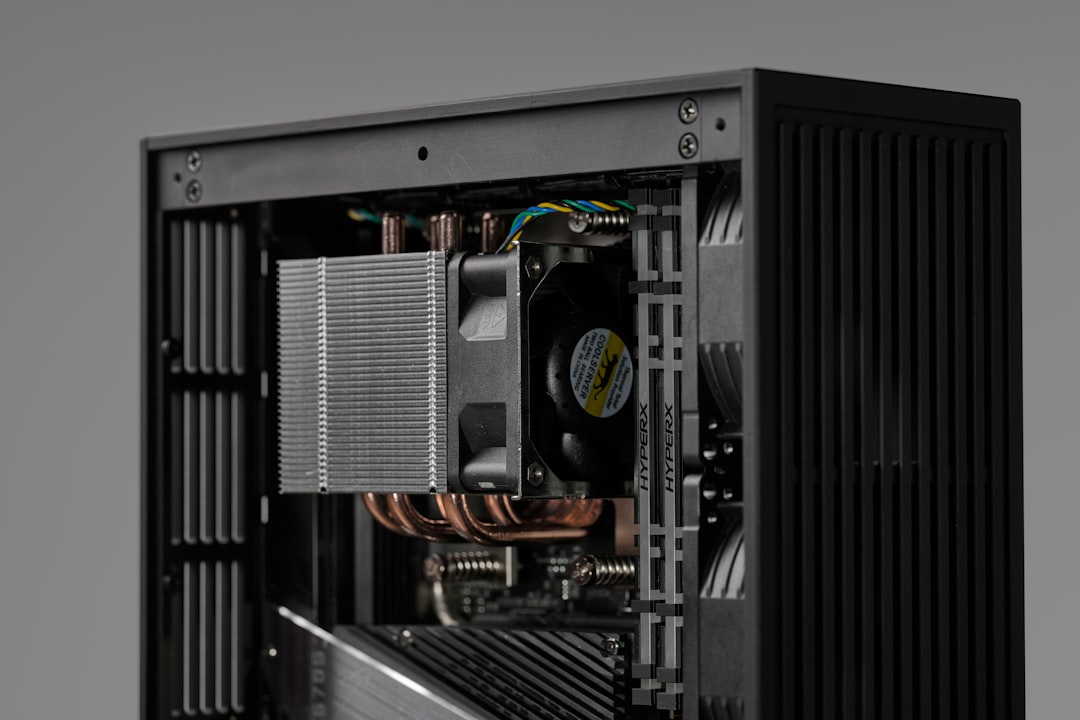
Quick Answer: Wi-Fi 7 routers run significantly hotter than their predecessors due to simultaneous multi-band operation, 320 MHz channel widths, and denser silicon. Thermal throttling kicks in when internal temps exceed ~85–95°C, cutting throughput by 20–60%. The fix involves placement, airflow, firmware updates, and in some cases passive cooling modifications — but the root cause is often a fundamental hardware-thermal design compromise.
The first sign is usually subtle. You're watching a 4K stream or running a large file transfer and the speeds just... sag. Not dramatically, not with an error message — just a quiet, unexplained degradation that recovers when traffic drops. You reboot the router. It works fine for twenty minutes. Then it happens again.
What you're probably experiencing is thermal throttling — and if you bought a Wi-Fi 7 router in the last eighteen months, you're far from alone, just as many users struggle when they find their Chromecast 4K overheating.
Wi-Fi 7 (802.11be) was sold, correctly, as a generational leap. Multi-Link Operation (MLO), 320 MHz channels on 6 GHz, 4096-QAM modulation, up to 46 Gbps theoretical throughput. Every spec sheet looks incredible. What those spec sheets do not discuss is that pushing that much radio frequency energy and computational load through a consumer-grade plastic chassis generates heat that current thermal designs struggle to dissipate cleanly.
This isn't a fringe problem or a product defect in the traditional sense. It's an engineering tradeoff that the industry made, largely without disclosing it clearly to end users. And fixing it — really fixing it — requires understanding what's actually happening inside that router.
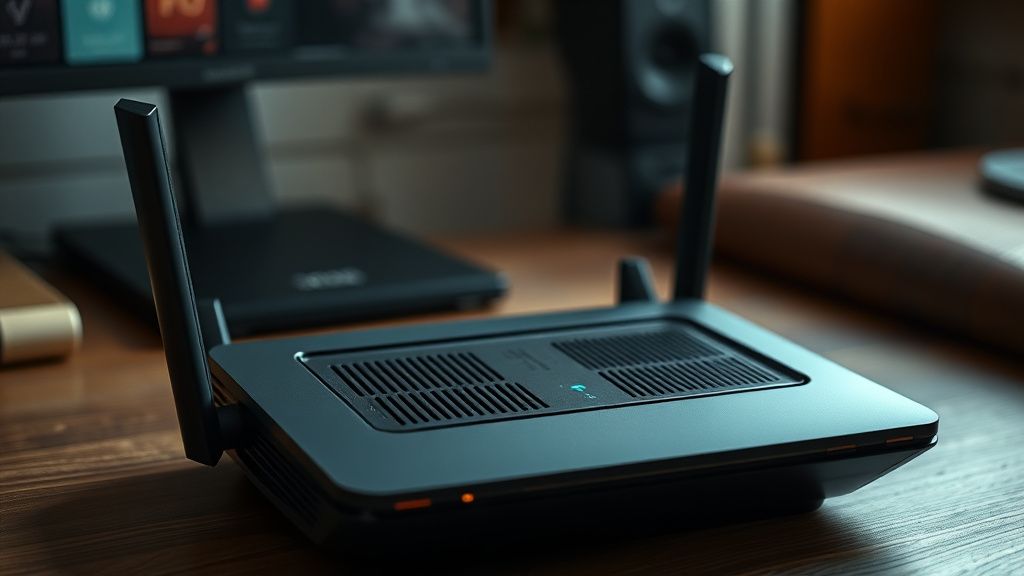
Why Wi-Fi 7 Routers Run So Hot: The Thermal Physics of 802.11be
To understand why Wi-Fi 7 routers throttle, you need to understand what's actually changed from Wi-Fi 6E — because it's not just "more antennas."
The Silicon Density Problem
Wi-Fi 7 routers typically integrate:
- A multi-core application processor (often ARM Cortex-A73 or A55 clusters running at 1.5–2.4 GHz)
- Dedicated RF front-end modules for 2.4 GHz, 5 GHz, and 6 GHz bands simultaneously
- MLO coordination logic, which requires the chipset to manage simultaneous transmissions across multiple bands in real-time
- High-speed switch fabric (often 10 GbE capable)
- Increasingly, NPU or hardware acceleration blocks for QoS, firewall, and VPN offload
Qualcomm's Networking Pro 1220 and MediaTek's Filogic 880 — the two dominant Wi-Fi 7 SoCs — pack this complexity into silicon that generates meaningful heat under load. The Filogic 880, for instance, combines a quad-core ARM Cortex-A73 cluster with integrated Wi-Fi 7 baseband across all three bands. That's a lot of transistors switching at high frequency.
Under full multi-band load — which is precisely what happens when MLO is active — power consumption on these platforms can reach 25–40W for the router chassis as a whole, compared to 12–18W typical for a mid-range Wi-Fi 6 router. That delta matters enormously when you're trying to dissipate heat through a plastic enclosure designed primarily for aesthetic reasons.
320 MHz Channels and the RF Heat Tax
The 6 GHz band in Wi-Fi 7 supports 320 MHz channel widths — double the 160 MHz maximum in Wi-Fi 6E. Using a 320 MHz channel is effectively asking the radio to be continuously active across a much wider spectrum slice, which increases the duty cycle of the RF amplifiers.
RF power amplifiers are inherently inefficient. Even modern GaN-based designs (most consumer routers still use CMOS-integrated PAs) waste a significant percentage of input power as heat. When you push those amplifiers harder and wider, the thermal output scales accordingly.
The problem is compounded by MLO itself. When a Wi-Fi 7 device connects via MLO, it maintains active radio links on multiple bands simultaneously. The router's RF section is never truly idle on those bands. Previous Wi-Fi generations could throttle radio activity more aggressively during low-traffic periods; MLO's design philosophy works against that kind of opportunistic power savings.
Thermal Design: Where the Compromises Live
Consumer router thermal design is, frankly, an afterthought in most product development cycles. The visual design team decides the chassis shape. Marketing decides it should be smaller and sleeker than the previous generation. Then the thermal engineers work within whatever space is left.
Most Wi-Fi 7 routers use one of three thermal approaches:
- Passive convection only — relying on chassis vents and natural airflow. Works adequately below ~20W sustained. At 30W+, it struggles.
- Heatsink-on-SoC with passive chassis — adds a copper or aluminum spreader directly on the main SoC, slightly better, but still constrained by the chassis's ability to dissipate heat to the environment.
- Active cooling (fan) — found in a minority of Wi-Fi 7 routers, typically the "performance" or "pro" segment. Works well but introduces noise and a mechanical failure point.
What almost no consumer Wi-Fi 7 router has is a vapor chamber or heat pipe system, which is standard in high-end laptops running similar TDP silicon. The cost and engineering complexity doesn't fit the $300–$600 price point where most Wi-Fi 7 routers land.
What Thermal Throttling Actually Looks Like in Practice
The throttling behavior varies by chipset vendor and firmware implementation, which makes it maddening to diagnose.
On Qualcomm-based routers (ASUS, Netgear, some TP-Link), thermal throttling typically manifests as:
- Reduction in the number of active spatial streams (4×4 MIMO drops to 2×2)
- Channel width reduction (320 MHz → 160 MHz → 80 MHz)
- TX power reduction
On MediaTek-based routers (TP-Link, some Xiaomi/Redmi), the behavior is slightly different — firmware typically prioritizes TX power reduction first, then spatial stream reduction.
What makes this particularly frustrating from a user perspective is that none of this is surfaced in the router UI. You don't get a notification. You don't see a temperature readout. The router just silently performs worse. The only way to confirm it's happening is through tools like Wi-Fi diagnostics on macOS (Option+click the Wi-Fi icon → "Open Wireless Diagnostics"), checking the iw dev output on Linux, or using the router's CLI/SSH interface if it exposes thermal sensors.
Real Field Reports
On the ASUS subreddit (r/HomeNetworking, r/ASUS), threads about the ROG Rapture GT-BE98 and ZenWiFi BQ16 Pro regularly surface throttling complaints. One user in a thread titled "GT-BE98 speeds tanking after 30 minutes of gaming" described the pattern precisely: "blazing fast right after reboot, then 40 minutes later it's slower than my old AC router. No errors in the log."
TP-Link's BE900 — using the Qualcomm Networking Pro 1220 — has seen similar threads on their community forum. One firmware version (released in early 2024) actually removed temperature logging from the diagnostic interface, which prompted a minor community backlash. Users speculated, not unreasonably, that the company didn't want customers to easily see how hot the device was running.
Netgear's Orbi 970 has a documented history of thermal issues in mesh satellite units specifically — the satellite form factor is smaller, with fewer vents, and the second and third satellites in a system often run harder due to backhaul demands. Several Amazon reviews (with photos attached) show customers using IR thermometers on the chassis, recording external surface temperatures of 52–58°C, which implies internal SoC temperatures well above 85°C.
A thread on Hacker News from late 2023 titled "Wi-Fi 7 routers are thermally compromised by design" got significant traction among network engineers. One commenter who identified as working in embedded systems wrote: "The problem is nobody wants to put a fan in a consumer router because it adds noise and a failure point. But the silicon is running at laptop-class TDP. Something has to give."
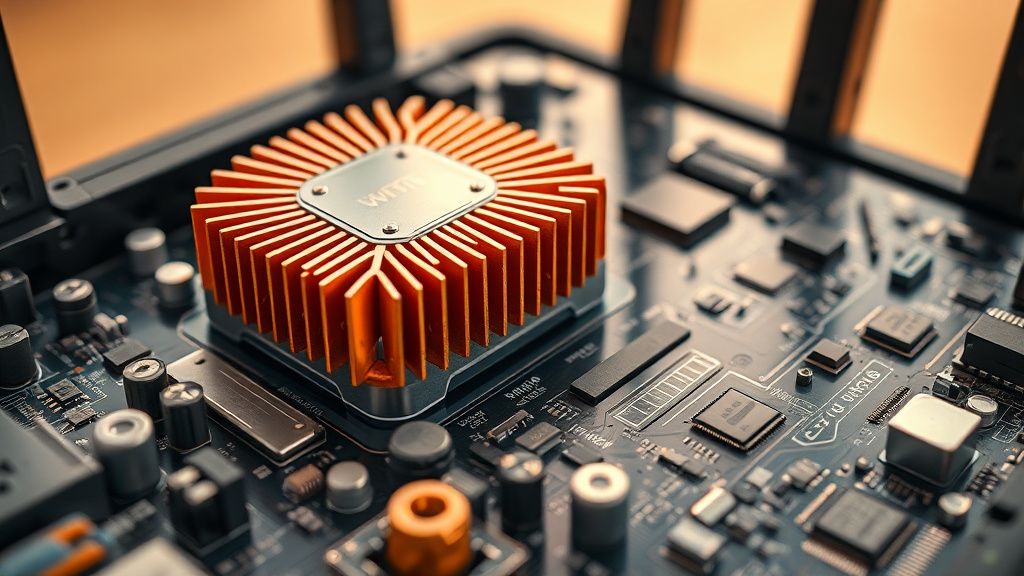
Diagnosing Whether Your Router Is Actually Throttling
Before you start modifying hardware or buying new equipment, confirm the problem is thermal.
Step 1: Establish a Baseline
Run a sustained throughput test (iperf3 is ideal; a large file transfer works too) immediately after a cold reboot. Record the speed.
# On a local server/PC connected to your network
iperf3 -s

# On the client side, run a 5-minute sustained test
iperf3 -c [server_IP] -t 300 -P 4
Log the throughput every 30 seconds. If it degrades significantly after 10–20 minutes, that's a strong thermal signal.
Step 2: Check Physical Temperature
If your router has an SSH/CLI interface (ASUS routers with Merlin firmware, for instance), you can often read thermal sensors:
# On ASUS Merlin
cat /sys/class/thermal/thermal_zone*/temp
These values are in millidegrees Celsius. Divide by 1000. Anything sustained above 85°C on the SoC zone warrants attention.
For routers without SSH access, an IR thermometer pointed at the chassis — specifically near the main processor location — gives rough guidance. External chassis temperatures above 55°C are a warning sign.
Step 3: Correlation Test
Place the router in a cooler environment (near an AC vent, or temporarily with a desk fan blowing directly on it). Run the same iperf3 test. If sustained throughput improves meaningfully, thermal throttling is confirmed.
Fixing Thermal Throttling: The Realistic Options
Placement and Airflow — The Free Fix That Works Better Than You'd Think
The single most impactful intervention for most users doesn't cost anything. Router placement profoundly affects operating temperature.
What kills routers thermally:
- Enclosed entertainment center shelves with no airflow
- Inside cable management boxes or plastic enclosures
- On carpet or fabric surfaces that block bottom vents
- Stacked directly on top of a cable modem or other heat-generating equipment
- In direct sunlight
- In small closets with poor ambient airflow
What helps:
- Open shelf, elevated, ideally with 6+ inches of clearance on all sides
- Vertical mounting (many routers are designed for this) — convection is more effective when the device is vertical
- Away from other heat sources
- In a room with ambient temperature below 25°C
This isn't trivial advice. Moving a router from inside an AV cabinet to an open shelf in the same room can reduce operating temperature by 10–15°C, which can be the difference between consistent throttling and none at all.
Firmware Updates: Sometimes They Help, Sometimes They Don't
Router manufacturers have been quietly pushing firmware updates that adjust thermal management parameters. ASUS pushed updates to the GT-BE98 series in 2024 that modified the throttling curve — specifically, raising the threshold at which spatial stream reduction kicks in while lowering the threshold for TX power reduction (a less perceptible form of throttling). Whether this is a "fix" or a "hide the problem differently" is debatable.
TP-Link's BE900 received a firmware update that improved MLO scheduling efficiency, which reduced sustained load and consequently reduced thermal output in typical usage patterns. This is the better kind of fix — actually reducing heat generation rather than just managing its effects differently.
What to do:
- Check manufacturer's firmware release notes specifically for any mention of "thermal," "performance stability," or "wireless optimization"
- On ASUS routers, the Merlin/Asuswrt-Merlin community fork sometimes has more aggressive thermal tuning available
- Enable automatic firmware updates if you haven't — thermal management is an ongoing firmware issue for all current Wi-Fi 7 platforms
Physical Cooling Modifications (For the Technically Inclined)
This is where things get interesting — and where the workaround culture around Wi-Fi 7 thermal issues has produced some genuinely clever field engineering.
Option 1: External USB Fan
Several Wi-Fi 7 routers have USB-A ports primarily intended for storage. A small 5V USB fan drawing 2–3W, positioned to direct airflow across the top or side vents, can provide meaningful supplemental cooling. Users in the r/HomeNetworking community have documented this approach with ASUS and Netgear units, reporting sustained temperature reductions of 8–12°C. It's inelegant, but it works.
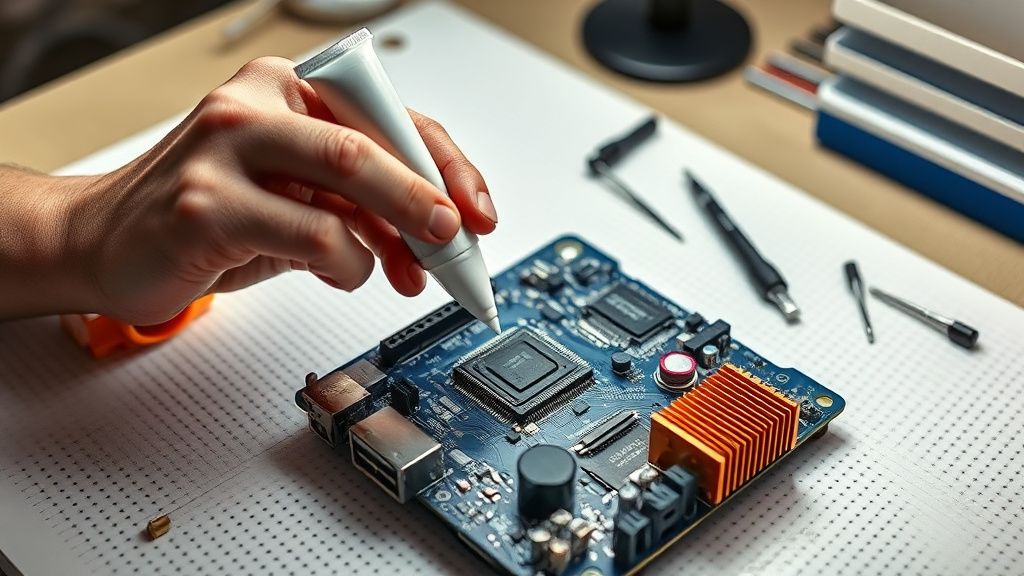
Option 2: Aftermarket Heatsink Application
On routers where disassembly is reasonably accessible (ASUS devices in particular have detailed teardown guides on iFixit and YouTube), users have added copper heatsink pads to secondary chips (the 5 GHz and 6 GHz RF modules, which often have no thermal interface at all from the factory) and improved the thermal compound on the main SoC.
This is genuinely effective. The 6 GHz RF module in several routers sits on the PCB with no heatsink at all — purely passive convection through air. Adding a copper heatsink pad with thermal tape can reduce that module's temperature by 15–20°C. This matters because throttling decisions are often made based on the hottest zone in the thermal model, not an average.
Caution: Opening the router typically voids the warranty. Some chassis use security screws or tamper-evident seals. And if you're not comfortable working with ESD-sensitive electronics, the risk of damaging the board is real.
Option 3: Positioning with Thermal Pads to Chassis
A variant of the above, without full disassembly — thick thermal pads (3mm–5mm silicone or graphene) pressed between chassis hotspots and a metal surface (like mounting on a metal wall plate or an aluminum shelf). Less effective than internal modification, but achieves some heat spreading.
The Counter-Criticism: Is Thermal Throttling Actually a Problem for Real Users?
This is where the analysis gets honest about its own limitations.
The throttling discourse online is heavily skewed toward power users — the people running iperf3 tests, connecting 30+ devices simultaneously, streaming from a NAS at multi-gigabit speeds. For those users, thermal throttling is a genuine, measurable, daily problem.
For the majority of Wi-Fi 7 router buyers — people who bought it because their carrier upsold them on it, or because "Wi-Fi 7" sounded newer and faster — the throttling may never manifest in a meaningful way. If you're streaming Netflix and browsing the web, the router's utilization is low enough that thermal limits are rarely reached. The latent capacity is never stressed enough to generate the heat that triggers throttling.
Some engineers have pushed back on the framing that thermal throttling is a "flaw." One perspective, articulated in a Qualcomm networking whitepaper and echoed by a product manager in a Reddit AMA for a major router brand (later confirmed via their account history): thermal throttling is the design. The alternative — allowing the SoC to run unconstrained at full power until it reaches dangerous temperatures — would reduce device lifespan dramatically and potentially create reliability issues. Throttling is a safety and longevity mechanism, not a failure.
That's technically correct. But it collides with the marketing reality that these routers are sold on maximum throughput numbers that are essentially unachievable in sustained real-world operation. The 46 Gbps headline figure requires simultaneous multi-band operation at maximum channel width and highest modulation — the exact conditions that generate maximum heat and therefore maximum throttling.
The gap between theoretical maximum and sustained real-world performance for Wi-Fi 7 routers is substantially larger than for Wi-Fi 6 routers. That deserves more transparency than it currently receives.
Mesh Systems: A Distinct and Worse Problem
If single-router thermal issues are frustrating, mesh satellite thermal issues are a different category of problem.
Mesh satellites have smaller enclosures,
Bu makale affiliate linkleri içermektedir.