Quick Answer: Apple TV 4K black screen issues are almost always caused by a failed HDMI handshake — the authentication protocol between your Apple TV and display. The fastest fixes are: force-restart the Apple TV, swap HDMI cables, change HDMI ports, lower the video output resolution in settings, or disable HDCP if your TV's firmware has a known handshake bug.
You plug in the Apple TV 4K. The status light pulses white. The remote connects. But the screen stays black. Or you were watching something and the picture just dropped — not a flicker, not a freeze, just gone. The TV reports "no signal" or shows the input icon briefly then nothing, a frustration similar to experiencing a Fire TV Stick 4K Max Black Screen, which requires its own specific quick fixes.
This is one of the most reported Apple TV complaints across Reddit threads, Apple Support Community posts, and home theater forums going back through multiple hardware generations. It's consistent enough that there are dedicated troubleshooting threads with hundreds of replies — r/appletv has a sticky note about it, Apple's own support pages acknowledge several variants, and AVS Forum has multi-year threads where people compare notes on which TV firmware versions break things and which cable brands work reliably.
What makes it particularly frustrating is that it's not always reproducible. Some people hit it once and never again. Others hit it every morning when the TV wakes from standby. Some get it only with 4K HDR content, others only after a software update. The symptom looks identical across all these cases — black screen — but the root cause can be completely different each time, much like how different hardware requires unique diagnostics, such as troubleshooting a Jura E8 Error 8 or addressing PS5 DualSense stick drift.
What an HDMI Handshake Actually Is (and Why It Breaks)
HDMI handshakes aren't a feature. They're a mandatory authentication procedure that runs every time two devices negotiate a connection. When you connect an Apple TV 4K to a television, the two devices exchange a series of signals over the HDMI cable to establish: what resolutions are supported, what color spaces and HDR formats are available, and whether content protection (HDCP) requirements are satisfied.
The handshake process runs on a protocol called HDCP — High-bandwidth Digital Content Protection. HDCP exists because Hollywood and content licensing bodies require it. Without a valid HDCP handshake, an Apple TV will not output protected content, which is essentially everything: Netflix, Apple TV+, purchased movies, live sports. The display must present a valid HDCP certificate, the source device verifies it, and only then does the video signal start flowing.
The problem is that HDCP — specifically HDCP 2.2 which is required for 4K content — is implemented inconsistently across TV manufacturers, AV receivers, and soundbars. Some TVs have firmware bugs where the HDCP 2.2 negotiation times out under certain conditions. Some AV receivers in the signal chain don't properly pass through HDCP 2.2 even though they claim to support it on paper. Some older HDMI cables have signal integrity problems at the frequencies required for 4K HDR signals, similar to how faulty connections or settings can lead to Hue Bridge sync errors or Roomba j7+ persistent cliff sensor errors.
There's also an entirely separate category of failure: EDID (Extended Display Identification Data) negotiation. This is how the Apple TV learns what the display is capable of. If the EDID read fails or returns corrupted data — which happens more often than manufacturers admit — the Apple TV may select a video mode the TV can't actually display, resulting in a black screen, an issue just as vexing as dealing with DeLonghi Magnifica S flashing lights or a Breville Oracle Touch grinder jam.
The Three Categories of Black Screen Failure
Not all black screens are the same failure. After reading through hundreds of support threads, the pattern breaks down into roughly three categories:
Category 1: Startup / Wake-from-Sleep Black Screen
This is the most common, occurring with a frequency that rivals other consumer electronics frustrations like Nintendo Switch Joy-Con drift or PS5 CMOS battery replacement requirements. The TV was on standby. You turn it on, switch to the Apple TV input, and get nothing. Or the Apple TV comes out of sleep automatically when you pick up the remote, but the TV hasn't fully initialized its HDMI receiver yet. The handshake runs before the display is ready. It fails. The Apple TV assumes the display is gone and enters a fallback state.
This is particularly bad with Samsung TVs from 2019-2022. There are extensive threads on AVS Forum (thread titles like "Samsung Q80R black screen Apple TV every morning") documenting this exact timing issue. Samsung's HDMI receiver on certain panels takes longer to become ready than the Apple TV waits before initiating the handshake.
Category 2: After a Software Update (Apple TV or TV Firmware)
tvOS updates occasionally change HDCP behavior, output resolution defaults, or HDR mode handling. When tvOS 16 rolled out, there was a visible spike in black screen reports in the Apple Support Community — specifically around auto-switching frame rates and HDR formats. When the Apple TV switches from SDR UI navigation to HDR video playback, it re-initiates the handshake in the middle of a session. If the display or receiver has any latency issues with that mid-session renegotiation, the screen goes black and sometimes never recovers without a restart.
TV firmware updates cause the same problem from the other direction. LG's webOS updates have twice caused documented HDCP compatibility regressions with Apple TV — once in 2020 and once in 2022. After a TV firmware update, LG support communities would fill with reports, then LG would push a corrective update weeks later.
Category 3: AV Receiver / Soundbar in the Chain
If you're routing HDMI through a receiver or soundbar before it reaches the TV, you've added a third device to the handshake negotiation. The handshake has to succeed at every link in the chain: Apple TV → receiver → TV. If the receiver doesn't properly pass HDCP 2.2 certificates, or if it introduces any signal timing issue, the chain breaks.
Older Yamaha and Denon receivers from 2015-2017 were notorious for this. They advertised HDMI 2.0 support but had HDCP 2.2 passthrough bugs that weren't fully fixed until firmware updates that many owners never installed. The symptom was identical to a bad cable: black screen on 4K content, but SD content played fine because HDCP 1.4 (used for lower-resolution content) passed through correctly.
Field Reports: What Real Users Actually Experience
On the Apple Support Community thread "Apple TV 4K - Black Screen on Samsung TV" (thread started in 2021, still receiving replies as of 2024), the pattern is painfully clear. User after user describes identical symptoms, tries the same fixes, gets inconsistent results. One user fixed it by changing the HDMI port from port 4 to port 2 on their Samsung — same TV, same cable, different result, no explanation ever offered. Another user said they solved it by turning off "Anynet+" (Samsung's HDMI-CEC brand name) completely. A third user fixed it by downgrading their Apple TV's output from 4K HDR to 1080p SDR and then back up — the act of changing and re-changing forced a fresh HDCP negotiation.
On Reddit's r/hometheater, there's a frequently cited comment from a user named something like avs_throwaway_ that's been quoted and saved: "The handshake is a timing dance. Your TV has to be listening at exactly the right moment. Some setups just never land on the same beat. The fix is usually forcing both devices to restart their HDCP state at the same time."
A developer who maintains a home automation system wrote a GitHub issue comment (on a home-assistant related repo dealing with HDMI-CEC control) noting that Apple TV HDCP failures correlate heavily with CEC activity — when another device on the HDMI bus sends a CEC command, it can interrupt the active HDCP session on Apple TV in ways that no other device they tested exhibited.
The frustration in these communities isn't just with the black screen itself. It's with the inconsistency. Fixes that work for one person don't work for another with identical hardware. Apple's support documentation is generic. TV manufacturer support often denies the problem exists. The user ends up doing empirical testing with cables and ports and settings, reverse-engineering a system that three separate companies designed without coordinating the edge cases.
The Fastest Fixes: Ordered by Likelihood of Success
Force-Restart Apple TV and the Display
Hold Menu + TV/Home button on the remote for five seconds until the light on the Apple TV flashes rapidly. This forces a complete reboot, clearing the HDCP session state entirely. At the same time, turn the TV off with the physical power button (not just standby via remote) and unplug it from the wall for 30 seconds. This clears the TV's HDMI receiver state. Power the TV back on first, wait for it to fully initialize (15-20 seconds), then power on the Apple TV.
The sequence matters. If the Apple TV initiates the handshake before the TV's HDMI receiver is fully ready, you get the same black screen.
Change the HDMI Port
This sounds too simple but it works more often than it should. TV manufacturers allocate different HDMI ports to different internal circuits, and HDCP 2.2 compliance is sometimes only properly implemented on certain ports (usually port 1 or port 2, often labeled "HDMI 2.0" or "4K Compatible"). Moving the Apple TV from port 3 to port 1 can solve the problem without changing anything else.
Check your TV's manual. On many Samsung, Sony, and LG TVs, not all HDMI ports support HDCP 2.2. This isn't always clearly labeled on the TV itself.
Swap the HDMI Cable
Not all HDMI cables are created equal at 4K HDR signal frequencies. A cable that works fine for 1080p can fail intermittently at the higher bandwidth required for 4K HDR, particularly if it's older, longer than 6 feet, or a budget build. The standard recommendation is a certified Premium High Speed HDMI Cable (which supports 18 Gbps bandwidth) or an Ultra High Speed cable (48 Gbps) for 4K@60Hz HDR content.
The certification matters because HDMI licensing actually tests these cables. Uncertified cables sold as "4K HDMI" cables may not meet the spec under load. Amazon is full of these.
Lower the Output Resolution
On the Apple TV, navigate to Settings → Video and Audio → Resolution and manually set it to 1080p 60Hz SDR. If the black screen disappears, the problem is in the 4K or HDR handshake. From there you can incrementally try 4K SDR, then 4K HDR, to isolate whether it's the resolution step or the HDR color space negotiation that's failing.
If the screen is entirely black and you can't navigate there: plug the Apple TV into a different display (a monitor, a different TV) to access settings. If no other display is available, hold the TV/Home button on the remote, wait for the Control Center to try to appear, then after 10 seconds press Menu four times rapidly — this isn't officially documented but some users report it triggers a resolution reset. The officially supported method is to hold the Back button and TV/Home button simultaneously for five seconds, which forces the Apple TV to output a resolution compatible with the current display.
Disable or Reconfigure HDCP Settings
In Settings → Video and Audio, there's no direct "disable HDCP" toggle on Apple TV because HDCP is mandatory for DRM-protected content. However, disabling "Match Content Range" and "Match Frame Rate" eliminates the mid-session re-handshakes that cause black screen drops during content transitions. This trades some visual accuracy for stability — the Apple TV stops switching HDR modes between SDR and HDR content, instead staying in a fixed output mode. For users experiencing black screens during playback but not on startup, this is often the most effective fix.
Bypass the AV Receiver
If you have a receiver or soundbar in the chain, temporarily connect the Apple TV directly to the TV using a known-good cable. If the black screen disappears, the receiver is the problem. Check the receiver's firmware, verify which HDMI inputs and outputs support HDCP 2.2 passthrough (not all do even on modern receivers), and check if the receiver has an HDCP settings menu.
The CEC Problem Nobody Talks About
HDMI-CEC (Consumer Electronics Control) is the protocol that lets your TV remote control the Apple TV, and lets the Apple TV automatically switch your TV input. It's convenient. It's also a major source of handshake failures on certain setups.
The problem is that CEC is implemented differently by every manufacturer — Samsung calls it Anynet+, LG calls it SimpLink, Sony calls it BRAVIA Sync, Panasonic calls it VIERA Link. These implementations don't always communicate cleanly with each other. When a CEC command is sent from the TV to the Apple TV (like an auto power-off command), it can interrupt an active HDCP session. The Apple TV's response to a CEC power-off command is sometimes to drop the HDMI output entirely rather than just entering sleep mode, and when it comes back, the handshake fails.
The workaround: go to Settings → Remotes and Devices on the Apple TV and disable "TV Provider" and review the CEC control options. Many users on AVS Forum report that disabling CEC on either the TV or the Apple TV completely eliminates their black screen issues, at the cost of losing automatic input switching and TV remote control.
When the Problem is Actually the Apple TV Hardware
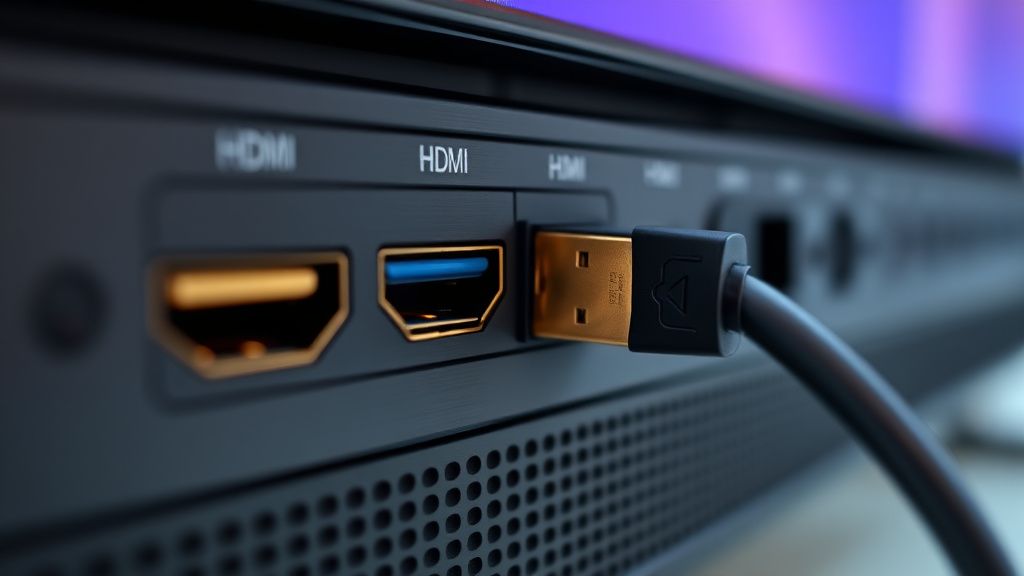
This is less common but real. The HDMI port on Apple TV units — particularly first-generation Apple TV 4K (2017) units — can develop physical connection issues. The HDMI connector on the device itself is relatively standard, but the port on early units developed a reputation for loose connections over time. Micro-movements from cable weight or being moved repeatedly caused intermittent connection failures that manifested as — yes — black screens and handshake errors.
If you're on an older unit and have tried everything else, check the physical connection. Try applying slight upward pressure to the cable where it enters the device while the Apple TV is running. If the screen comes on, the port itself may be the issue. This isn't fixable without hardware repair.
The third-generation Apple TV 4K (2022) moved to a slightly revised port design and this complaint appears less frequently in support communities for that generation, though it hasn't disappeared entirely.
Counter-Criticism: Is Apple Doing Enough Here?
There's a legitimate argument that Apple should be doing more to handle HDCP failures gracefully. When a handshake fails, the Apple TV goes black. That's it. There's no error message, no diagnostic output, no retry with fallback resolution. The user has no information about why the screen is black or what they should try.
Compare this to some Android TV implementations that display actual error messages like "HDCP authentication failed" or "HDMI signal not detected" — not solutions, but at least information. Apple's approach of presenting zero diagnostic information forces users to reverse-engineer the problem through community forums and trial and error.
Apple's support documentation on this topic, as of recent checks, remains fairly surface-level. The official guidance covers basic restart steps but doesn't address CEC interactions, per-port HDCP compliance differences, or the firmware bugs on specific TV models that are extensively documented in public forums. There's no acknowledgment that, for example, Samsung Q-series TVs running certain firmware versions have a known timing issue with Apple TV HDCP negotiation.
From one perspective, this is understandable — Apple doesn't control TV firmware, can't document every third-party hardware bug, and HDCP failure modes are genuinely complex. From another perspective, it's a premium device sold at a premium price, and "turn it off and on again" as the primary support guidance is inadequate.
Some developers in home automation communities have argued that Apple could implement a more aggressive HDCP retry mechanism — if the handshake fails on first attempt, wait 2 seconds and retry automatically rather than going black and staying black. Whether that's technically constrained by the HDCP spec or an Apple engineering decision isn't publicly known.
What Actually Matters in Long-Term Stability
The black screen problem tends to stabilize — for most users — after a combination of:
- A stable HDMI cable that's properly certified
- Using an HDMI port on the TV that's confirmed HDCP 2.2 compliant
- Disabling Match Frame Rate and Match Content Range if the TV is slow to negotiate mid-session renegotiations
- Keeping both the Apple TV and TV firmware updated (yes, even though updates sometimes cause this problem, they also fix it)
- Managing CEC settings to eliminate unexpected session interruptions
The setups that remain problematic long-term are usually those with AV receivers that have marginal HDCP 2.2 passthrough, or older TV models where the manufacturer has stopped releasing firmware updates, leaving known HDCP bugs unfixed permanently.
Escalation Paths When Nothing Works
If you've exhausted the above and the black screen persists:
Apple Support: Get a case number. Apple can run remote diagnostics on the Apple