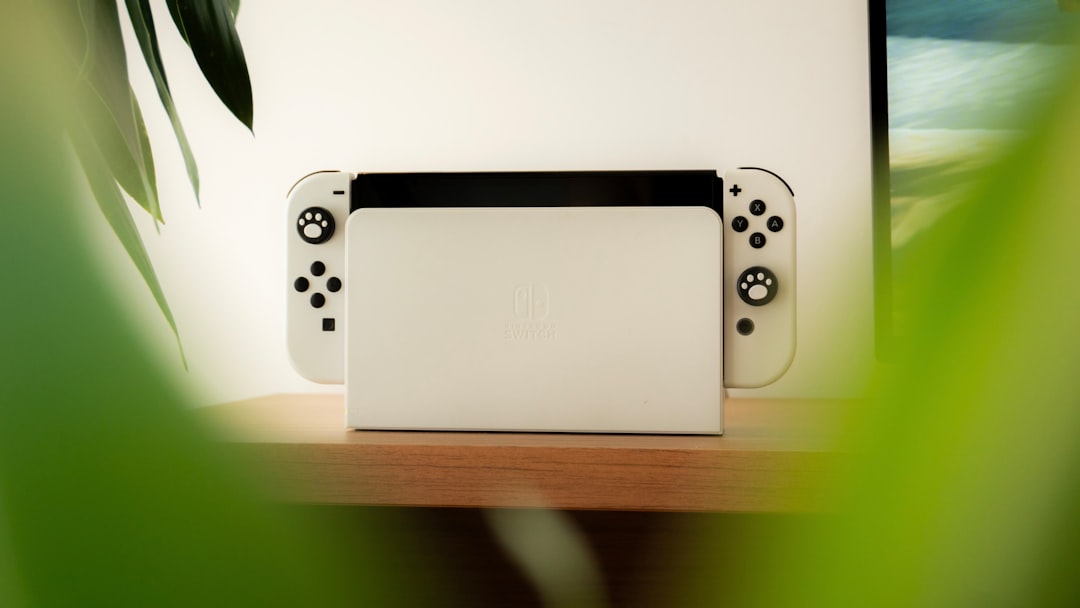
Quick Answer: Nintendo Switch OLED screen burn-in occurs when static UI elements — health bars, game maps, or dock status icons — permanently ghost onto the OLED panel after prolonged exposure. You cannot fully reverse severe burn-in, but you can significantly reduce mild retention using pixel-refresh cycles, brightness management, and content rotation. Prevention is almost always more effective than repair.
There's a specific kind of dread that Nintendo Switch OLED owners know, especially if they have ever wondered: Is your LG OLED flickering? You're playing something with a high-contrast static HUD — maybe Splatoon 3 with its bright ink meter, maybe The Legend of Zelda: Tears of the Kingdom with its always-visible minimap — and then you switch to a solid grey background, or a loading screen, or just your home menu. And there it is. A faint ghost. A whisper of the interface you were just staring at for three hours.
This is OLED screen burn-in, or more precisely in early-stage cases, image retention. The two terms get conflated constantly, including by Nintendo support staff, repair technicians, and most online guides. The distinction matters more than most people realize, especially when you're trying to figure out whether your panel is permanently damaged or just temporarily fatigued.
The Nintendo Switch OLED launched in October 2021 with an impressive 7-inch Samsung-manufactured OLED panel, much like the high-end hardware found in devices that sometimes require troubleshooting, such as when your Apple TV 4K has a black screen. Nintendo's own language around burn-in risk was careful, almost lawyerly. Their FAQ acknowledged that "OLED screens can exhibit image retention or burn-in when displaying high contrast images for a long period of time," and recommended avoiding extended static image display. What they didn't explain clearly was why OLED chemistry makes this structurally inevitable, what the realistic risk timeline looks like for typical gaming sessions, or what distinguishes the fixable from the permanent.
That ambiguity has cost a lot of people a lot of money and unnecessary anxiety.
Understanding the OLED Chemistry Behind Burn-In and Pixel Degradation
To actually fix or prevent burn-in, you need to understand why it happens at the hardware level, similar to how one must diagnose connectivity issues if your Ring camera is struggling with Wi-Fi 7. This isn't academic — the mechanism directly determines which repair strategies work and which ones are folklore.
OLED panels are emissive. Each pixel generates its own light by passing current through an organic compound. Unlike LCD, there's no backlight. The organic molecules — typically small-molecule OLEDs using red, green, and blue emitters — degrade with use. Blue subpixels degrade significantly faster than red and green. This is a known, documented, unresolved challenge in OLED engineering. Samsung's panels, including the one in the Switch OLED, use various compensation techniques, but the fundamental chemistry hasn't changed.
When you display a static image — say, a white stamina ring in the top corner of the screen — the pixels in that exact region are firing at full or near-full intensity for hours. They degrade faster than surrounding pixels. Over time, those pixels become dimmer relative to their neighbors. When you later display a uniform grey background, the dimmer pixels are visible as a shadow of the previous image. This is permanent organic material degradation.
Image retention is something different. It's a temporary electrical phenomenon — residual charge in the pixel circuits that causes a ghost image even after the display has changed content. This can and often does resolve on its own within minutes to hours. Many people who think they have burn-in actually have image retention, just as many homeowners mistakenly blame their network provider when they actually need to stop Wi-Fi 7 dead zones.
The critical test: if the ghost image disappears after you leave the screen off for 30 minutes, or display a moving full-color video for a few minutes, you have retention, not burn-in. Retention is reversible. Burn-in is not — at least not meaningfully.
Diagnosing What You Actually Have: Retention vs. True Burn-In
Before spending money or time on repair attempts, you need an honest diagnosis. The gaming community has developed a fairly reliable field protocol for this.
Step 1: The Static Grey Test
Display a medium grey static image on your screen. You can use browser-based solid color pages if docked, or load a grey wallpaper. Look for ghost images of previously displayed content. Take a photo for reference.
Step 2: The Off-Rest Test
Turn the screen completely off for at least 30-60 minutes. No sleep mode — fully power down. Then display the same grey image again. If the ghost is significantly fainter or gone, you have image retention, not burn-in.
Step 3: The Warm-Up Test
Some retention clears faster under gentle use. Play a fast-moving, colorful game with no static elements for 20-30 minutes — something like a racing game with a dynamic camera. Then return to the grey test. Retention that clears under this condition is mild and manageable.
Step 4: The White Flash Test
Display a pure white screen for 2-3 minutes, then immediately display the grey screen. If the ghost is still clearly visible after the white flash, and it matches the shape of previously displayed UI elements precisely, you're likely looking at actual burn-in.
Most Reddit users in the r/NintendoSwitch community who post burn-in concerns are, based on reported outcomes, dealing with retention rather than true burn-in — especially if they've owned the device for under a year with typical usage. The truly permanent cases tend to involve unusually long single-session gaming, developers doing extended testing with static debug overlays, or display units in commercial settings running the same content on loop.
Step-by-Step: Reducing Image Retention on Nintendo Switch OLED
These methods work for image retention and mild burn-in — cases where the organic degradation isn't catastrophically uneven but where some pixel compensation and display recovery techniques can reduce visible ghosting.
Method 1: Nintendo's Built-In Auto-Brightness and Screen Dimming
The Switch OLED's system settings include auto-brightness and automatic sleep timers. These should be your baseline configuration, not optional tweaks.
Navigate to: System Settings → Screen Brightness → Auto-Brightness: On
Also set: System Settings → Sleep Mode → Turns off screen: 1 minute (for handheld mode)
This sounds trivial. It isn't. The single largest contributor to early-onset retention is people leaving the Switch OLED sitting on a paused game while they take a phone call or watch something else. Even 15-20 minutes of a static pause screen at high brightness is measurably wearing on those blue subpixels.
Method 2: Pixel-Refresher / Panel Recovery Cycle
Samsung OLED panels used in many consumer devices include built-in pixel-refresher routines. On some TVs, this runs automatically when you leave the panel off. The Switch OLED doesn't offer a user-accessible dedicated pixel-refresh utility in the standard UI — this is a notable absence compared to LG OLED TV firmware, which has explicit pixel-refresh and compensation tools.
However, there's a community-documented workaround:
- Charge your Switch OLED to 100%.
- Open a browser (via a workaround if needed in handheld mode, or through a connected device in dock mode).
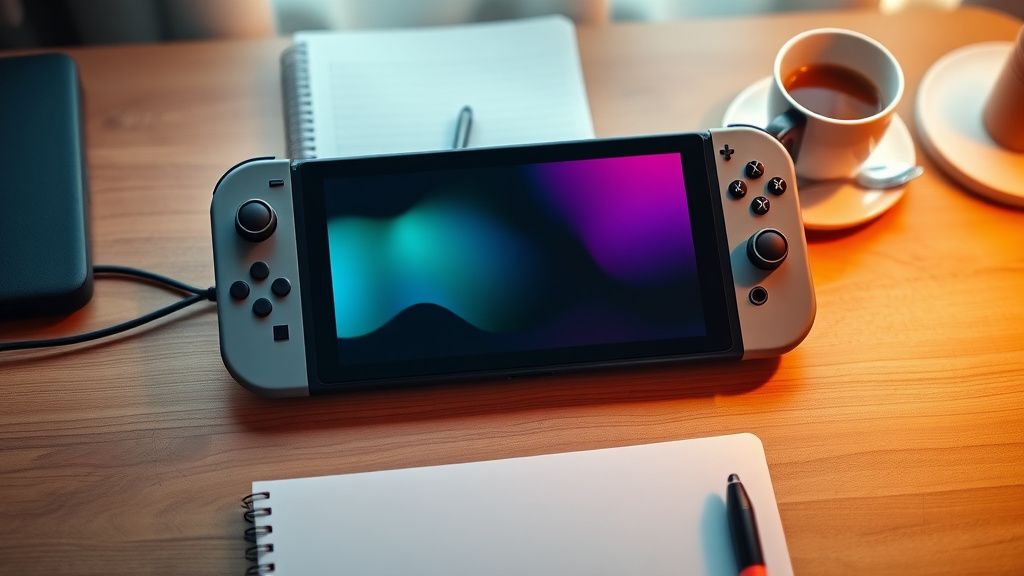
- Display a full-screen, slow-moving color gradient loop — there are YouTube videos specifically designed for OLED burn-in recovery, running at low brightness with slowly cycling colors.
- Run this for 30-60 minutes.
- Follow with 10 minutes of a full white screen, then full black, alternating.
The physics behind this: by carefully exercising all pixels equally across the color spectrum at moderate intensity, you're helping "re-normalize" usage patterns and allowing the display's internal compensation logic to partially recalibrate. This won't rebuild degraded organic molecules — nothing will — but it can reduce the apparent contrast between worn and unworn pixels for cases of mild asymmetric use.
Community reports on this method are mixed. On r/NintendoSwitchOLED, some users report visible improvement after 2-3 sessions. Others report no change. The honest assessment is that it costs nothing to try and has no risk of making things worse.
Method 3: JScreenFix and Browser-Based Pixel Exercisers
JScreenFix is a web tool that displays a rapidly flickering field of colored pixels designed to exercise stuck or fatigued pixels. It was originally designed for LCD stuck-pixel recovery, but the community has adapted it for OLED retention recovery with some reported success.
Access it through the Switch's browser (either via a network captive portal trick or in dock mode through a connected device). Run it for 20-30 minutes over the affected region.
Technical note: this works differently from burn-in recovery. For stuck pixels (a different problem), the rapid state changes can unstick a pixel that's gotten electrically frozen. For retention/burn-in, the mechanism is more about uniform pixel exercise. Don't expect miracles, but it's a legitimate tool in the arsenal.
Method 4: Brightness Reduction as Ongoing Management
Here's a counterintuitive truth about OLED brightness: running your panel at 70-80% brightness instead of 100% doesn't just look roughly as good in most indoor conditions — it dramatically reduces pixel wear rate. OLED brightness is non-linear in terms of power and degradation. Pushing pixels to maximum brightness accelerates organic compound degradation significantly faster than moderate brightness.
Nintendo's default brightness on the OLED model is relatively high. Drop it to 60-70%. You'll barely notice the difference in typical indoor lighting, and your panel's longevity will benefit measurably over months of use.
What Cannot Be Fixed: The Honest Truth About Severe Burn-In
This is where many guides fail their readers. They list every possible technique, imply with enough effort you can restore a burned panel, and bury the honest assessment.
If your Switch OLED has developed true burn-in — permanent pixel degradation visible even after extended rest, white-screen normalization attempts, and pixel exercise routines — the organic molecules in those pixels are physically degraded. You cannot regrow organic emitter material through software or content tricks. The panel would need replacement.
Nintendo's official repair service will replace a burned-in OLED panel, but this is typically not covered under the standard one-year warranty unless Nintendo determines it's a manufacturing defect rather than use-related wear. The cost of an official screen replacement from Nintendo varies by region — expect roughly $100-$200 USD equivalent in most markets — and anecdotal reports suggest Nintendo's support staff are not always consistent about what they'll cover.
Third-party repair shops can source replacement Switch OLED panels, though panel sourcing for the OLED model has been uneven. The Samsung panel used in the Switch OLED is not a commodity part, and supply chains for repair have been fragmented. Some repair shops have reported waiting weeks for replacement panels.
Real Field Reports: What Users Are Actually Experiencing
The gap between theoretical burn-in risk and real-world outcomes is significant and worth examining honestly.
A developer posting in a Hacker News thread about display longevity noted that their Switch OLED used for approximately 4-5 hours daily over 18 months showed no visible burn-in — they credited aggressive auto-brightness settings and game variety. Contrast this with a separate Reddit post in r/NintendoSwitch where a user reported noticeable retention after approximately 200 hours in Animal Crossing: New Horizons, a game notorious for bright, high-contrast static UI elements.
The disparity suggests the risk is real but highly usage-dependent. Static-heavy games with bright persistent HUDs at high brightness in long uninterrupted sessions are the actual danger pattern. Varied gaming across multiple titles with automatic screen dimming enabled represents far lower risk.
Some game developers have quietly acknowledged this. Several Reddit posts from what appear to be indie developers mention receiving emails from QA testers who noticed retention on Switch OLED units used for extended static debug overlay testing — not typical consumer use cases, but illuminating about where the failure threshold actually sits.
Counter-Criticism and Industry Debate: Was the OLED Switch a Mistake?
The launch of the Nintendo Switch OLED triggered genuine controversy in the technical community, and not all of it has been resolved.
The core criticism from display engineers and technically informed consumers: Nintendo chose OLED for a portable gaming device — a use case with inherently static UI elements, high-brightness preferences among users, and unpredictable session lengths — without providing adequate system-level protections. LG and Samsung's flagship OLED TVs ship with pixel-refresher tools, automatic compensation cycles, and burn-in risk notifications. The Switch OLED ships with none of these. Just a vague FAQ warning.
Nintendo's defense, implicit in their public communications, is that the panel is high-quality (and it is — the visual difference over the original LCD Switch is genuine), that typical user behavior doesn't approach burn-in thresholds, and that automatic brightness and sleep functions provide sufficient protection if enabled.
The counterargument: Nintendo's own default settings don't have particularly aggressive screen-off timers enabled out of the box, and most consumers don't dig into system settings to optimize for panel longevity. Putting burden of burn-in prevention almost entirely on user configuration choices while marketing the device as an everyday gaming console is an awkward position.
There's also the question of whether Nintendo adequately disclosed risk. Consumer protection concerns were raised in some markets after the launch, though no formal regulatory action resulted. The display engineering community on Twitter in 2021-2022 was sharply critical of what several engineers called "insufficient disclosure" around OLED burn-in risk for gaming applications.
The counterpoint to the critics: the actual rate of burn-in complaints, relative to Switch OLED install base, has remained relatively low — or at least, low enough that no systemic crisis has emerged. Which either means Nintendo's gamble on typical user behavior paid off, or means burned-in panels are simply being replaced quietly or accepted as "normal aging" by owners who don't know they have a right to be annoyed.
Long-Term Prevention: Configuring Your Switch OLED for Panel Longevity
The most effective intervention is the one you do before you see a problem.
Display Settings Checklist
- Auto-Brightness: Enabled — non-negotiable for longevity
- Manual brightness cap: 60-70% in typical indoor settings
- Auto sleep (handheld): 1-2 minutes when possible, 5 minutes at maximum
- Auto sleep (TV mode): 5-10 minutes — less critical since you're not burning the OLED panel when docked and displaying on TV, but still relevant if you use it in tabletop mode while docked
Game Selection Awareness
Some games are structurally higher-risk for burn-in due to persistent, high-contrast static UI:
- Games with always-visible minimaps in bright colors
- Games with full-time health bars in high contrast
- Games with bright stamina/resource meters in fixed screen corners
- Menu-heavy games where you spend significant time in high-contrast static screens
This doesn't mean don't play them. It means enable aggressive auto-dim, take regular breaks, and be aware that 6-hour sessions are a different risk profile than 1-hour sessions.
The Dock Timing Issue
When you undock the Switch OLED and immediately start handheld play from a static home screen, the first few minutes display the home menu — a relatively static, high-contrast interface. Minor, but worth being aware of: navigate quickly to your game rather than lingering on the home menu.
Screen Replacement: Economics and Practical Reality
If your Switch OLED has confirmed, irreversible burn-in, you're facing a decision that's partly economic and partly about attachment.
Nintendo Official Repair: Generally the safest option for quality, but potentially expensive and potentially not covered under warranty. Nintendo has shown inconsistency in how they handle burn-in cases — some users report replacements covered under warranty, others report being quoted full repair prices. The outcome may depend significantly on the specific support representative, your region, and how you describe the problem.
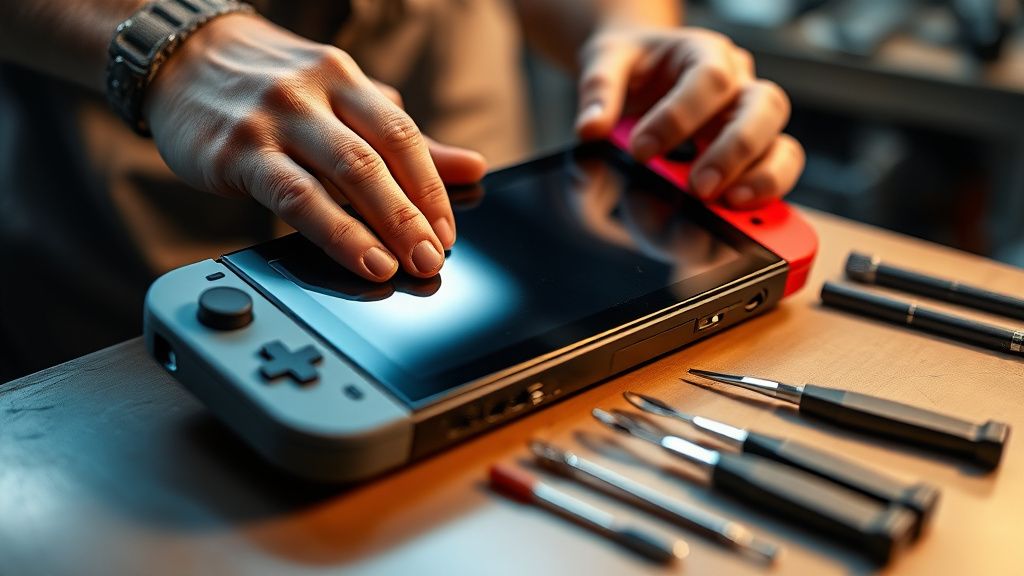
Third-Party Repair: Quality varies enormously. The Switch OLED's panel replacement is a moderately complex repair — the OLED panel in the Switch OLED is fused to the front glass, meaning you can't replace just the panel without replacing the entire display assembly. This raises parts cost significantly compared to the original LCD Switch. Shops that cut corners on replacement parts can install panels with worse burn-in resistance than the original Samsung unit.
Living With It: For mild-to-moderate burn-in that's only visible on solid color backgrounds, many users simply continue using the device. If burn-in is only visible under specific conditions (solid grey screens, white backgrounds) and isn't intrusive during actual gameplay, the rational choice might be to implement aggressive prevention going forward and continue using the console until a natural upgrade point.
[EXTRA_IMAGE: Wide-angle interior photograph of a small independent electronics repair shop with Switch consoles and parts scattered across the counter, fluorescent overhead lighting casting a cool blue-white glow, wall shel
Bu makale affiliate linkleri içermektedir.