The LG G4 OLED, despite its status as a pinnacle of consumer display technology featuring the latest Micro Lens Array (MLA) brightness-boosting layer, remains a prisoner of its own manufacturing tolerances. If you are noticing a pink, green, or magenta tint—particularly on near-black (dark gray) slides—you are observing the reality of "panel uniformity," a term that has haunted home cinema enthusiasts since the days of plasma. There is no magic setting to "fix" a physical variance in the organic compound deposition; however, you can mitigate the perception of tint through careful calibration, service menu adjustments, and environmental management, much like you might address issues such as VRR flicker on LG OLED TVs.
Understanding Panel Variance and the "Pink Tint" Phenomenon
The G4 uses the latest WOLED panel architecture. During the mass production of these massive, paper-thin organic light-emitting diode sheets, it is physically impossible to achieve 100% uniformity across every sub-pixel. When you see a "tint" shift, you are essentially looking at a microscopic imbalance in the white sub-pixel or the blue-doping layers.
In the community—specifically across forums like AVSForum and the r/OLED subreddit—this is often debated as the "panel lottery." Some users report "perfect" panels, while others see a distinct magenta shift on the left side of their 77-inch unit. It is vital to understand that this is not a software bug that an LG firmware update can "patch out." It is a hardware reality of how current evaporation deposition works at scale.
The Role of Pixel Cleaning and Burn-in Mitigation Cycles
Before you dive into deep calibration, you must address the "break-in" period, and understand the importance of OLED burn-in mitigation for panel longevity. Many users panic during the first 100 hours of use, noting heavy tinting that disappears once the panel's internal voltage regulators settle and the organic compounds stabilize.
- Automatic Pixel Cleaning: LG runs a short pixel refresher every time you turn the TV off after four hours of cumulative use. Do not cut the power at the wall.
- The 200-Hour Rule: If your G4 looks inconsistent, wait. Do not touch service settings until you have crossed the 200-hour mark. The panel needs to "cook" to achieve its final state. Many perceived uniformity issues on the G4 are simply the panel being "fresh out of the box."
Environmental and Ambient Light Impact on Perceived Tint
Human vision is highly susceptible to metameric failure. If your living room has warm, 2700K incandescent lighting, a display that is actually neutral (D65) might look "cool" or "greenish" by comparison. Before concluding your panel is defective, ensure your viewing environment is calibrated to a D65 bias light.
Bias lighting behind the G4 creates a contrast reference point for your eyes. When your eyes adjust to the bias light rather than the black levels of the screen, the magenta or green tints in near-black scenes become significantly less noticeable. This is not a "fix" for the panel, but it is the most effective "fix" for the human visual system.
Advanced Calibration: White Balance and 2-Point Adjustments
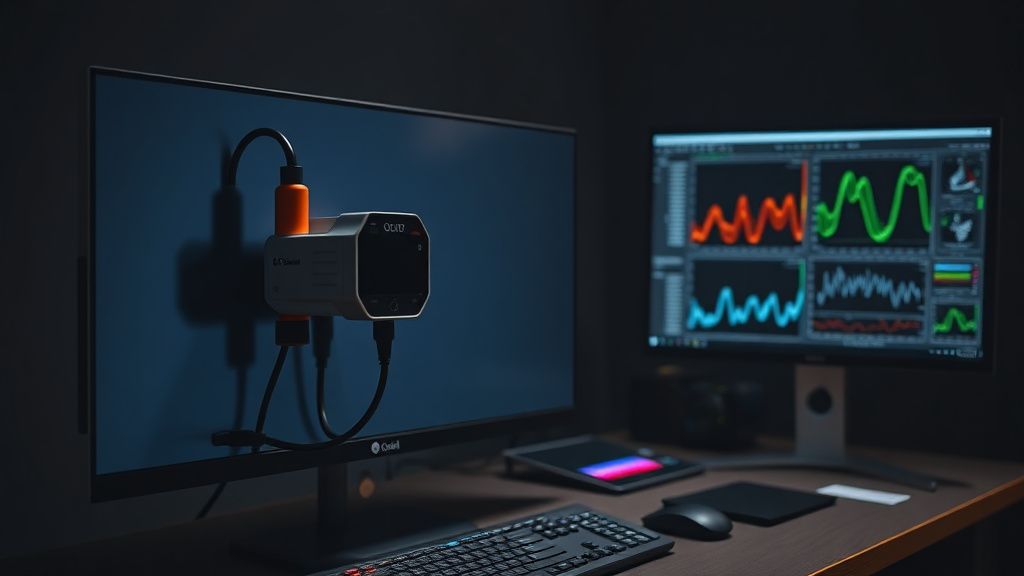
If the tint is persistent in white content (not just dark grays), you can use the built-in White Balance controls. Note that this requires a colorimeter (like an i1Display Pro or an X-Rite) and software like Calman or DisplayCAL. Without these, you are essentially "guessing," which usually results in crushed blacks or clipping in the highlights.
- Access the Picture Menu: Go to Advanced Settings -> Clarity -> White Balance.
- 2-Point Calibration: Focus on the "Low" settings. This is where your near-black tinting lives. By adjusting the Red, Green, and Blue offsets, you can subtract the offending color.
- The Danger of Trade-offs: If you remove green from the 0-10% gray range to fix a tint, you might inadvertently cause the black level to "dither" or shift into a crushed state.
The Service Menu Controversy: Should You Adjust "Module Settings"?
This is where the community divides. There are "hidden" service menus on LG TVs (accessible via a service remote or specific IR blasters) that allow you to adjust the "Module Settings" or "ADC Data."
- The Pro-Adjustment Argument: Some enthusiasts argue that you can manually balance the panel voltage to correct for manufacturing shifts. They point to threads on GitHub where power users have successfully leveled out uniformity issues.
- The Institutional Risk: The service menu is a "no-man's-land." Changing values in the white balance or module-specific registers can void your warranty, and if you fail to record the original values, you have effectively turned your high-end display into a brick. Do not use the service menu unless you are prepared to lose your warranty.
Real Field Reports: The Reality of "Perfect" Panels
On platforms like Discord and Reddit, the "Panel Lottery" is often discussed with a level of cynicism that reflects the high cost of the G4. A common theme in support threads is the "return cycle."
"I went through three G4 panels," writes a user on a popular home theater forum. "The first had a pink left side, the second had a green vertical band, and the third was 'near-perfect.' The irony is that the 'perfect' one had a slightly worse peak brightness than the first. You have to decide what your eyes care about more: absolute uniformity in a dark room or raw, punchy HDR performance."
This sentiment is echoed by calibration professionals. The industry acknowledges that a "perfect" panel is statistically rare. If you find one, hold onto it. If you have a minor tint that only shows up on a 5% gray slide in a pitch-black room, you are chasing a ghost that you will likely never see during actual content consumption.
Counter-Criticism: Why We Obsess Over 5% Gray Slides
There is a strong argument that modern enthusiasts have been "trained" to look for flaws that don't impact the viewing experience. By constantly testing with IRE slides—which are specifically designed to expose panel flaws—users are performing a technical stress test on their hardware rather than watching content.
The G4’s image processing engine is incredibly advanced. It employs spatial and temporal dithering that is designed to mask the exact panel imperfections users complain about. When you force your eye to hunt for tint, you are essentially bypassing the TV's own intelligent processing. If you stop looking at test patterns and start watching 4K HDR content, you will find that the G4's brightness and contrast performance far outweigh the minor, static uniformity variances.
Mitigation Strategies for "Workaround" Culture
If the tint is truly bothersome, here are the most effective non-invasive steps taken by the community:
- Increase the Black Level (Slightly): Sometimes, a "green" tint in shadows is caused by the TV crushing the blacks. Raising the brightness level by one or two clicks can lift the pixels out of the "tainted" range.
- Adjusting Color Gamut: If the tint is only present in SDR content, change your Color Gamut settings from "Auto" to "Native" or vice versa. Sometimes, the transformation matrix for Rec.709 is slightly off due to panel variance, and a different color profile can mask the issue.
- The "Burn-in" Timeframe: Most "tinting" issues that aren't severe hardware defects tend to settle as the panel chemicals reach a stable state of wear. If your unit is less than 300 hours old, do not pursue a return yet.
Why do I see a pink tint only on one side of my G4?
This is often due to the "WBE" vs "WBC" panel structure variations or the way the anti-reflective coating is applied across the width of the display. Since the G4 is a massive 77+ inch display, the uniformity of the voltage across the panel is difficult to maintain at the edges.
Should I exchange my LG G4 if I have panel tint?
Only if the tint is visible in normal, non-test content (like a movie scene with a dark night sky). If you only see it on a 5% gray pattern, you are likely to receive a replacement unit that has a different—and potentially worse—uniformity issue.
Does the LG G4 "Pixel Cleaning" cycle fix tinting?
The pixel cleaning cycle is designed to equalize the voltage across the pixels to prevent permanent burn-in. It does not "re-calibrate" the color tint, but it does help ensure that all pixels are aging at a similar rate, which can lead to better uniformity over time.
Can I fix this with a Calibration LUT?
A 3D LUT (Look-Up Table) can correct color inaccuracies for a specific signal, but it cannot fix spatial non-uniformity. If the left side is pink, a LUT will try to shift the entire image to compensate, which will ruin the color accuracy of the right side.
Is this a known defect that LG will repair under warranty?
LG's official stance is that panels must meet their internal "uniformity standard." If the panel is severely tinted and it affects normal viewing, you may have a case for a panel replacement under warranty. However, standard variance is considered "within spec."
Final Technical Synthesis
The LG G4 is a marvel of engineering, but it is not an industrial monitor designed for surgical-level color accuracy in a laboratory. It is a consumer display designed to push the boundaries of HDR brightness. The presence of panel tint—while frustrating—is a technical reality of the OLED manufacturing process.
Before obsessing over a tint that is invisible during 99% of your usage, calibrate your environment, give the panel its required break-in period, and focus on the image quality benefits that the G4 brings to your home. If the issue is extreme, leverage your retailer's exchange policy before the return window closes, but remember: the "perfect" panel is a myth. Optimization of the environment, rather than the hardware, remains the best path forward for the discerning enthusiast.