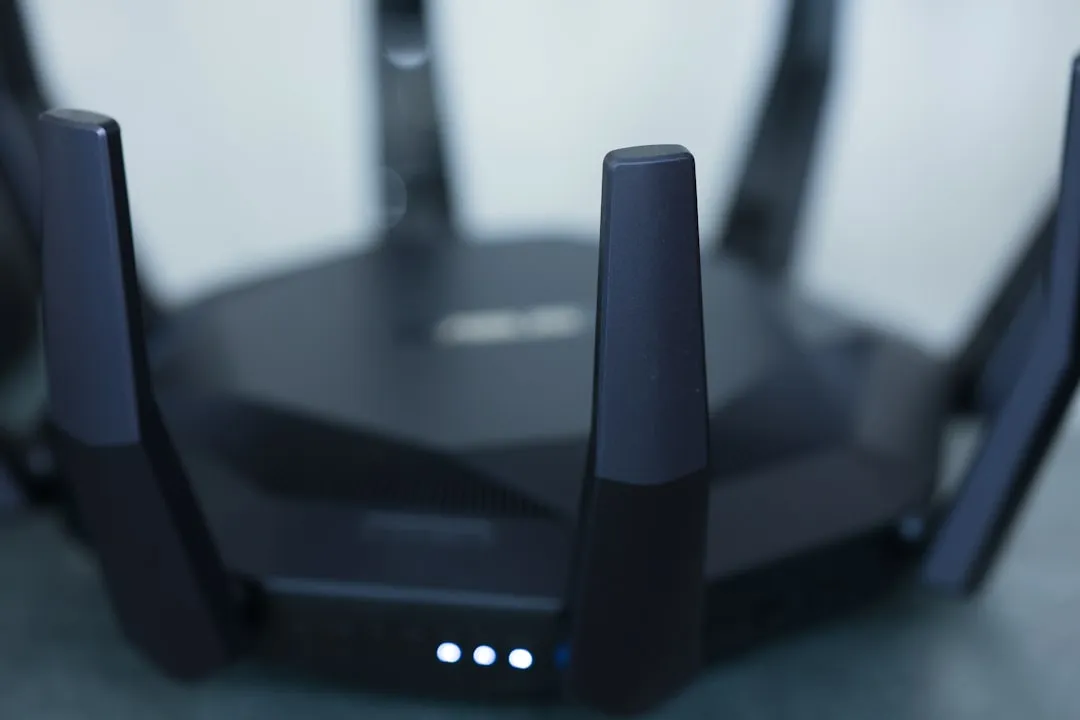
Packet loss in Wi-Fi 7 routers is rarely a single hardware failure; it is usually an intersection of immature 802.11be firmware stacks, aggressive Multi-Link Operation (MLO) scheduling conflicts, and congested 6GHz spectrum management. For a broader look at why your new Wi-Fi 7 router is slow and common packet loss causes, delve into further troubleshooting. Most drops are remediated by updating to the latest stable vendor release, disabling “smart” channel switching, or manually pinning high-bandwidth devices to specific radio bands to avoid bufferbloat. If your Wi-Fi 7 router keeps dropping connections, troubleshooting DNS and IP conflicts can often provide a solution.
The Myth of "Plug-and-Play" Wi-Fi 7 Connectivity
When Wi-Fi 7 hit the consumer market, the marketing gloss—promising "wire-like" stability and multi-gigabit throughput—masked the brutal engineering reality: we are currently in the "early adopter" phase of a protocol so complex it makes Wi-Fi 6 look like a walkie-talkie. If your packets are dropping, it isn't necessarily because your hardware is "bad." It’s because the firmware governing the 320MHz channels and the coordination of MLO is, quite frankly, still being written in real-time.
Engineering teams at major OEMs are caught in a race between competitive release cycles and the stability of the IEEE 802.11be standard. When you see your ping spike or your stream stutter, you aren't just seeing "bad Wi-Fi." You are likely witnessing an interrupt-heavy struggle between the router’s CPU and the wireless offload engine as it tries to negotiate Multi-Link Operation (MLO) between the 5GHz and 6GHz bands.
Anatomy of an MLO-Induced Packet Drop
Multi-Link Operation (MLO) is the crown jewel of Wi-Fi 7, allowing a client to transmit and receive across multiple bands simultaneously. But when the scheduling logic between these bands fails, you get "reordering packets" issues. If the router’s firmware has a bug in its buffer management, it will drop the packet rather than wait for the delayed one.
In many forum discussions on platforms like Reddit’s r/HomeNetworking or the SNBForums (SmallNetBuilder), users report that "tri-band" or "quad-band" routers exhibit packet loss specifically when devices roam between bands. The firmware struggles to hand off the session state fast enough, leading to a "black hole" in the routing table for a few milliseconds.
The "Smart Connect" Fallacy
For years, manufacturers have pushed "Smart Connect"—a feature that merges 2.4GHz, 5GHz, and 6GHz into one SSID. It’s a UX dream, but an engineering nightmare.
- The Conflict: Band-steering algorithms often trigger a disconnect-reconnect event when they decide a device needs to move to a "better" band.
- The Impact: Every time a device is shoved to a different channel, you lose packets.
- The Fix: Split your SSIDs. Keep your 6GHz band exclusively for Wi-Fi 7 clients that support it natively, and move your legacy IoT garbage to the 2.4GHz band.

Firmware Stability: The "Held Together With Tape" Reality
If you spend enough time crawling the GitHub repositories of OpenWrt or the issue trackers for Asus/TP-Link firmware, you start to see a pattern: many "fixes" are just timeouts being increased to hide the fact that the hardware is struggling to process the traffic.
When you flash a new firmware, you aren't just getting "new features." You are often getting an entirely new scheduler for the wireless chips. If you find your latency is inconsistent after an update, it is frequently due to a "configuration drift" where the old settings in your NVRAM (Non-Volatile Random Access Memory) are conflicting with the new, stricter firmware protocols.
"I spent three days troubleshooting packet loss on my BE19000 router only to realize the firmware update didn't wipe the radio calibration tables. A full factory reset, manual reconfiguration (no backup import!), and suddenly the 6GHz stability returned to normal." — Typical feedback from an enterprise IT admin testing consumer-grade gear.
Advanced Troubleshooting: Identifying the Bottleneck
If you are seeing packet loss, stop guessing. Start measuring. Using a simple ping utility isn't enough. You need tools that visualize jitter and reordering.
- Bufferbloat Analysis: Use the Waveform Bufferbloat test. If your score is a "C" or lower, your router’s SQM (Smart Queue Management) is failing.
- Airtime Fairness Issues: In environments with many legacy devices, Wi-Fi 7 routers often prioritize newer clients so aggressively that older clients (or even low-power ones) are completely ignored, resulting in dropped packets on those specific endpoints.
- DFS (Dynamic Frequency Selection) Channels: If you are using 5GHz channels that overlap with radar (DFS), the router must drop all traffic the moment it detects a radar signature. This is a common, silent cause of packet loss that firmware rarely logs clearly.
The Economic Pressure of "Fast" Hardware
Why is this happening? Because the industry is trapped in a cycle of "spec-sheet marketing." A router with a higher BE (e.g., BE22000) sells better than a rock-solid, stable BE9000. This leads to engineering teams being forced to push "bleeding edge" features into stable builds before they have been properly stress-tested for 100+ concurrent devices.
The "workaround culture" has become the norm. Users now expect to change their MTU settings, disable WPA3 transition mode, and pin channels manually. When a company like Netgear, Asus, or TP-Link releases a patch, it’s often a trade-off: they fix one specific bug for a high-end client, but might break compatibility for a legacy smart bulb.
Why Your "Latest Update" Might Be the Problem
There is a dangerous assumption that "newest equals best." In the world of high-end home networking, the newest firmware is often the one with the most unverified code. If your network is currently stable, don't update just because a notification popped up in your app.
Check the forums first. Search for your router model number + "firmware issues" + "packet loss" on Google. If the community is reporting "instability" or "memory leaks" (often characterized by a router that needs to be rebooted every 48 hours to stay fast), wait for the "v2" patch.
Counter-Criticism: Is Wi-Fi 7 Actually Ready?
The industry narrative is that Wi-Fi 7 is a game-changer. The counter-narrative, held by many network engineers, is that 802.11be is over-engineered for home use. The overhead required to manage 320MHz channels and MLO creates more complexity than the average home user can troubleshoot. When something breaks, the abstraction layers provided by the manufacturers' UIs are so thin that you cannot actually see the underlying logs (dmesg or syslog). You are essentially flying a plane with a dashboard that only shows "Everything is fine" while the engines are stalling.
Why does my Wi-Fi 7 router drop packets only on the 6GHz band?
The 6GHz spectrum is highly sensitive to physical obstructions and has a shorter effective range than 5GHz. If your device is at the edge of the 6GHz signal, the router will frequently try to "steer" it to 5GHz. If the firmware is poorly optimized, this handoff causes a momentary drop in connectivity, which manifests as packet loss.
Should I disable MLO (Multi-Link Operation)?
If you are experiencing unstable gaming or video conferencing, try disabling MLO in the advanced wireless settings. While MLO is a flagship feature, it is still maturing. Disabling it forces the client to pick one band, which often results in a more predictable connection path and fewer reordering issues.
Is my ISP modem causing the packet loss, or is it my Wi-Fi 7 router?
To isolate the issue, plug a laptop directly into your ISP’s modem/ONT via Ethernet. Run a continuous ping test to a reliable server (like 8.8.8.8) for 10 minutes. If you see zero packet loss, your modem and ISP are fine, and the problem is indeed your Wi-Fi 7 router’s local radio management or firmware stack.
What is the "hidden" cause of packet loss in dense areas?
Airtime contention. If you live in an apartment complex, your router is fighting for the same airtime as 20 neighbors. Wi-Fi 7's "Puncturing" feature is designed to ignore interference, but if the firmware logic is buggy, it might be constantly attempting to clear spectrum that it can't, causing a queue buildup that drops packets.
Does turning off "WPA3" help with connectivity drops?
Yes, surprisingly often. WPA3 has stricter handshake requirements than WPA2. Some older or budget Wi-Fi 6/6E devices struggle to maintain a stable WPA3 connection with a new Wi-Fi 7 router, leading to intermittent disconnects. If you have legacy devices, use "WPA2/WPA3 Mixed Mode" or fallback to WPA2-AES if security requirements allow.
The Verdict: How to Build a Stable Foundation
To stop the packet loss, stop treating your router like a black box.
- Hardwire everything that doesn't move. If it has an Ethernet port, use it.
- Disable "Auto" channel selection. Use a tool like WiFiman to scan your environment and manually set a channel with the least overlap.
- Disable "Smart" features. Airtime fairness, QOS, and band steering are often the primary culprits for latency spikes.
- Factory reset after every major firmware version. It sounds tedious, but it is the only way to ensure the router isn't running on corrupted or legacy configuration parameters.
The current state of Wi-Fi 7 is a paradox: it is the fastest wireless protocol we have ever had, yet it is currently the most fragile. As manufacturers refine their firmware, these packet loss issues will likely fade into the background—much like they did for the early days of Wi-Fi 6. Until then, you are not just a user; you are a beta tester in an industry that prefers shipping fast over shipping stable.
Bu makale affiliate linkleri içermektedir.