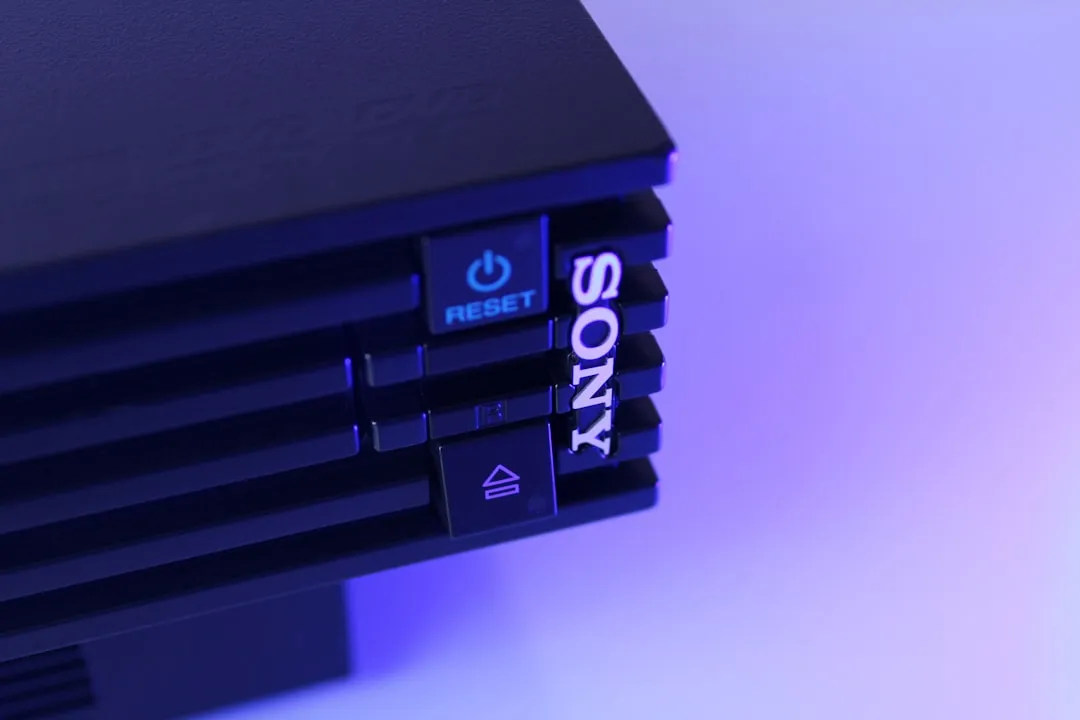
To perform a "Rebuild Database" operation on a <a href="https://www.amazon.com/s?k=PlayStation%205&tag=gunesseo-21" rel="sponsored noopener" target="_blank">PlayStation 5, enter Safe Mode by holding the power button until the second beep, select option 5 from the menu, and confirm. This process scans the internal NVMe storage, organizes game assets, and repairs corrupted file pointers without deleting your user data or save files.
The PlayStation 5, despite its marketing as a seamless "console experience," is at its core a specialized Unix-based computer running a heavily customized, proprietary kernel. Beneath the glossy UI, the interaction between the system's high-speed custom NVMe controller and the sprawling, asynchronous game files creates a complex digital environment. When things go wrong—and they do—the "Rebuild Database" feature serves as the system's equivalent of a chkdsk or fsck command. However, users often treat it as a panacea, ignoring the underlying architectural tensions that necessitate such a function in the first place.
Understanding the Architecture: NVMe Throughput and File Fragmentation
The PS5 utilizes a custom 12-channel SSD controller designed for extreme I/O throughput. Unlike a standard PC build, the drive is soldered (or physically mapped) directly to the motherboard via a proprietary interface. This creates a highly optimized system where latency is essentially non-existent. However, the trade-off is that when the file system encounters a mismatch—perhaps due to a sudden power loss, a botched firmware update, or a kernel panic during a heavy asset-streaming sequence—the OS struggles to find the "map" of where specific data blocks reside.
When you trigger the Rebuild Database function, the system isn't simply "cleaning up." It is performing a heavy-duty indexing task. It parses the entire file system hierarchy, verifies the integrity of the indices, and attempts to re-link orphan blocks of data back to their parent applications.
Why Users Experience "Internal Storage" Errors
Looking at community sentiment across Reddit’s r/PS5 or the official PlayStation Support forums, you will find a consistent pattern: the "Database Corrupted" error often surfaces after a system crash, specifically while playing high-fidelity titles like Cyberpunk 2077 or Final Fantasy XVI.
The tension here lies in the I/O pipeline. When a game pushes the hardware to its absolute limit—streaming 4K textures, audio samples, and level geometry simultaneously—the system cache becomes volatile. If the power state fluctuates even for a millisecond, or if the system is forced into a hard shutdown, the file table can be left in an inconsistent state.
Common symptoms leading to the "rebuild" requirement include:
- Infinite Loading Screens: The OS knows the file exists but cannot map the path to retrieve it.
- Game Crashes at Launch: The executable integrity check fails before the game even initializes.
- UI Lag: The console menu becomes sluggish because the OS cannot efficiently query the database to display your installed library.
The Operational Reality: Is Rebuilding Safe?
There is a long-standing myth in the console community that rebuilding the database "deletes stuff." Let’s clarify: It does not delete your game installations or your save data. It is not a factory reset. It is a metadata refresh.
However, there is a real-world risk. If your internal SSD has actual hardware failure—potentially due to PS5 Pro overheating, a failing NAND flash module, or a degraded controller—forcing a rebuild can act as a catalyst for a total drive death. If the SSD is physically dying, the intensive read/write cycles required to index the file system can push it over the edge, causing it to lock up completely.
Real Field Reports: The "Always On" Problem
In several threads on developer forums and technical support boards, power users have noted that the PS5’s "Rest Mode" is often the root cause of these database issues. The console attempts to perform background operations—downloading updates, syncs, or clearing caches—while in a low-power state. If a system update is pushed to the console while it is in this state, the file system can hang during the writing phase of the update.
"I had a series of CE-108255-1 errors after the last firmware update. Every time I launched a game, the console would freak out. Rebuilding the database fixed the immediate crash, but I noticed my 'Internal Storage' menu took nearly 30 seconds to load afterward. It feels like the index is just massive and the system struggles to stay on top of it." — User comment, technical sub-forum.
This highlights a critical design flaw: the PS5’s operating system is essentially a "black box." It gives you the error code (CE-XXXX), but provides zero diagnostic transparency. You have to "guess" whether it's an API conflict, a corrupt file, or a failing drive.

Step-by-Step: Rebuilding Your Database Properly
Before you dive into Safe Mode, prepare your environment. You will need a USB-C to USB-A cable for your DualSense controller, as Bluetooth connectivity is often disabled in the recovery environment.
- Shutdown Completely: Do not use Rest Mode. Ensure the power indicator is off.
- Access Safe Mode: Hold the power button on the front of the console. You will hear the first beep immediately. Keep holding for roughly 7-8 seconds until you hear a second beep.
- The Interface: Plug in your controller via the cable. Press the PS button.
- Select Option 5: "Clear Cache and Rebuild Database."
A Technical Warning: There are two options here: "Clear System Software Cache" and "Rebuild Database." Always try the Cache clear first if you are experiencing UI stutters. If you are experiencing outright game crashes or system-level errors, choose "Rebuild Database."
Counter-Criticism: Why This Solution Sometimes Fails
Industry critics and hardware analysts often point out that if a user has to "rebuild the database" frequently, there is a fundamental issue with the SSD quality or the OS kernel handling of NVMe write-amplification.
If you find yourself having to rebuild your database more than once every few months, you are likely dealing with one of two things:
- Improper Shutdowns: If your console is plugged into a wall outlet without a surge protector or a UPS (Uninterruptible Power Supply), your file system is constantly at risk of corruption during minor voltage drops.
- Drive Wear-out: While rare for most users, if you have a "launch edition" PS5 and you play high-intensity, always-online games that constantly read/write to the SSD, you might be hitting early NAND degradation.
Critics argue that Sony’s reliance on these "maintenance" modes is an admission that the software architecture isn't as robust as it should be for a high-performance gaming platform. In a perfect OS, the file system would be self-healing at the kernel level without requiring the user to manually trigger a recovery boot.
Managing Internal SSD Fragmentation and Expansion
As you add an M.2 expansion drive, the complexity of this database management grows. The OS must now maintain a "unified" map for both the onboard SSD and your additional NVMe card. When you rebuild the database, the system is now indexing across two separate physical drives. This is why a rebuild can take 5 minutes for one user and 45 minutes for another—it is directly correlated to the number of installed titles, the speed of the expansion drive, and the volume of stored media.
Frequently Asked Questions
Will rebuilding the database delete my game save files?
No. Rebuilding the database is a non-destructive process that operates on the file index, not the file contents. Your save data, game installations, and user settings remain intact. However, in extremely rare cases of hardware failure, corruption can spread, but this is a result of the hardware, not the process itself.
How often should I rebuild the database?
There is no set schedule. It is a troubleshooting step, not a routine maintenance task. If your system is running smoothly, leave it alone. Manually forcing a rebuild on a healthy system provides no tangible benefit and only adds unnecessary wear to the SSD’s write cycles.
Why does my PS5 tell me to rebuild when I haven't done anything?
This usually happens after a "dirty" shutdown. Even if you didn't hold the power button, the console may have experienced a kernel hang during a background task. The PS5 is extremely sensitive to power instability; if your power grid at home is noisy or prone to spikes, the console’s OS might trigger a safety check upon the next boot.
Does this fix "CE-108255-1" or "CE-107857-8"?
These codes are often related to specific application corruption. Rebuilding the database is the first step recommended by support. If it fails to fix the error, it typically points toward a need to reinstall the specific game or, in the worst-case scenario, perform a full system factory reset (Option 6 in Safe Mode).
Is there a difference between the internal SSD and an M.2 expansion drive when rebuilding?
Both are indexed similarly during the process. However, if you are using an unverified or slow third-party M.2 drive, the rebuild process may hang or take significantly longer. Always ensure your expansion drive meets the official read speed requirements (5,500 MB/s or higher) to keep the system’s I/O latency consistent.
The Human Element: When to Give Up
Sometimes, the community consensus is harsh but honest: if the console is still crashing after a rebuild, a cache clear, and a game re-installation, the hardware is likely compromised. In the age of "planned obsolescence" and high-density chips, these consoles are marvels of engineering, but they are fragile. The "Rebuild Database" feature is a window into the fragility of modern gaming systems—a reminder that despite the polished UI, the system is always one bad write-cycle away from a headache.
If you have tried all the above and your console continues to suffer from graphical artifacts or system-wide freezes, do not hesitate to contact Sony support for an RMA (Return Merchandise Authorization). Do not fall into the trap of thinking you can "fix" a hardware-level defect with software commands. The rebuild function is a tool for software consistency, not a miracle cure for physical component failure.
Bu makale affiliate linkleri içermektedir.