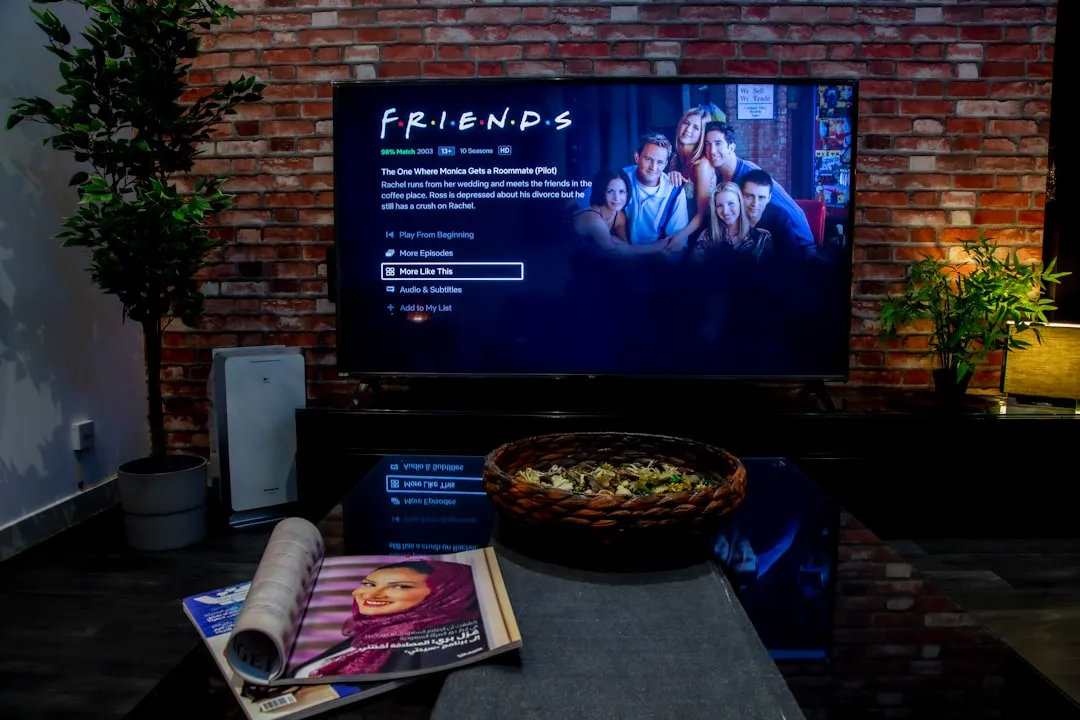
The LG OLED flicker phenomenon is rarely a singular hardware failure; it is typically a complex interplay between low-bitrate source material, aggressive motion interpolation algorithms, and the panel's inherent response time characteristics. To resolve flickering, start by disabling 'TruMotion' entirely, checking your HDMI bandwidth with a 48Gbps Ultra High Speed cable, and ensuring your TV firmware is updated to the latest version. For a deeper dive into these specific issues, especially concerning VRR and HDMI, see our dedicated guide: Is Your LG G4 OLED Flickering? Here Is How to Fix VRR and HDMI Issues. If these initial steps fail, prioritize checking for VRR (Variable Refresh Rate) gamma shifts and power supply stability.
The Physics of OLED Dimming and Temporal Instability
Understanding why your LG G4 panel might flicker requires moving past the superficial "it’s broken" diagnosis. Unlike LCDs, which use a backlight, OLEDs are emissive. Every pixel is its own light source. When you see a flicker, you are often witnessing the panel’s micro-adjustments in voltage to maintain a target luminance level, especially in near-black scenes. Owners of this model may also encounter other display anomalies, and if you're experiencing LG G4 OLED Tinting, it's crucial to understand if it’s a Defect or Calibration Issue.
The G4, with its latest Micro Lens Array (MLA) technology, pushes peak brightness higher than ever. However, this high-performance headroom comes with an operational cost: managing thermal expansion and voltage uniformity across millions of pixels. When the processor struggles to interpret a low-quality, heavily compressed streaming signal (like a 4Mbps Netflix stream), the "Macro-blocking" in dark areas is often misinterpreted by the TV’s image processing engine as a change in luminance, causing the pixel to rapid-fire brightness shifts. This is the "ghost" of compression manifesting as a hardware flicker, a problem not unlike Samsung QN90D Flickering and other screen/power problems experienced on other high-end displays.
The TruMotion Paradox: Smoothness at the Cost of Stability
The single biggest culprit in the "flicker narrative" on forums like r/OLED or AVSForum is LG’s proprietary motion processing suite. "TruMotion" aims to synthesize frames between the source's native refresh rate (often 24fps) and the panel's 120Hz capacity.
When the processor encounters a scene with complex motion—like a panning camera shot over a forest or a sporting event with fast-moving players—the interpolation engine often drops frames or creates artifacts. The human eye perceives these errors as a sudden, erratic strobe effect.
- The Workaround: Turn it off. Seriously. Navigate to Picture > Advanced Settings > Clarity > TruMotion. Switch it to "Off" or "User Selection" with both De-Judder and De-Blur set to 0.
- The Counter-Argument: Purists argue that 24fps content looks "choppy" on modern high-refresh OLEDs because of the instant pixel response time. OLEDs don't have the motion blur of LCDs, which actually masked the lack of frame density. Without motion processing, you are seeing the content exactly as intended, but your brain might reject the lack of blur it’s been conditioned to expect.
HDMI 2.1 Bandwidth and Signal Integrity: The Hidden Culprit
Many users blame the panel when the problem actually resides in the data pipe. The LG G4 is an HDMI 2.1 beast. It expects a consistent, high-bitrate signal. If you are using a cheap, third-party "4K" cable that barely meets the 18Gbps standard of HDMI 2.0, you will experience "handshake flickering."
This happens when the TV loses the signal for a millisecond and attempts a re-sync. You’ll see a black flash or a jittery image for a moment.
- Verify the Cable: If the HDMI cable isn't 'Ultra High Speed' certified (look for the QR code on the packaging), discard it.
- Cable Length Issues: If your cable run is longer than 3 meters (10 feet) and it is a passive copper cable, you are likely experiencing signal attenuation. Replace it with an active optical HDMI cable to ensure the 48Gbps throughput is maintained.
VRR Gamma Shift: When Gaming Gets Strobe-Like
If your flicker is confined to gaming (specifically PS5, <a href="https://www.amazon.com/s?k=Xbox%20Series%20X&tag=gunesseo-21" rel="sponsored noopener" target="_blank">Xbox Series X, or PC), you are likely witnessing a well-documented engineering compromise known as "VRR Gamma Shift."
When the LG G4 enables G-Sync or FreeSync, the panel changes its gamma curve to compensate for the variable refresh rate. However, when the frame rate drops significantly (e.g., from 120fps to 40fps during an intense action scene), the panel’s brightness curve can’t keep up, leading to a visible shift in the dark levels—appearing as an annoying, rapid flicker.
- The Mitigation: LG has attempted to patch this via firmware, but the laws of physics remain. If the flicker becomes unbearable, cap your frame rate in the console settings to a stable, lower threshold (e.g., 60fps) rather than letting it float in the VRR range. This keeps the gamma curve locked and eliminates the oscillation.
Real Field Report: The "Brightness Jump" Conflict
In a popular thread on a major A/V enthusiast forum, a user noted, "My G4 flickers every time the logo fades in." This is a classic example of the Energy Saving Step and Auto Brightness fighting against the content.
The G4 has a feature called "Energy Saving Step" that adjusts the brightness based on ambient light. If your room lighting is inconsistent—perhaps you have a smart bulb that pulses or a window with moving clouds—the TV’s light sensor is constantly adjusting the panel output. In a dark room, even a 1-2% shift in OLED panel voltage is immediately perceptible.
- Actionable Advice: Go into General > Energy Saving and turn off "Energy Saving Step." Go into Picture > Advanced Settings > Brightness and disable "AI Brightness Settings." You want your display to be a static, predictable tool, not an adaptive one that reacts to your living room curtains.
When Is It Actually Hardware Failure?
Not every flicker is a software setting issue. There is a small percentage of panels that suffer from Power Supply Unit (PSU) ripple. If your TV flickers even in the main menu with no inputs connected, and after a full factory reset, you are likely looking at a failing capacitor in the PSU or a faulty T-CON board.
- The Stress Test: Unplug all external devices. If the menu still flickers, run the "OLED Care" diagnostic tests. If the test pattern itself flickers, you have a hardware defect. At this stage, stop troubleshooting and invoke your warranty. Do not attempt to open the chassis; the voltage levels inside the power supply of a 4K OLED are lethal, even when unplugged.
Counter-Criticism: The "Dirty Screen Effect" Confusion
Industry analysts often note that users confuse "Flicker" with "Near-Black Chromaticity Noise" (or the "Dirty Screen Effect"). If you see shimmering in dark grey areas of a movie, that is often just the panel's inability to perfectly render very dark gradations.
- The Debate: Some say this is an unacceptable defect for a premium-priced TV; others argue that OLED tech has inherent physical limitations regarding voltage control at the bottom 1-5% of luminance. Regardless, adjusting settings like "Black Level" or "Fine Tune Dark Areas" is merely masking the physical reality of the panel, not fixing it.
Why does my screen flicker only during dark scenes in movies?
This is usually caused by the TV’s image processing struggling with low-bitrate "near-black" data. The panel is trying to resolve noise in the source file, causing rapid, subtle fluctuations in light. Disable "Noise Reduction" and "MPEG Noise Reduction" in your picture settings to let the panel show the raw data without aggressive (and often confused) post-processing.
Is the G4 flickering a known widespread hardware defect?
No. Unlike the early OLED generations that had issues with panel uniformity (vertical banding), the G4 is highly stable. Most "widespread" reports are actually configuration conflicts. If you see the entire screen strobing, it is almost certainly a handshake issue with the HDMI cable or a conflict with VRR/G-Sync settings.
Should I perform a 'Pixel Cleaning' to stop the flickering?
Only if you notice permanent image retention. Pixel Cleaning is a stressful operation for the panel and is designed to realign voltage across pixels. Running it unnecessarily can degrade the organic compounds over time. It will not fix a communication error between your PS5 and your TV.
Does changing the 'Black Level' stop the flicker?
Adjusting Black Level is a workaround, not a fix. If you raise the black level, you are essentially "lifting" the dark areas out of the zone where the flickering occurs. While this stops the visual symptom, you lose true-black depth. Use this only as a last resort if your specific source material is consistently problematic.

Final Synthesis: The Operational Reality
The LG G4 is a masterpiece of engineering, but it is not a "set it and forget it" appliance in the way a 2010-era LCD was. It behaves more like a high-performance computer monitor. It is sensitive to its power environment, its signal source, and its ambient surroundings.
If you are experiencing flicker, the path of least resistance is to strip away the "AI" enhancements. The TV’s internal processors are brilliant, but they are prone to over-correcting. By disabling the automated motion and energy-saving features, you aren't just fixing flicker—you are reclaiming the intended visual fidelity of the director. If the flicker persists after these steps, you have moved from the realm of "user error" to "component failure," and it is time to let the manufacturer's warranty do its job. Remember, your eyes are the best sensor in the room; if the image looks artificially unstable, trust your gut and revert the last software change you made. The most common fix is almost always the one you just toggled on to "improve" the image.
Bu makale affiliate linkleri içermektedir.