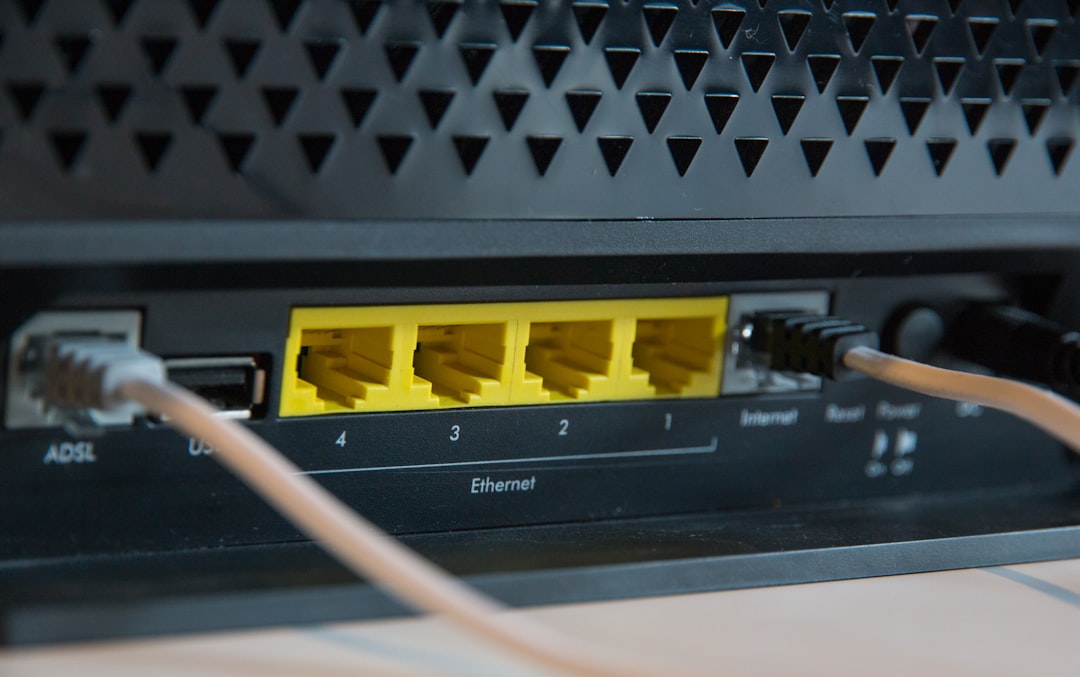
Quick Answer: Wi-Fi 7's Multi-Link Operation (MLO) dramatically improves throughput and latency, but it can introduce jitter when the router struggles to aggregate mismatched band conditions, driver conflicts, or poorly timed link switching. The fastest fixes involve locking band priorities, updating firmware, adjusting OFDMA scheduler settings, and isolating interference sources, much like how you would address other connectivity issues if your Netgear Nighthawk keeps dropping connection.
There's a specific kind of frustration that comes with Wi-Fi 7. You spent north of $400 on a tri-band router that promised the lowest latency you've ever seen on a home network. Streaming 4K HDR to your TV while gaming on your PC while your partner is on a video call — the dream scenario the marketing deck illustrated so cleanly. Then, about three weeks in, the jitter starts. Your game session shows ping spikes to 180ms from a baseline of 8ms, an experience as frustrating as dealing with Peloton heart rate sync issues during a workout. The video call stutters. The stream rebuffers, creating a headache similar to those experienced by users facing Apple TV 4K error 5013. And the router's admin panel is glowing green across all metrics.
This is the Wi-Fi 7 MLO jitter problem, and it's more common than most router vendors want to admit publicly.
What MLO Actually Does (And Why the Theory Is Cleaner Than the Practice)
Multi-Link Operation is IEEE 802.11be's flagship feature — the headline capability that separates Wi-Fi 7 from Wi-Fi 6E in a meaningful way. The concept is genuinely elegant: a single device can maintain simultaneous connections across multiple frequency bands (2.4 GHz, 5 GHz, and 6 GHz) and have the router intelligently distribute packets across those links in real time.
On paper, this means:
- Traffic can be load-balanced dynamically based on channel conditions
- A single TCP stream can benefit from combined bandwidth of multiple channels
- Latency-sensitive traffic can be routed to the cleanest, fastest link automatically
- If one band degrades, the connection doesn't drop — it shifts
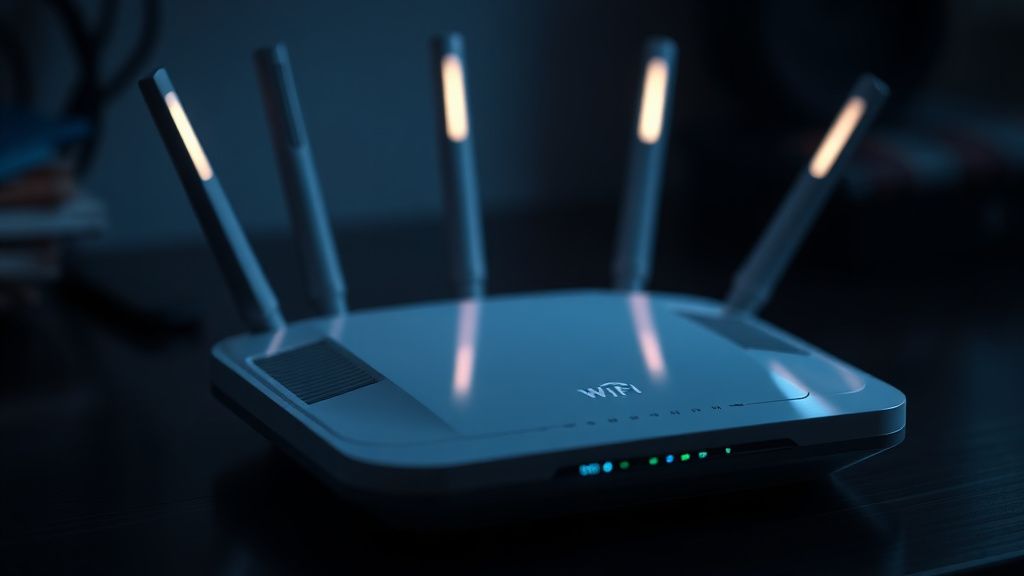
The problem is what happens when the router's MLO scheduler is not working correctly, often requiring deep technical troubleshooting, similar to investigating why an Aqara Hub M2 won't connect to Wi-Fi. Across nearly every major consumer Wi-Fi 7 platform, that scheduler is still being refined, as is common in high-end tech that occasionally requires extra care, like learning how to handle Chromecast 4K overheating. This isn't speculation. It's documented in firmware changelogs, GitHub issues opened against open-source router projects, and Qualcomm/MediaTek reference driver notes that have leaked into public forums.
The jitter you're experiencing is usually one of several failure modes, which can be just as vexing as dealing with Roku remote pairing failures.
Link Selection Oscillation — The router can't decide which link is better, so it rapidly switches packets between two bands, introducing out-of-order delivery and buffering delays.
Asymmetric Acknowledgment Timing — MLO requires coordinating ACK frames across multiple radios. When one radio's ACK is delayed due to congestion or interference, the transmission window stalls waiting for confirmation that may be arriving on a different physical layer than the sender expected.
6 GHz Regulatory Scanning — The 6 GHz band in many regulatory domains requires Automated Frequency Coordination (AFC) or passive scanning that can temporarily disable a link, causing unexpected latency spikes precisely when the scheduler was relying on that link for low-latency traffic.
Driver-Level Race Conditions — On platforms still using early MediaTek MT7996 or Qualcomm FastConnect 7800 drivers, there are documented race conditions in the multi-link management frame processing that cause frame drops under sustained load. These show up as jitter rather than outright packet loss, which makes them deceptively hard to diagnose.
Real Field Reports: What Users Are Actually Experiencing
It would be convenient to treat this as a solved problem, but community reports throughout 2024 paint a messier picture.
On the OpenWrt forums, a thread titled "MT7996 MLO instability under load — anyone else?" accumulated over 200 replies between August and December 2024. The pattern was consistent: users running Asus, Netgear, and TP-Link Wi-Fi 7 routers reported that gaming traffic — which is characteristically bursty and latency-sensitive — showed significantly worse jitter than the same traffic over a single-band Wi-Fi 6E connection on the same hardware, with MLO disabled.
One contributor noted: "I rolled back to 6E mode on the 6 GHz radio and my Valorant ping variance went from something like ±40ms to ±3ms. The MLO was actively hurting me."
A separate thread on the r/HomeNetworking subreddit from a network engineer running a TP-Link Archer BE900 described how Wireshark captures revealed duplicate ACK storms on the 5 GHz link whenever the 6 GHz link experienced brief interference from a neighboring access point on the same UNII-5 channel group. The router's MLO engine was apparently retransmitting frames that were successfully delivered on the 6 GHz link, but whose ACKs the router couldn't correlate correctly due to multi-link address translation delays.
"The UI says everything is fine. Four bars, green lights, 'optimal' channel selection. Meanwhile Wireshark is showing me what looks like a small TCP disaster happening every 30 seconds."
This isn't unique to prosumer hardware. The Google Home community forums and Amazon reviews for the Eero Max 7 both document similar experiences, though framed more in consumer language: "random lag spikes," "gaming goes to trash," "4K keeps buffering even though speed test shows 900 Mbps."
The underlying cause is the same across platforms, even if the symptom language differs.
Diagnosing the Problem Before You Touch Any Settings
Before changing anything, you need to understand what kind of jitter you're actually dealing with. Not all Wi-Fi jitter is MLO jitter, and treating a different problem with MLO-specific fixes wastes time and can introduce new instability.
Establish a Baseline
Run a continuous ping test to your router's gateway IP — not 8.8.8.8, not a server across the internet — just the first hop. Use ping -t on Windows or ping -i 0.2 on Linux/macOS to send rapid pings.
# macOS/Linux rapid ping to gateway
ping -i 0.2 192.168.1.1

# Windows continuous ping
ping -t 192.168.1.1
If your gateway ping shows significant variance (say, more than 5-10ms on a modern router), the jitter is likely in the wireless layer itself. If the gateway ping is clean but pings to external IPs are variable, the issue is upstream from your router — not MLO at all.
Check Which Links Are Active
Most Wi-Fi 7 routers expose per-link statistics in their admin panel, though the depth of information varies dramatically by vendor. Asus routers running their latest AiMesh firmware tend to show per-radio RSSI and link speed. TP-Link's web UI on the Archer BE series shows active MLO link status. Netgear's Orbi 970 app provides band steering event logs if you enable diagnostic mode.
What you're looking for:
- Is the 6 GHz link active and stable, or does it show frequent disconnections?
- Are all three bands being used simultaneously, or is the router falling back to dual-link operation?
- Is one band showing significantly higher retransmission counts?
If you have access to a Linux-adjacent environment, connecting a Wi-Fi 7 client and running iw dev wlan0 station dump can show per-link statistics that the router's GUI never surfaces.
The Fixes, Ordered by Likelihood of Success
1. Firmware Update First — Always
This sounds obvious, but the actual version gap between "shipped firmware" and "current firmware" on Wi-Fi 7 routers is often massive. Asus pushed a major MLO scheduler revision in their 3.0.0.6.102_47xxx builds that significantly reduced link oscillation. TP-Link's BE900 received an MLO stability patch in early 2025 that addressed the duplicate ACK issue described in several community reports. Netgear's Orbi 970 firmware history shows at least four MLO-specific patches between launch and mid-2025.
Check the vendor's release notes specifically. Don't just hit "update firmware" — read the changelog. If you see language about "improved MLO stability," "multi-link scheduling optimization," or "6 GHz band management improvements," you need that update.
2. Disable STR MLO in Favor of eMLSR If Your Router Supports It
Wi-Fi 7 defines two fundamental MLO operating modes:
- STR (Simultaneous Transmit and Receive) — Both links are active simultaneously, requiring the device to handle two radios at once. More capable but more prone to self-interference and scheduling complexity.
- eMLSR (Enhanced Multi-Link Single Radio) — The device's radio switches between links dynamically but only operates one at a time. Lower peak throughput but dramatically more predictable latency behavior.
For latency-sensitive streaming and gaming, eMLSR often produces better real-world results than STR despite having lower theoretical bandwidth. The reduced scheduling complexity means the firmware makes fewer contested decisions per millisecond.
Not all consumer routers expose this toggle. On platforms that do (certain Asus models via advanced wireless settings, and some DD-WRT/OpenWrt builds on supported hardware), switching to eMLSR has been repeatedly documented as reducing jitter by a significant margin for interactive traffic workloads.
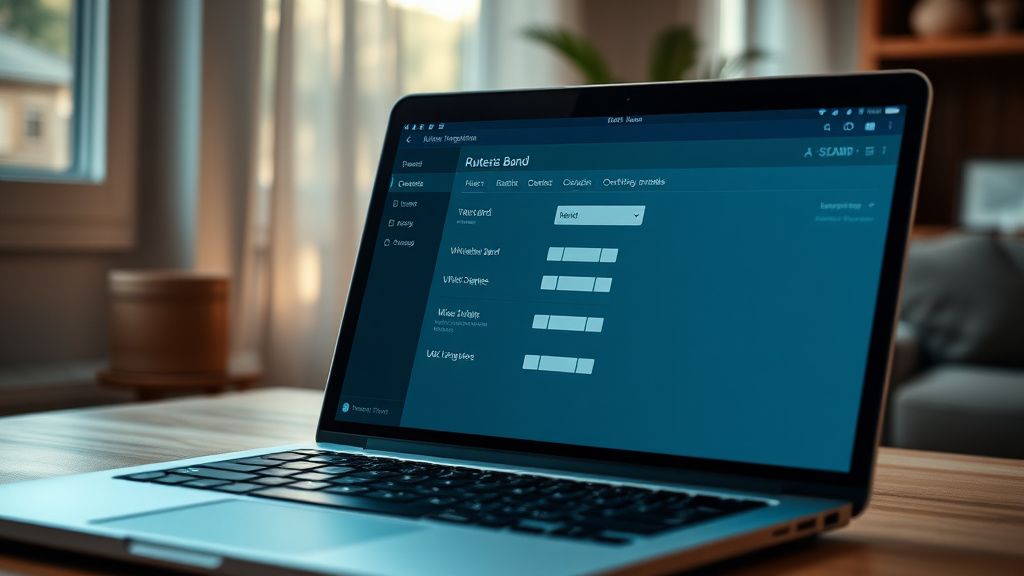
3. Manually Assign 6 GHz to a Single High-Priority Channel and Lock It
The 6 GHz band's dynamic channel selection, combined with AFC requirements in some regions, creates a situation where the router may shift channels mid-session to comply with regulatory power limits or avoid detected interference. When this happens during an active MLO session, the link teardown and re-establishment process introduces a latency spike that can range from tens to hundreds of milliseconds.
In your router's advanced wireless settings, try:
- Manually setting the 6 GHz channel to a UNII-5 or UNII-7 channel that shows the lowest interference in a spectrum scan
- Disabling DFS on the 5 GHz band if it's enabled (DFS channel switches are a separate but related source of latency spikes)
- Setting channel bandwidth on the 6 GHz link to 160 MHz rather than 320 MHz if signal strength is marginal — 320 MHz requires much better signal quality to maintain stability
4. QoS and Traffic Prioritization — But Not the Way You Think
Most router vendor QoS implementations apply traffic shaping at a layer above the MLO scheduler. This means QoS rules don't directly influence which link specific packets are assigned to. However, reducing queue depth for latency-sensitive traffic (gaming, VoIP, real-time streaming) can reduce the amount of time the MLO scheduler spends in contested states.
Enable Adaptive QoS if your router supports it. More importantly, set your gaming device's or streaming device's IP as a high-priority device, which on most platforms translates to guaranteed bandwidth headroom that prevents the MLO scheduler from treating its traffic as background-class.
What doesn't work: enabling the highest possible throughput QoS profiles for streaming applications on the assumption that more bandwidth = less jitter. Bandwidth and jitter are largely orthogonal problems. A connection with 900 Mbps aggregate throughput and a 60ms jitter range is far worse for video streaming than a 200 Mbps connection with 2ms jitter variance.
5. Client-Side Driver Updates and MLO Negotiation
The router is only half the equation. MLO is negotiated between the router and the client device. If your laptop, phone, or streaming device has an outdated Wi-Fi driver or firmware, it may be negotiating sub-optimal MLO parameters or failing to correctly signal link quality back to the router.
On Windows 11, Intel and Qualcomm Wi-Fi adapters receive driver updates through Windows Update and vendor update utilities. Check:
- Intel Wi-Fi 7 BE200/BE202: Intel's driver support page, or Device Manager → Update Driver
- Qualcomm FastConnect 7800: OEM-specific driver packages (Lenovo, Dell, HP update utilities)
- MediaTek RZ717: Often bundled in laptop firmware updates from the OEM
On Android, Wi-Fi 7 implementation quality varies by chipset vendor. Qualcomm Snapdragon 8 Gen 2 and 3 devices generally have the most mature MLO client implementations. MediaTek Dimensity 9300 devices have shown more variable behavior in third-party testing, though Dimensity 9400 appears more stable.
For streaming devices specifically — Roku, Apple TV, Fire TV, Chromecast — most don't support MLO at all. They're connecting via standard Wi-Fi 6 or Wi-Fi 6E protocols regardless of what your router advertises. If your streaming box is showing jitter on a Wi-Fi 7 router, the MLO scheduler isn't your problem; you're looking at basic channel interference, band steering aggression, or 6 GHz signal strength issues instead.
The Counter-Criticism: Is MLO Ready for Consumer Deployment?
There's a legitimate argument being made in networking engineering communities that MLO as currently implemented in consumer equipment is not production-ready for the use cases being marketed to consumers.
The argument, articulated in a well-cited post on the Hacker News thread discussing the IEEE 802.11be finalization, goes roughly like this: MLO's theoretical benefits require a level of coordination between router firmware, client drivers, and real-world RF conditions that is extremely difficult to guarantee in heterogeneous home environments. The enterprise Wi-Fi vendors — Cisco, Aruba, Juniper Mist — have been careful about MLO deployment timelines precisely because they understand the scheduler complexity. Consumer vendors, under competitive pressure to ship Wi-Fi 7 hardware with marketable feature lists, have shipped MLO implementations that are functional in ideal conditions but brittle under real-world load.
The counter to this counter-argument is that the technology is improving rapidly. Firmware quality in 2025 is measurably better than at Wi-Fi 7 launch. The ecosystem is converging. And for certain use cases — particularly large file transfers and multi-device households without real-time latency sensitivity — MLO delivers genuine value even in its current state.
Both things are true. MLO works. It also sometimes doesn't work well. The honest answer for consumers right now is to treat MLO as a feature that requires active management rather than a set-it-and-forget-it improvement.
Streaming-Specific Considerations: Why MLO Jitter Hits Video Harder Than Speed Tests
Speed tests are a terrible proxy for streaming quality, and the reason is directly relevant to why MLO jitter manifests so visibly in streaming scenarios.
Modern adaptive bitrate streaming (ABR) — the technology used by Netflix, YouTube, Disney+, Prime Video, and essentially every major streaming platform — continuously adjusts video quality based on measured available bandwidth and estimated round-trip time. The measurement interval is typically every 2-8 seconds depending on the platform's implementation.
When MLO jitter introduces a 150ms latency spike every 45 seconds (a pattern consistent with 6 GHz AFC scanning cycles in some regulatory domains), the streaming client's bandwidth estimation algorithm interprets this as network congestion. It responds by reducing bitrate — stepping down from 4K to 1080p or lower — even though the actual throughput hasn't changed. By the time the client realizes conditions have improved and steps the bitrate back up, you've experienced a visible quality drop lasting 10-30 seconds.
This is why streaming optimization on home networks requires thinking about jitter and latency variance, not just raw throughput. A gigabit connection with unpredictable latency is worse for 4K streaming than a 50 Mbps connection with rock-solid consistency.
The specific ABR implementations differ by platform. Netflix's DASH-based player is particularly sensitive to round-trip time variance because its buffer management is more aggressive than YouTube's. YouTube tends to pre-buffer more aggressively and tolerates short latency spikes better, which is why some users notice their Netflix streams degrade visibly while YouTube continues fine on the same connection.
For gaming-adjacent streaming — Twitch, YouTube Live — the encoder is typically running on a PC with a wired connection, so MLO jitter on the viewer's end affects playback quality through the same ABR mechanism. For cloud gaming services like Xbox Cloud Gaming, GeFor
Bu makale affiliate linkleri içermektedir.