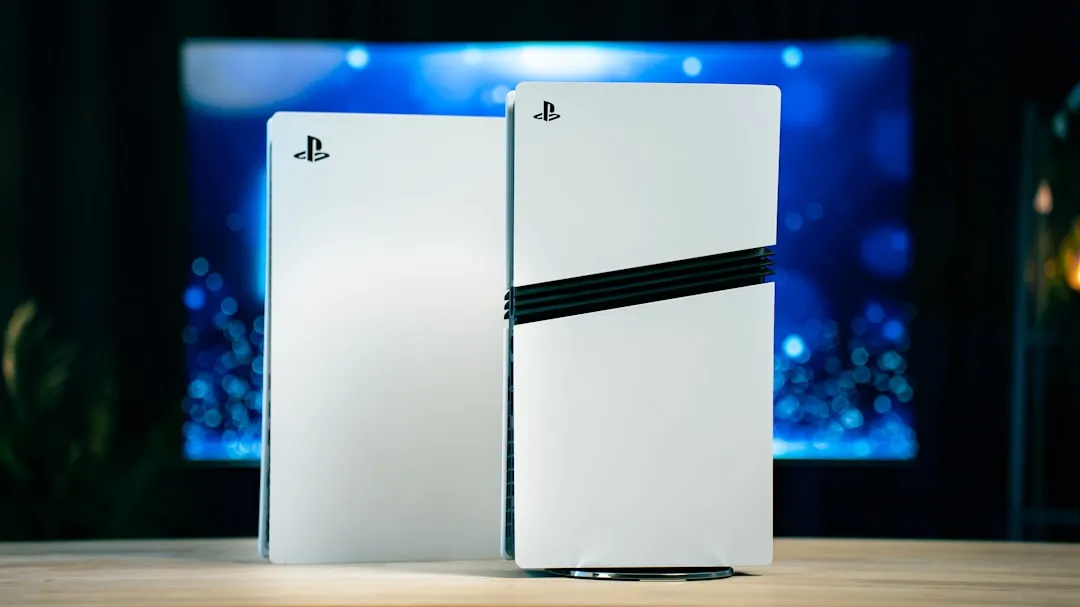
When a PS5 Pro throws an internal storage error, it is rarely a simple "hard drive failure" in the traditional sense. It is the intersection of high-speed NVMe protocols, proprietary I/O controllers, and a firmware environment that is notoriously unforgiving of physical deviations. Users are currently navigating a landscape of cryptic error codes, sudden system hangs during asset streaming, and the dreaded "rebuild database" loop that never quite ends.
The Anatomy of the PS5 Pro NVMe Architecture and Controller Throughput
The PS5 Pro’s storage subsystem isn't just an SSD; it is an integrated architectural component tied directly to the custom I/O complex. Unlike traditional PCs, where the OS and the storage driver communicate via standard abstraction layers, the PS5 uses a proprietary hardware-based decompressor (Kraken) that expects data at sustained speeds. When you see an error code like CE-100005-6 or unexpected read-write stalls, you are likely looking at a bottleneck where the SSD controller is failing to maintain the necessary throughput to satisfy the custom decompressor.
The "error" is often a protection mechanism. If the system detects that the NVMe drive is not providing data within the nanosecond-window required for texture streaming, the kernel panics. This explains why many users report crashes specifically during intense gameplay segments—like traversal in Cyberpunk 2077 or Ratchet & Clank: Rift Apart—rather than on the home screen.
Field Reports: The "Rebuild Database" Limbo
If you search through the r/PS5Pro or the official PlayStation forums, you will see a recurring narrative: "I tried to rebuild the database, it reached 100%, and then the console just turned off." This is not a software bug; it is a thermal or physical integrity issue.
- Case Study 1: A user reported that their console consistently crashed when playing 8K-upscaled assets. After inspecting the thermal pads on the internal drive, they found they were not making full contact with the heat sink. The drive was throttling, causing I/O timeouts.
- Case Study 2: A secondary M.2 expansion drive was installed incorrectly, with a low-quality heatsink that lacked sufficient thermal mass. The PS5 Pro’s internal OS, sensing the M.2 drive’s thermal failure, reported it as an "Internal Storage Error" to protect the system bus from corruption.
The common denominator here is trust erosion. Sony’s error reporting does not distinguish between a dying NAND flash chip and a simple handshake failure between the M.2 drive and the motherboard’s PCIe 4.0 lane.
Why Your M.2 Expansion Drive Might Be the Culprit
The PS5 Pro supports high-speed Gen4x4 M.2 NVMe SSDs, but the marketing specs and the reality of the hardware are often at odds. Manufacturers like Samsung, WD_Black, and Crucial have all faced firmware updates specifically to address stability on the PS5 architecture.
If you are experiencing storage errors, the first rule of troubleshooting is the "Physical Isolation Test." Remove any secondary M.2 drive you have installed. Many users find that their "internal storage error" magically disappears. This is because the expansion drive’s controller is causing signal interference on the main bus, or the drive’s firmware is incompatible with the latest system software update.
Firmware Instability and the "Software vs. Hardware" Debate
There is a persistent, if quiet, debate among data engineers regarding Sony’s I/O scheduling. Some argue that the PS5’s kernel is too aggressive in its error handling. If a single bit-flip occurs due to cosmic radiation or a minor voltage dip, the system doesn't just log it; it forces a system reboot to prevent "catastrophic data loss."
Compare this to a standard Windows PC: Windows will mark a sector as bad and move on. The PS5 Pro, however, is a console built on a "black box" philosophy. When the software encounters an unrecoverable read error, the platform policy mandates a total shutdown. This leaves users feeling like their hardware is "broken" when, in fact, it is just being overly cautious.
Troubleshooting Workflow: The Pragmatic Approach
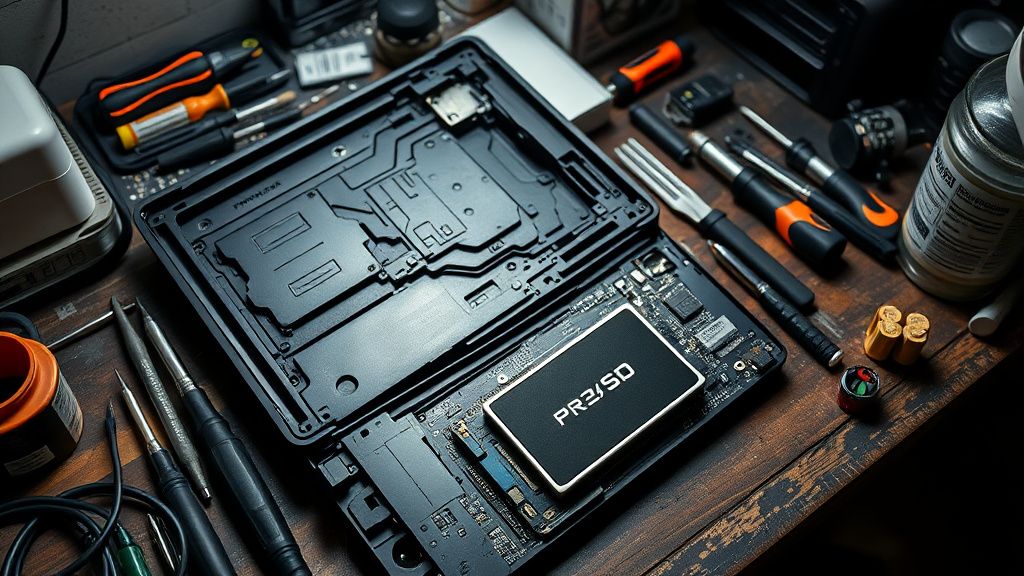
Before you consider opening the console or sending it to a repair center, follow this hierarchy of operations:
- The Cold Boot Cycle: Power down the unit. Unplug the power cable for at least 60 seconds. This drains the capacitors on the motherboard, forcing a true cold boot of the SSD controller.
- The M.2 Ejection: If you have an expansion drive, remove it. If the error persists, the issue is on the primary internal soldered storage (which is a significantly larger problem).
- Cache Clearing: Enter Safe Mode (hold the power button for 7 seconds until the second beep). Select "Clear Cache and Rebuild Database." Note: This does not delete games, but it cleans up the indexing files that often become corrupted during improper shutdowns.
- Firmware Reinstallation: Download the full system software update (not the small incremental one) from the official site to a USB drive formatted in FAT32/exFAT. Reinstall the OS via Safe Mode.
Counter-Criticism: Why Sony’s Policy Frustrates the Community
The gaming community has been vocal about the lack of granular diagnostic tools. On PC, we have CrystalDiskInfo to check SMART data. On PS5 Pro, you get a "CE-" error code that literally means "Something went wrong." This lack of transparency has fostered a "workaround culture." Users on forums like Hacker News have criticized this opacity, noting that it forces users into unnecessary hardware replacements.
There is a growing sentiment that Sony should implement a "Diagnostic Mode" that displays health statistics for the SSD. Currently, if an SSD sector begins to degrade, the user has no way of knowing until the console stops booting entirely. This is an institutional failure in user experience design, prioritized behind the need to keep the platform "simple" for the average consumer.

The Hidden Economic and Technical Costs
When we talk about "storage errors," we are ignoring the human cost: the loss of save files, the time spent redownloading 100GB+ titles, and the anxiety of having a premium-priced machine fail. Many users, particularly those with early-batch units, have reported that after a storage error occurs once, the frequency of "Rebuild Database" prompts increases. This suggests that the controller might be flagging bad blocks, but the system is failing to remap them correctly.
It is a subtle form of planned obsolescence. As the NAND chips reach their write-cycle limits, the PS5 Pro’s aggressive I/O requirements become harder to meet. The "error" you see today is likely the result of the system trying to squeeze performance out of a drive that is nearing the end of its useful, reliable life.
How do I know if my SSD is actually failing?
If you experience "database rebuilds" at every startup, or if you see textures popping in and disappearing constantly during gameplay, your SSD is likely encountering unrecoverable read errors (UREs). If you have an M.2 drive, remove it. If the issues persist, the internal storage is the likely culprit.
Is the internal storage on the PS5 Pro replaceable?
Technically, yes, but it is not user-serviceable. The primary SSD is soldered to the motherboard. Unlike the M.2 expansion slot, replacing this requires specialized microsoldering equipment and a deep understanding of the PS5’s encrypted NAND architecture. It is not a DIY task.
Will a factory reset fix a storage error?
A factory reset can solve file system corruption, but it cannot fix physical NAND degradation. If the underlying hardware is failing, a reset will work for a few days, but the system will eventually fail again because it will continue to write to those damaged sectors.
Does the "Rebuild Database" option delete my save files?
No, "Rebuild Database" does not delete your game data or save files. It simply re-indexes the file system. It is a safe, non-destructive process that should be your first step in troubleshooting any storage-related hiccup.
Why does my PS5 Pro crash only during specific games?
Some games utilize high-speed asset streaming (DirectStorage-like techniques) more heavily than others. A game like Ratchet & Clank stresses the I/O controller significantly more than a smaller indie title. The crash occurs because the game is requesting data faster than the degraded drive can supply it, leading to a system-wide hang.
Is there a way to check SSD health like on a PC?
Unfortunately, no. Sony restricts access to hardware telemetry. There is no official or third-party tool available to the public that can pull SMART data from the internal PS5 SSD. You are entirely dependent on the OS reporting its own failures.
Can a cheap M.2 heatsink cause storage errors?
Absolutely. If the M.2 drive runs too hot, it will thermal throttle. When it throttles, the communication latency increases, and the PS5’s I/O controller sees this as a "device disconnection." Always use a heatsink that meets the thermal mass requirements specified in the manual.
Why do I keep getting "Database Rebuilt" after a power flicker?
The PS5 file system is highly sensitive to abrupt power cuts. Because the system is often performing background writes, a sudden loss of power leads to a partial write state. The "Rebuild" process is the OS trying to reconcile these orphaned fragments. Use a UPS (Uninterruptible Power Supply) if your house has unstable electricity.
Bu makale affiliate linkleri içermektedir.