
The PlayStation Portal, since its inception, has existed in a strange limbo: it is a high-end streaming peripheral tethered to a fragile, often misunderstood dependency—your home network's local area network (LAN) topology. By 2026, while Sony has patched the underlying handshake protocols multiple times, the fundamental physics of remote play remain unchanged. If your router is handling traffic like a distracted air traffic controller, no amount of software optimization will save you from the "stutter-fest." Fixing latency on this device isn't about toggling a single "Turbo Mode" switch; it is about forensic network analysis and understanding the friction between consumer-grade hardware and real-time streaming demands.
The Physics of Input Lag and Packet Jitter in Wireless Ecosystems
When you press "X" on your Portal, you aren't just sending a command; you are initiating a round-trip ticket that traverses the DualSense controller logic, the Portal’s wireless NIC, your Wi-Fi access point, the PS5’s Ethernet handshake, and the eventual re-encoding of the video feed back to the handheld.
The primary culprit for perceived latency is rarely raw bandwidth. Most users assume that because they pay for "Gigabit Fiber," their Portal should be flawless. They are wrong. Streaming latency is governed by jitter (the variance in packet arrival time) and bufferbloat. If your router is busy prioritizing a Netflix stream in the living room or a background OS update on a PC, your Portal packets are queued. When the buffer empties, you get a burst of packets, resulting in that jarring, "catch-up" speed-up animation we’ve all grown to loathe.
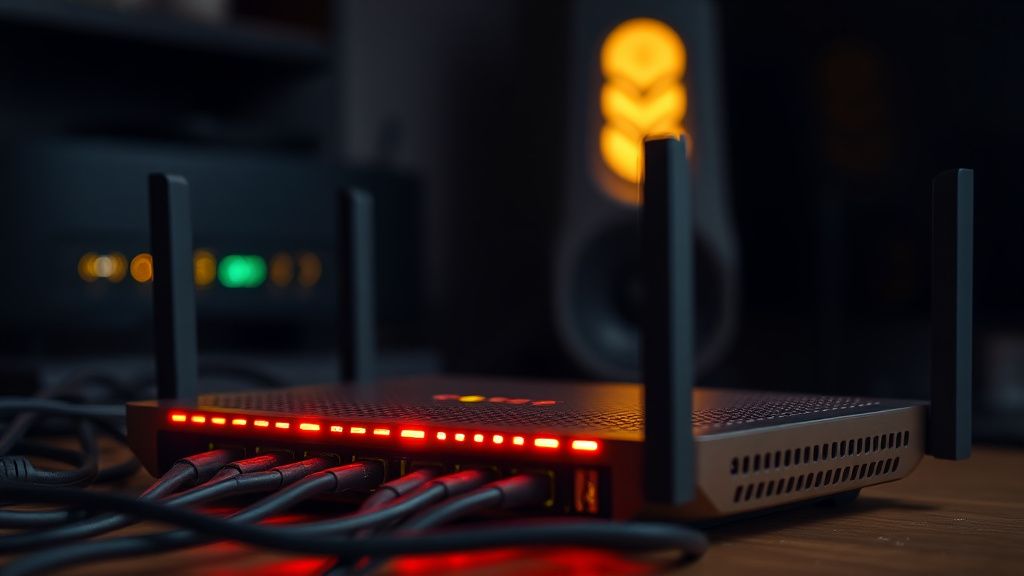
Analyzing the Router-PS5 Interface: Why Wired is Non-Negotiable
If your PlayStation 5 is connected to your router via Wi-Fi, you have already lost the war. The internal Wi-Fi chip in the PS5 (even on the Slim and Pro revisions) is notoriously sensitive to interference.
For 2026 gaming standards, the baseline operational requirement is a Cat6a Ethernet cable running directly from your ISP gateway or main router to the PS5. If you are using a Powerline adapter or a Wi-Fi extender to bridge this gap, you are introducing significant hardware-level latency. These devices often use proprietary "optimized" protocols that play havoc with the specific UDP packets Sony uses for Remote Play.
- The Powerline Trap: Powerline adapters utilize your home’s electrical wiring as an antenna. Electrical noise from a microwave or a flickering LED lightbulb creates electromagnetic interference (EMI) that results in packet loss.
- The Mesh Handshake: Mesh systems are the biggest source of "Portal micro-stutter." When you move from room to room, your Portal might try to jump from one node to another. During this roaming process, there is a momentary drop—a split-second disconnect that feels like a frame-skip.
Advanced DNS and DHCP Reservation Strategies
Many users find that setting a static IP for their PS5 and defining custom DNS settings (like Google’s 8.8.8.8 or Cloudflare’s 1.1.1.1) stabilizes the initial connection handshake. While DNS does not affect the actual streaming of the video feed, it does drastically reduce the "discovery" time when the Portal tries to wake the PS5 from Rest Mode.
Go into your router’s administration panel and locate your DHCP Reservation table. Assign the PS5’s MAC address a permanent IP. This prevents the router from re-negotiating the device identity, which can sometimes trigger a brief stall in the streaming session if the connection is "refreshed" due to an IP lease expiration.
The 5GHz vs 6GHz Dilemma: DFS Channels and Channel Width
By 2026, most households are saturated with 5GHz traffic. If your router is set to "Auto" channel selection, it will constantly scan for cleaner channels. If it decides to switch to a DFS (Dynamic Frequency Selection) channel, your Portal will experience a forced disconnect.
- Manual Channel Selection: Force your 5GHz band to a non-DFS channel (usually 36-48). Use a tool like Wi-Fi Analyzer on your phone to check which channels your neighbors are clogging.
- Channel Width: While 160MHz channels sound fast, they are incredibly prone to interference. For stable streaming, lock your 5GHz band to 40MHz or 80MHz. Consistency beats theoretical peak speed every time in remote play scenarios.
- The 6GHz Advantage: If you have a Wi-Fi 6E or Wi-Fi 7 router, move your Portal to the 6GHz band exclusively. 6GHz is currently a "clean room" environment with almost zero overlap from older smart-home devices or neighbors' routers.
Real Field Reports: The "Ghost Stutter" Phenomena
In the r/PlayStationPortal community and various Discord servers dedicated to network engineering, a recurring theme is the "Ghost Stutter." Users report that even with a perfect ping (sub-10ms), the game feels "heavy" or "floaty."
Case Study #1: A user with a high-end fiber connection reported persistent input lag. Investigation revealed that their router’s Quality of Service (QoS) engine was misidentifying the Sony streaming packets as "low priority" background traffic because they lacked a standard gaming port signature. Disabling QoS entirely cleared the input lag immediately.
Case Study #2: Another user discovered that their PC’s background cloud-syncing services (OneDrive/Dropbox) were saturating the router’s NAT table. Even though they weren't using the full bandwidth, the sheer volume of small, frequent connection requests was causing the router’s CPU to choke, delaying the PS5's UDP packets.
The Problem with NAT Types
Your NAT type (1, 2, or 3) is a vital indicator of your network’s "openness." For the best Portal performance, you need a NAT Type 2 environment. If you are stuck on NAT Type 3, your ISP is likely using CGNAT (Carrier-Grade NAT), which bundles your connection with hundreds of other users.
- Workaround: If you are trapped behind CGNAT, you are at the mercy of the ISP’s infrastructure. The only reliable workaround is to use a VPN router or a dedicated tunnel to bypass the CGNAT restriction, though this can introduce its own latency if not configured with a low-latency protocol like WireGuard.
Troubleshooting the "Broken Update" Cycle
It is a common sight on tech forums: "Everything was perfect until I updated the firmware." This is rarely a conspiracy. Often, an update forces a network renegotiation. When the PS5 reboots after an update, it might default to a different Wi-Fi frequency if it's not hardwired.
Always check your PS5's connection status immediately following a system software update. It is common for the console to "forget" its preferred connection method if the network settings are slightly ambiguous.
Counter-Criticism: Is the Hardware Actually the Problem?
A persistent segment of the enthusiast community argues that no amount of router tweaking will fix the Portal because the device’s internal Wi-Fi antenna placement is suboptimal. The thin bezels and the screen housing create a "Faraday cage" effect that limits signal reception compared to a modern smartphone.
Critics point out that the Portal struggles with beamforming protocols. If you move your body between the Portal and the router, you create a signal shadow. Unlike a phone, which has multiple antennas designed to account for hand grip and orientation, the Portal’s antenna array is fixed. If you are playing in a room with thick walls, the signal degradation is physically unavoidable regardless of your ISP's speed.
When to Give Up and Upgrade
There is a point where the cost of "network perfection" outweighs the benefit. If you are living in a dense apartment complex with 50+ visible Wi-Fi networks, you are fighting a losing battle against the laws of radio physics. In these cases:
- Stop using extenders. They are garbage for latency.
- Invest in a dedicated Access Point (AP). Use an Ethernet backhaul to place an AP in the same room where you play.
- Accept the limit. The Portal was designed for home usage, not for reliable streaming through three brick walls.
Why does my Portal lag only at night?
This is a classic symptom of local bandwidth contention. In residential areas, everyone gets home at 6 PM and starts streaming 4K video. If your router is not using modern MU-MIMO (Multi-User, Multiple-Input, Multiple-Output) technology to manage traffic, your Portal’s traffic gets stuck behind everyone else’s downloads. Move to the 6GHz band or 5GHz to escape the congestion of the 2.4GHz spectrum.
Does a VPN improve latency?
Generally, no. A VPN adds an extra hop in the communication chain. While some VPNs claim "gaming acceleration," they are usually just routing you through a more direct path to the server. For local streaming (Portal to PS5), a VPN is almost always a detriment, adding overhead and increasing packet processing time. Disable it.
Why is my PS5 hardwired but the Portal still stutters?
The bottleneck is likely between your router and the Portal. Check your router’s "Airtime Fairness" setting. Many routers throttle "slow" devices to ensure "fast" devices perform well. Sometimes, the router misidentifies the Portal as a slow IoT device and limits its airtime. Turn off "Airtime Fairness" in your router settings.
Is "Port Forwarding" necessary for Remote Play?
Sony uses a range of ports for remote play (UDP 9304, 9295, 9296, 9297, 9303). While Universal Plug and Play (UPnP) should handle this automatically, many routers have buggy UPnP implementations. Manually forwarding these ports to your PS5’s static IP can often eliminate the "cannot connect to network" or "connection unstable" errors that occur during the initial handshake.
Will Wi-Fi 7 fix all my Portal issues?
Wi-Fi 7 introduces Multi-Link Operation (MLO), which allows a device to connect to multiple bands simultaneously. While this could theoretically prevent drops, the Portal currently lacks the hardware/firmware support to utilize MLO. Do not upgrade your router expecting a "magic fix" for this specific device; wait for the Portal 2 or a significant Sony firmware overhaul.
Why does my Portal lose connection when the microwave runs?
This is classic 2.4GHz interference. Microwaves operate on the 2.4GHz frequency, and cheap shielding in microwave ovens leaks radiation directly into the air. Even if your Portal is on 5GHz, the router’s internal processors and antennas are likely receiving interference that disrupts the entire device’s stability. Ensure your router is placed at least 10 feet away from your kitchen or high-EMI appliances.
Are there any "Developer Settings" for the Portal?
There are no user-facing "pro" settings on the device itself. The menu is intentionally simplified. If you see guides online claiming "secret developer menus," they are almost certainly referring to the PS5's general console settings, which have been available since 2020 and do not specifically "boost" Portal performance beyond standard network optimization.
Should I use "Performance Mode" on my PS5 for the Portal?
Yes. Running your PS5 in "Performance Mode" prioritizes frame rate over resolution. Since the Portal has a fixed 1080p output, running your PS5 in 4K/60fps or high-fidelity mode is a waste of resources. The console still has to downscale the image, which adds a few milliseconds of processing time to the encoder. Stick to Performance Mode for the lowest possible latency in the capture pipeline.
Bu makale affiliate linkleri içermektedir.