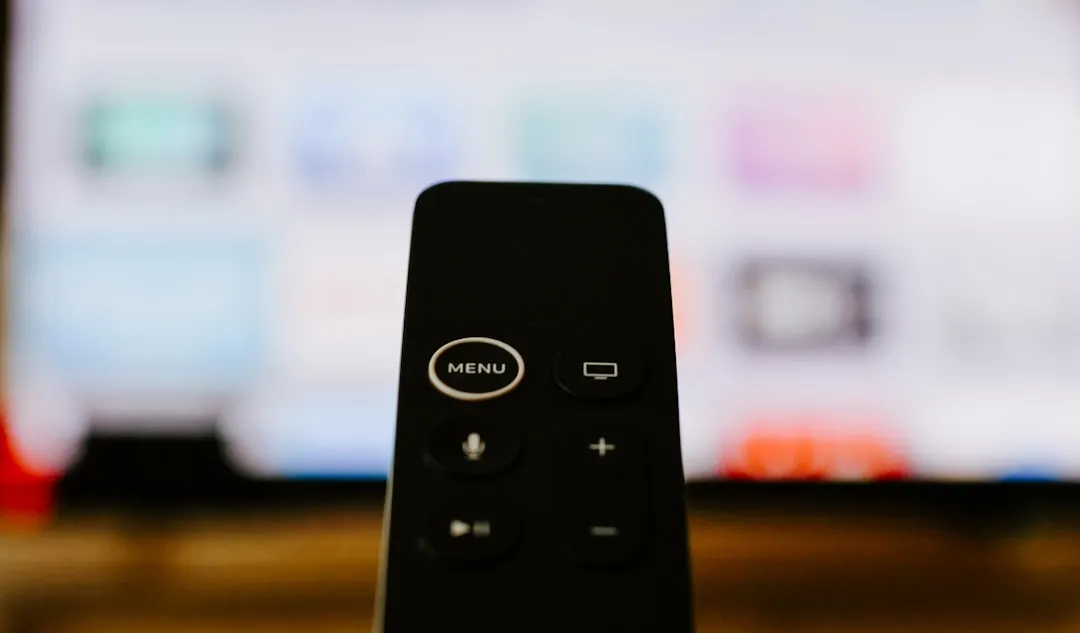
If your Apple TV 4K is dropping frames or suffering from persistent video sync errors, start by disabling "Match Content" in Settings > Video and Audio. If the stutter persists, force a refresh rate change to 60Hz or 50Hz manually. Most issues stem from HDMI handshake failures, cable bandwidth limitations, or conflicting refresh rates between the tvOS display engine and the source content.
The Apple TV 4K is widely heralded as the "Gold Standard" of streaming boxes, yet this reputation often masks a brittle reality: it is a highly opinionated piece of hardware that demands perfection from your entire AV chain. When you see dropped frames—those micro-stutters that break the illusion of 24fps cinema or the smoothness of 60fps sports—you are rarely witnessing a failure of the A15 Bionic chip. Instead, you are looking at the messy, often invisible intersection of HDCP 2.2/2.3 handshakes, HDMI 2.1 bandwidth constraints, and the inherent friction between dynamic refresh rate switching and legacy display firmware.
The Myth of "Plug and Play" in HDMI 2.1 Ecosystems
For the average consumer, the Apple TV 4K is meant to be an appliance, not a computer. Yet, the moment you enable "Match Content" and "Match Frame Rate," you are essentially telling the box to negotiate a complex electrical and digital handshake with your television every single time you press play.
In a perfect laboratory environment, this works flawlessly. In the real world, where users mix high-end LG OLED panels with mid-range soundbars and decade-old HDMI cables, it is a recipe for chaos. The dropped frames you perceive are often "blank frames" created during the handshake re-negotiation. If your display takes even 500ms longer than expected to switch from 60Hz UI to 23.976Hz movie mode, the Apple TV's buffer may overflow or skip, leading to the dreaded "jutter."
Analyzing the "Match Content" Failure Points
The "Match Content" setting is Apple’s attempt to solve the 3:2 pulldown problem—where 24fps content is force-fitted into a 60Hz display container, causing uneven motion. When this works, it’s magic. When it fails, it’s a support nightmare.
- Handshake Latency: Some modern smart TVs, particularly those from budget-conscious brands, have notoriously slow EDID (Extended Display Identification Data) processing. When the Apple TV asks, "Can you handle 23.976Hz?", the TV takes too long to respond. The Apple TV starts playing, the TV finally catches up, and you’ve lost the first three seconds of the film or created a permanent sync offset.
- The Cable Bottleneck: Many users swear by their "premium" braided HDMI cables purchased five years ago. However, the throughput required for 4K Dolby Vision at 60Hz is massive (up to 48Gbps for HDMI 2.1). If your cable is signal-degrading, the Apple TV doesn’t always "break"—it just silently drops packets, resulting in frame stutter that feels like a software bug but is actually a physical-layer failure.
Real Field Reports: The "Judder" Chronicles
If you scour forums like r/AppleTV on Reddit or the deeper technical threads on AVSForum, a pattern emerges. It isn't just one bug; it’s a cascade of failures.
- The "Motion Interpolation" Conflict: Many users report frame drops when they have "Motion Smoothing" or "Soap Opera Effect" settings enabled on their TVs. The TV's processor tries to interpolate frames on top of the Apple TV's already matched frame rate. The result is a processing conflict that makes the image look like it’s "breathing."
- The 50Hz/60Hz Mismatch in Europe: Users in PAL regions (50Hz) often find that content from US-based streaming services triggers a 60Hz switch that their local hardware isn't calibrated to handle smoothly. The internal Apple TV clock tries to resolve this, but the mismatch creates a periodic "hitch" every 40-50 seconds.
"I spent three hours debugging my frame drops, convinced it was the Apple TV’s fault. Turns out, my soundbar was stripping the HDR metadata, forcing the Apple TV to constantly toggle the HDR handshake every time the bitrate of the stream fluctuated. It wasn't a frame drop; it was a constant stream re-negotiation." — A frustrated user on a prominent Home Theater enthusiast Discord server.
Troubleshooting Your Signal Chain: A Methodology
To fix these issues, we must move away from "trial and error" and toward a systematic verification of the signal path.
1. The HDMI Cable Audit
Stop using the cable you got for free with your DVD player in 2012. You need an "Ultra High Speed" certified HDMI cable. Look for the holographic QR code on the packaging. If you are experiencing frame drops, replace the cable first. It is the cheapest and most common failure point.
2. The "Match Content" Toggle Stress Test
Go to Settings > Video and Audio > Match Content.
- Match Frame Rate: Set to On.
- Match Dynamic Range: Set to On. If you still see frame drops, turn Match Frame Rate OFF. Yes, you lose the "pure" 24fps experience, but you gain stability. If the stuttering disappears, you now know the issue is the TV’s inability to keep up with refresh rate changes.
The Hidden Software Complexity: tvOS and API Limits
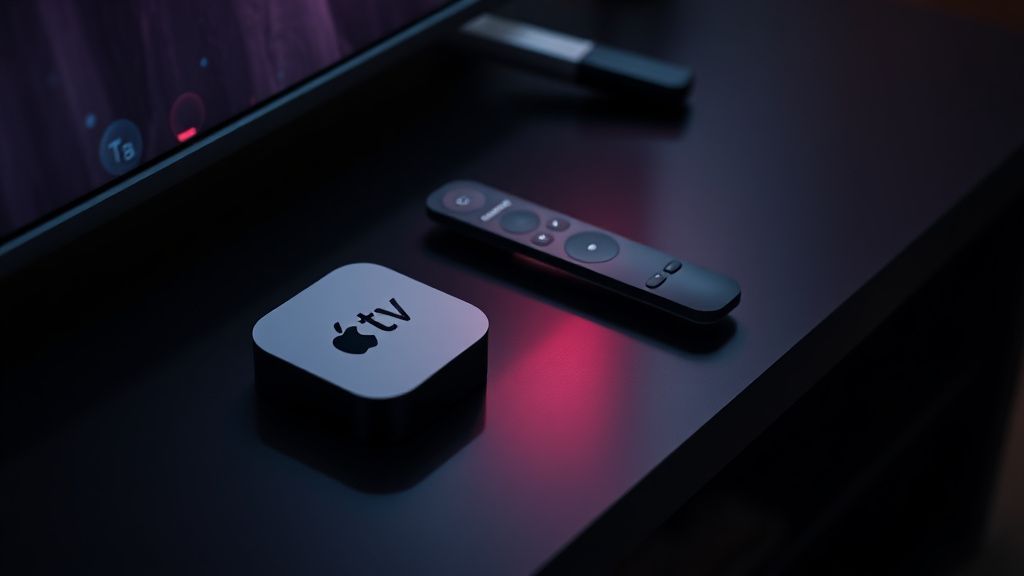
Apple’s tvOS is highly guarded. Unlike Android TV, where you can install custom frame-rate switching tools like Refresh Rate Changer, Apple keeps the APIs locked. This is both a blessing and a curse. Because Apple controls the API, developers must use Apple’s implementation. If an app developer (like a niche streaming service) implements the playback engine poorly, the Apple TV has no way to "force" it into better performance.
This leads to "Platform Fragmentation" in user experience. Netflix’s player implementation is rock-solid. A smaller, independent streaming app might have a custom player that doesn't properly handle frame-rate switches, leading to the appearance of a broken Apple TV.
Counter-Criticism: Why Apple’s Approach is Inherently Flawed
Critics often point out that Apple’s "walled garden" is the core of the problem. By preventing users from having granular control over the frame-rate switching logic (such as forced V-Sync or custom buffer sizes), Apple creates a system that works perfectly only if the user owns a high-end, recent-model television. If you have an older display, you are essentially locked out of high-quality motion because Apple decided, for the sake of simplicity, that you shouldn't have to manage these settings.
This creates a "dark pattern" of customer frustration: the user blames the hardware, buys a new HDMI cable, perhaps even replaces their TV, while the actual issue remains trapped in an opaque software stack they aren't allowed to touch.
Performance Throughput and Scaling Issues
When streaming 4K HDR content at high bitrates, the Apple TV 4K has to decode HEVC or AV1 streams on the fly. If your network speed is fluctuating, the internal buffer can hit a "low" state. To save the stream, the Apple TV might drop frames to allow the buffer to catch up.
Pro-tip: Don't assume your Wi-Fi is enough. Even if your Speedtest says 500Mbps, Wi-Fi suffers from jitter. Use an Ethernet connection. If you see the frame drops vanish once on a wired connection, you weren't experiencing a TV sync error; you were experiencing network congestion-induced playback stutter.
Why does my screen go black for a second when I start a movie?
This is a normal, if annoying, part of the "Match Content" feature. The Apple TV is signaling your TV to switch its internal processor to a different refresh rate (e.g., from 60Hz to 24Hz) to match the movie. The black screen is the TV resetting its panel to accept the new signal.
Is it better to set the Apple TV to 4K SDR or 4K HDR permanently?
For most users, "4K SDR" with "Match Dynamic Range" enabled is the preferred setting. Forcing "4K HDR" all the time makes the UI look "blown out" and forces your TV to upscale SDR content, which can introduce artifacts and micro-stutters.
Does the Apple TV 4K support VRR (Variable Refresh Rate)?
Yes, but it is currently underutilized. The Apple TV 4K supports HDMI 2.1 VRR, which theoretically eliminates frame drops by allowing the display to sync directly to the source's frame output. However, this is largely dependent on the app developer enabling it within the player.
Could my soundbar be causing video frame drops?
Yes, absolutely. If your HDMI chain is: Apple TV -> Soundbar -> TV, the soundbar is acting as an HDMI repeater. If the soundbar’s internal processor is dated or can't handle high-bandwidth signals, it will cause exactly the kind of dropped frames you describe. Try bypassing the soundbar to test.
What should I look for when buying a new HDMI cable?
Always look for the "Ultra High Speed" certification label. Do not trust marketing terms like "8K Ready" or "Gold-Plated." The label ensures the cable has passed physical tests for 48Gbps bandwidth, which is critical for 4K/60fps HDR content.
Are there any "hidden" developer menus?
There is a "Developer" menu available if you connect the Apple TV to a Mac via Xcode. It allows you to enable a "Frame Rate Overlay," which shows you in real-time exactly what frame rate the device is outputting. This is the only way to prove if your TV is actually receiving the signal you think it is.
Final Thoughts on Hardware Longevity
The reality of streaming technology is that it is a moving target. As services increase their bitrate to compete in the 4K/HDR arms race, the hardware at the edge—the Apple TV, the cables, the TV processors—is constantly under pressure. If you are experiencing frame drops, don't view it as an "end of life" event for your device. View it as a signal that your chain is struggling to maintain a high-bandwidth digital handshake. Simplify your connections, prioritize a wired network, and accept that "Match Content" is a powerful, yet historically temperamental tool.