The black screen issue on the Apple TV 4K is rarely a hardware failure. It is almost always a negotiation breakdown in the HDMI Handshake—the digital "conversation" where your streamer, your receiver, and your display (TV/Projector) verify their capabilities. When the handshake fails, the display receives no signal or an incompatible one, resulting in a persistent black screen or a "No Signal" banner.
The complexity of the modern living room ecosystem—involving High Dynamic Range (HDR), Variable Refresh Rate (VRR), and HDMI issues, as well as the sheer bandwidth requirements of 4K/60Hz HDR10+ or Dolby Vision—has turned the simple HDMI cable into a critical point of failure. You are likely dealing with a chain of devices that were manufactured at different times by different companies using different interpretations of the HDMI 2.1 specification.
The Anatomy of an HDMI Handshake Failure: Protocol and Link Layer Instability
At its core, an HDMI handshake is an exchange governed by HDCP (High-bandwidth Digital Content Protection) and EDID (Extended Display Identification Data). When you wake your Apple TV 4K, it sends an EDID request to the TV. The TV responds with a list of supported resolutions, color depths, and refresh rates. If the Apple TV interprets this data incorrectly, or if the chain is interrupted by an AV receiver (AVR) or a soundbar, the screen remains black.
The "Black Screen" is often the result of HDCP 2.2 mismatch. If your TV supports 4K but the HDMI port you are plugged into is only HDCP 1.4 compliant, the Apple TV 4K will refuse to output content, defaulting to a black screen rather than a low-resolution signal. This is a deliberate design choice by Apple to prevent piracy, but it is a frequent headache for users with older hardware.
Why "High-Speed" HDMI Cables Are Often Not Enough
The industry shift to HDMI 2.1 has been a branding disaster. Many cables labeled as "High Speed" simply lack the physical shielding or the bandwidth throughput (48Gbps) required for a stable 4K 60Hz HDR signal.
- Attenuation: Long, unshielded cables experience signal degradation. At high bitrates, bits are flipped, the handshake process gets jittery, and the display loses the "clock" signal, resulting in a black screen.
- The Connector Geometry: Poorly manufactured connectors can cause physical contact issues, leading to intermittent signal loss during atmospheric shifts or minor vibrations.
Pro-Tip: If you are using a cable longer than 3 meters (10 feet) for 4K HDR content, you need an Active Optical Cable (AOC). Passive copper cables rarely provide the necessary signal integrity at these lengths for the high-data-rate requirements of the Apple TV 4K.
Real Field Reports: The "Receiver-in-the-Middle" Conflict
In the professional home theater installation community, specifically in forums like AVSForum and various Reddit communities dedicated to home automation, the "Receiver-in-the-Middle" problem is notorious.
One user on a popular technical support thread detailed an issue where their Denon AVR would handshake perfectly with a PS5 but fail consistently with the Apple TV 4K. The culprit? HDMI CEC (Consumer Electronics Control). Apple’s implementation of CEC is aggressive. It attempts to control volume, input switching, and power states for the entire chain simultaneously. If the AVR’s internal buffer is slow to respond to the Apple TV’s "Power On" command, the HDMI handshake times out, the TV defaults to its built-in OS, and the Apple TV gets stuck in a loop of failed negotiations.
"The issue is that Apple TV pushes the display to switch modes (Match Content/Frame Rate) during the handshake. If your receiver doesn't handle the sub-second transition between SDR and HDR effectively, the screen just dies. I had to manually set the Apple TV to '4K SDR' and enable 'Match Content' to stop the constant black-outs." — User comment from a Home Theater enthusiast subreddit.
Troubleshooting Your Signal Chain: A Systematic Approach
Before swapping cables, you must isolate the failure point. The most effective method is a Direct Connection Test.
- Bypass the Chain: Disconnect the Apple TV 4K from your soundbar or AVR. Plug it directly into the HDMI port on your TV. If the signal returns, the issue is not the Apple TV or the cable; it is an HDMI passthrough incompatibility in your receiver.
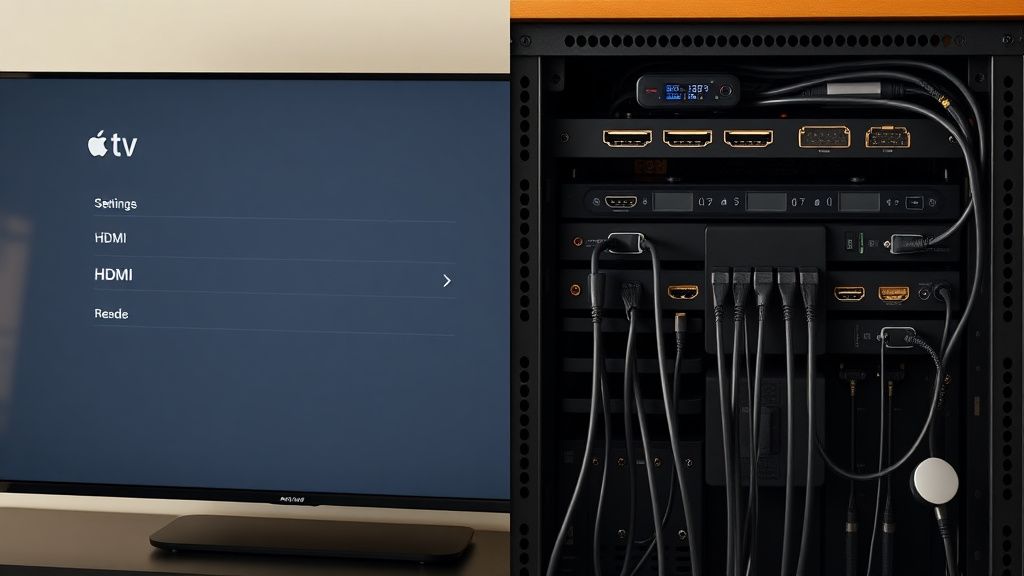
- Verify the HDMI Port Mode: Many TVs have "HDMI Enhanced" or "HDMI Ultra HD" settings hidden in deep sub-menus. If the TV is in "Standard" mode and the Apple TV is outputting 4K HDR, the handshake will fail.
- Check for "Match Content" Conflicts: Navigate to Settings > Video and Audio > Match Content. Turn off "Match Content" and "Match Frame Rate." If the screen stops going black during menu navigation, your TV is failing to process the rapid refresh rate switching (e.g., from 60Hz UI to 24Hz movie playback).
The Hidden Cost of Apple’s "Match Content" Feature
Apple's commitment to "filmmaker accuracy" is technically impressive but operationally fragile. By default, the Apple TV forces the display to switch resolution and frame rate to match the source video. Every time you start a movie, the screen goes black for 2-3 seconds while the HDMI handshake renegotiates.
In some ecosystems—especially those involving older HDMI 2.0 switchers or long-run cables—the display fails to "re-sync" during this switch. This is the "Black Screen of Death" that plagues users who use high-end equipment but have a bottleneck in their HDMI signal chain.
- The Conflict: Some displays do not support specific combinations of chroma subsampling (4:2:0 vs. 4:2:2 vs. 4:4:4). If your Apple TV is forced to 4:4:4 by the system, but your cable can only reliably handle 4:2:0, you will get a black screen.
- The Workaround: Manually limit the chroma settings in the Apple TV video output settings. Forcing 4:2:0 is often the "silver bullet" for unstable signal paths.
Industry Controversies and the "HDMI 2.1" Marketing Scam
There is significant friction between cable manufacturers and the reality of the HDMI specification. Marketing teams often slap "HDMI 2.1" labels on cables that are essentially repurposed 2.0b designs. Because there is no consumer-level way to verify the bandwidth throughput of a cable without a $5,000 analyzer, users are stuck in a cycle of "cable swapping."
Industry analysts at The Verge and Ars Technica have repeatedly noted that the fragmentation of standards—where "HDMI 2.1" includes optional features like VRR (Variable Refresh Rate) and ALLM (Auto Low Latency Mode)—means that two "HDMI 2.1" certified devices may not actually be compatible with each other. This is the primary driver of the frustration surrounding Apple TV 4K installations.
Dealing with "Handshake Loops" During Startup
One of the most persistent bugs reported in support threads concerns the Apple TV failing to wake a display from deep sleep. This is often an HDCP 2.2 handshaking race condition.
- The Scenario: The Apple TV wakes up, sends an HDCP handshake request, but the TV is still in its "Standby" power state and hasn't initialized its HDMI controllers.
- The Result: The Apple TV concludes "No device connected" and stops sending a signal. The TV then wakes up, looks for a signal, finds nothing, and goes back to sleep.
- The Fix: This is often solved by enabling "HDMI-CEC" across all devices to ensure that power-on signals are synchronized. If that fails, the only reliable workaround is to power on the TV first, wait 5 seconds, then wake the Apple TV.
Managing Firmware Fragmentation
Never underestimate the role of firmware. A silent update on your TV (like an LG webOS or Sony Bravia update) can change how the HDMI port handles handshake timings.
When your Apple TV 4K goes black after an update, it is almost never the Apple TV that is at fault. It is usually the display’s firmware having altered the EDID response, essentially "forgetting" how to negotiate with the Apple TV. In these cases, performing a Power Cycle—unplugging the TV, the receiver, and the Apple TV from the wall for 60 seconds (a "cold boot")—is essential to flush the temporary handshake memory of the HDMI chips.
Why does my screen flicker black for a second when I start a movie?
That is the "Match Content" and "Match Frame Rate" features working. Your Apple TV is telling the TV to switch to the exact frame rate of the video (e.g., 24fps) to avoid judder. If it stays black, your HDMI cable or receiver cannot handle the rapid mode change.
Does a more expensive HDMI cable fix the black screen?
Not necessarily, but a "Certified Ultra High Speed" HDMI cable (look for the hologram QR code on the packaging) guarantees 48Gbps bandwidth. Avoid "premium" cables that lack this certification. High price does not equal better shielding; official certification does.
Should I turn off HDCP to fix the black screen?
You cannot turn off HDCP. Apple requires it to play content. If you are getting an HDCP error, it is almost always a sign that a device in your chain (the switcher, the receiver, or the TV port) is not HDCP 2.2 compliant.
My screen goes black only when using Dolby Vision. What is happening?
Dolby Vision requires a much higher bandwidth (specifically for the dynamic metadata) than standard HDR10. This is the most common stress test for an HDMI cable. If your cable is marginal, standard 4K will work, but Dolby Vision will trigger a black screen. Switch to a certified 48Gbps cable immediately.
Will a factory reset of my Apple TV 4K help?
A factory reset is the "nuclear option." It is rarely necessary unless you have corrupted the system settings. Start by changing your video settings to 4K SDR and disabling "Match Content" before resorting to a reset.
Is there a difference between the HDMI ports on my TV?
Yes. Many modern TVs have only two "full-spec" HDMI 2.1 ports (usually labeled HDMI 3 and 4). If your Apple TV is plugged into a port intended for older peripherals, it may lack the required bandwidth or HDCP version, resulting in a black screen. Check your TV manual to ensure you are using the correct port.
The reality of modern streaming tech is that it operates on a delicate, invisible architecture of handshake protocols. You are essentially managing a high-speed data conversation between three different computers. When the conversation stalls, the screen goes dark. By understanding that the "black screen" is a communication error rather than a broken device, you can move away from guesswork and toward a systematic verification of your HDMI chain. Keep your cables certified, your ports correctly configured, and be wary of the "receiver-in-the-middle" trap. The hardware is rarely broken; it is merely confused.
Bu makale affiliate linkleri içermektedir.