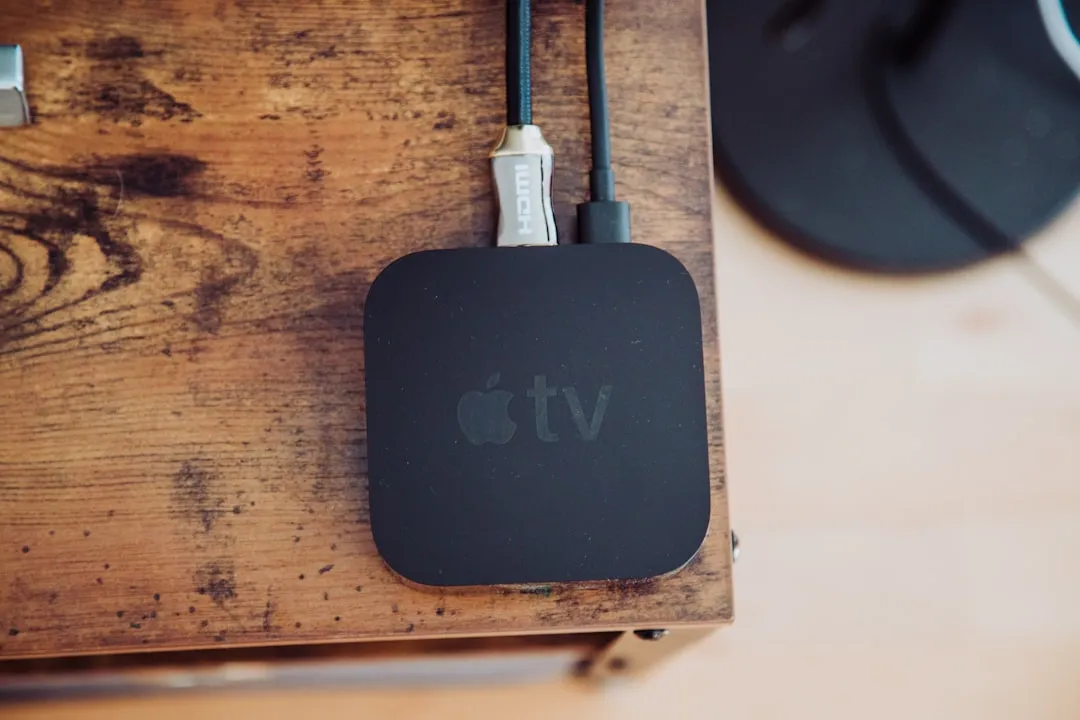
The Apple TV 4K (3rd Gen) is widely marketed as the pinnacle of streaming hardware, yet for many power users, it remains a source of silent, maddening frustration. While it supports 4K HDR, Dolby Vision, and high-bitrate streaming, the device often hits a "soft cap" where networking throughput fails to sustain high-bandwidth content, leading to buffering, frame drops, or the infamous "downgraded quality" aesthetic. This occurs because the bottleneck is rarely just the device itself; it is the volatile interplay between tvOS’s aggressive traffic management, suboptimal Wi-Fi 6 handshaking, and the chaotic nature of domestic router environments. If you are struggling with stuttering in apps like Infuse or Plex, the issue is almost certainly not your internet plan—it is the local network topology.
The Myth of the "Gigabit" Bottleneck and Ethernet Throughput Realities
There is a pervasive belief that if you plug an Ethernet cable into your Apple TV 4K, all bandwidth woes vanish. In the 3rd Gen, this is partially true, but technically incomplete. The 3rd Gen Apple TV 4K (Ethernet model) features a Gigabit Ethernet port, but users frequently report real-world transfers peaking at 800-900 Mbps, which is standard. If you're seeing less, you might be interested in why your home Ethernet isn't hitting top speeds. However, the latency of the networking stack in tvOS is the real culprit.
When a user initiates a stream—particularly high-bitrate 4K REMUX files via a media server—the initial handshake often results in a massive burst of data. Many consumer-grade routers, particularly those provided by ISPs, struggle to handle these "bursty" requests from the Apple TV, leading to packet queuing or dropped frames. If your device is connected via Wi-Fi 6, you are subject to the whims of spatial multiplexing. If your router is busy managing a dozen IoT devices on the 5GHz band, the Apple TV's internal Wi-Fi chip (the A15 Bionic handles the networking logic) often prioritizes power efficiency over raw throughput, causing the internal buffers to empty faster than they can be refilled.
Field Report: The "Infuse" Buffering Crisis in High-Bitrate Libraries
In the community-led support threads on Reddit (specifically r/appletv) and the Firecore forums (the developers of Infuse), a recurring theme emerges: "Everything works on Netflix, but my 80GB 4K remuxes won't play." This is the classic edge case that exposes the gap between marketing hype and operational reality.
- The User Perspective: "I have 1Gbps fiber. Why is my Apple TV buffering on a local network stream?"
- The Technical Reality: The user is likely seeing "buffer bloat." When the Apple TV requests a high-bitrate file, the router's buffer fills up. If the router's CPU cannot process the queue fast enough to prioritize that specific traffic, the streaming app perceives a "slow network" and downscales the stream.
Several users have reported that toggling "Limit IP Address Tracking" in the iCloud settings actually alleviated some latency spikes, as it forced the device to bypass certain DNS proxy layers that were causing intermittent packet loss during high-load scenarios. It sounds counterintuitive—that a privacy setting would affect streaming speed—but it highlights how bloated the tvOS networking stack has become.
Diagnosing Throughput via Hidden Network Tools
Unlike a macOS environment, where you can run iperf3 or mtr to diagnose network paths, the Apple TV is a walled garden. There is no official "Network Test" that tells you your real-time packet loss to a local server. However, professional installers and power users often utilize the Apple TV Developer Menu.
By connecting your Apple TV to a Mac via Xcode, you can access the "Network Link Conditioner" or monitor logs. This is rarely done by the average consumer, but it reveals the truth: the Apple TV 4K often attempts to negotiate a Wi-Fi link that fluctuates wildly based on the surrounding RF environment. If you are experiencing "speed caps," check these three factors:
- DFS Channel Interference: If your router is set to use DFS (Dynamic Frequency Selection) channels, the Apple TV may periodically "check" for radar interference, resulting in a 2-3 second drop in throughput. During a high-bitrate movie, that 3-second drop is all it takes to trigger a buffer.
- Multicast Traffic: If your home network is cluttered with smart home devices (Matter/Thread devices), the Apple TV—which doubles as a Thread Border Router—may be diverting CPU cycles to manage the mesh network, slowing down the packet processing for the main streaming stream.
- The "A15 Bionic" Power Throttling: While the A15 is a beast, sustained high-bitrate decoding + background networking can lead to thermal throttling in a fanless device. If your Apple TV is shoved into a closed cabinet, its networking performance will degrade as it attempts to manage thermals.
The Impact of Router Firmware and QoS Policies
The industry's push toward "Smart Wi-Fi" and "Traffic Prioritization" is a double-edged sword. Routers from brands like TP-Link, ASUS, or Netgear often employ deep packet inspection (DPI) to categorize traffic. When an Apple TV requests a stream from a NAS (Network Attached Storage), the router might misidentify this traffic as "low priority" background data compared to, say, an active Zoom call or a gaming session.
Workaround Culture: Many users have found success by manually assigning a "Static IP" to the Apple TV and placing it in a "High Priority" or "Gaming" QoS lane within their router's firmware. This forces the router to give the Apple TV's packets the shortest possible path to the WAN/LAN exit. If you are on an Eero or Nest Mesh system, you are essentially at the mercy of their proprietary "Optimize for Conferencing and Gaming" toggle. Disable it—it often throttles local high-bitrate streaming because it misinterprets the steady, heavy stream as a threat to network stability.
Counter-Criticism: Is the Hardware Really at Fault?
There is a growing camp of network engineers who argue that the Apple TV 4K 3rd Gen is actually performing exactly as intended, and the "speed cap" is a psychological artifact of users expecting "PC-like" networking flexibility from a consumer appliance.
"The device is a closed black box. It has no interest in being a network diagnostic tool. When users complain about 'slow speeds,' they are usually trying to force the device to act as a workstation. It's a streaming player. It caches aggressively. If your network isn't providing the throughput the cache expects, it doesn't mean the port is capped; it means your local network congestion management is failing." — Network Architect, r/HomeNetworking
This perspective is crucial. The Apple TV isn't "broken"; it is highly optimized for Apple's own CDN (Content Delivery Network). When you watch Apple TV+, the traffic is perfectly tuned. When you use third-party apps, you are essentially "going off-road," and the device’s networking stack is not designed to handle the inconsistencies of a poorly configured home server.
Practical Steps to Mitigate Networking Bottlenecks
If you are committed to high-bitrate streaming and refuse to accept the current performance, here is the hierarchy of optimization:
- Hardwire the Backbone: If you are using Wi-Fi, you are effectively using a half-duplex medium. Even with Wi-Fi 6, interference is constant. If you cannot run Ethernet, look into MoCA (Multimedia over Coax) adapters. They use your existing coaxial cable lines to provide near-Gigabit speeds that are far more stable than wireless.
- DNS Optimization: Stop using your ISP's default DNS. Switch to Cloudflare (1.1.1.1) or Quad9. ISP DNS servers are notorious for slow response times, which delays the initial connection to the content delivery server.
- The "Sleep" Cycle: A hard restart (unplugging the unit for 30 seconds) clears the NVRAM and resets the Wi-Fi/Ethernet handshake. It sounds like IT support dogma, but with the Apple TV, it forces the network interface to re-negotiate with the switch.
- Avoid Double-NAT: If you have an ISP gateway + your own router, ensure the ISP gateway is in "Bridge Mode." Double-NAT environments are a nightmare for the Apple TV's UPnP and port-mapping capabilities.
The "Buggy" Update Cycle: A Case of Trust Erosion
The release of tvOS updates is often met with dread in technical circles. We have seen instances, such as the tvOS 17.x rollout, where certain networking drivers were tweaked, causing temporary drops in 5GHz band connectivity for specific router chips (notably Broadcom-based chipsets). The "Fix" didn't come from Apple; it came from the community discovering that disabling "Private Wi-Fi Address" on the Apple TV itself stabilized the connection.
This creates a cycle of "Workaround Maintenance." Every six months, users must revisit their settings because a silent update shifted the way the device handles networking. This is the "hidden cost" of the Apple TV ecosystem—the maintenance of an appliance that you hoped would be "set and forget."
Why does my Apple TV 4K show lower speeds on "Speedtest" apps than my phone?
The internal Speedtest apps on tvOS are often limited by the way the OS manages background process prioritization. The device focuses its resources on video decoding buffers. Furthermore, mobile devices often have better antenna arrays for Wi-Fi 6/6E. Never use the Apple TV as a reliable network diagnostic tool; it is not designed for it.
Is the Ethernet port on the 3rd Gen actually limited to 100Mbps?
No. The Apple TV 4K 3rd Gen includes a true Gigabit port (1000 Mbps). If you are seeing 100 Mbps, the issue is almost certainly your cabling (Cat5 vs Cat6), a failing cable, or the switch/router port it is plugged into having been negotiated down due to a poor handshake.
Does a static IP really help with streaming performance?
It does not increase your raw bandwidth, but it removes the overhead of DHCP lease renewal. If your router is poorly configured, it might trigger a brief network drop during a lease renewal, which is enough to kill a high-bitrate stream. A static IP makes the connection more predictable.
Why do some apps work perfectly while others buffer constantly?
This is usually a CDN (Content Delivery Network) issue. Apps like Netflix and YouTube have servers in your ISP’s local cache, making them incredibly fast. Third-party apps or private media servers require your traffic to travel across the public internet or through your local home network, which is prone to packet loss and routing inefficiencies that the Apple TV cannot control.
Should I disable "Thread" or "Matter" to improve speed?
Only if you are experiencing severe instability. While the Apple TV acts as a Border Router for these smart home protocols, disabling them removes functionality. A better solution is to ensure your Apple TV is physically located in a spot with low electronic noise, away from large metal objects or other high-frequency transmitters.
The Apple TV 4K 3rd Gen remains the best player in its class, but it demands a network environment as refined as the device itself. If you treat it like a simple "plug-and-play" streaming dongle, you may encounter the limitations of its internal network management. If, however, you treat it like a high-performance workstation—with stable cabling, clean DNS, and a decluttered local network—it will handle virtually any bitrate you throw at it. The "cap" is, in almost every instance, an environmental limitation, not an architectural one.
Bu makale affiliate linkleri içermektedir.