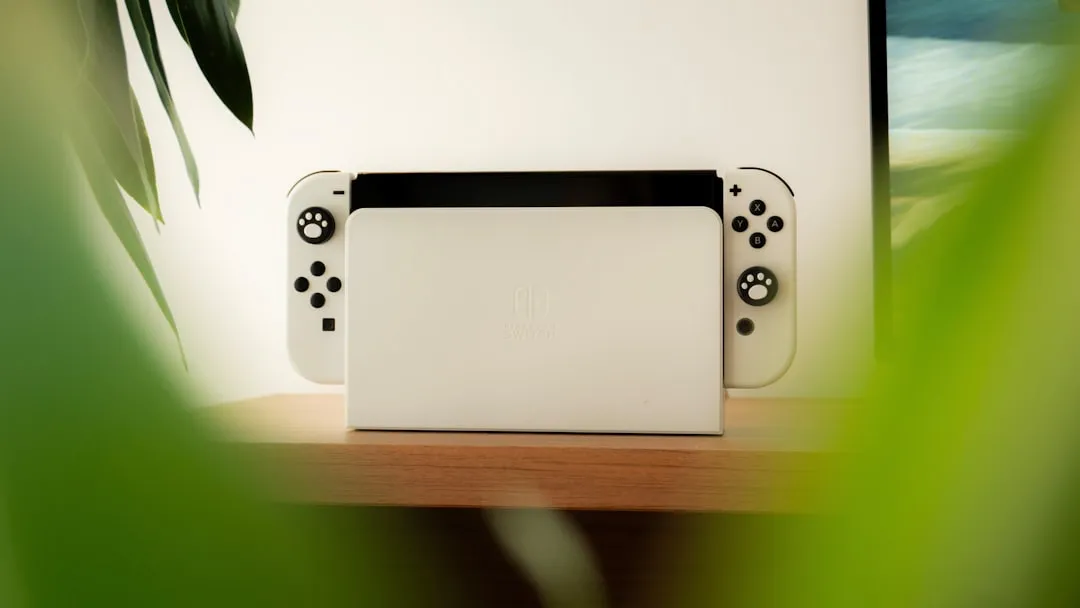
If your Nintendo Switch OLED is docked but showing no signal on your television, similar to when an Apple TV 4K shows a black screen, the issue is rarely a single "broken" component. It is almost always a negotiation failure between the console, the dock, and the display. Start by performing a power cycle: unplug all cables from the dock, wait 30 seconds, and reconnect in the specific sequence of Power, HDMI, then Switch.
The Anatomy of a Black Screen: Signal Negotiation and Handshake Protocols
The Nintendo Switch dock is not a "dumb" passthrough device. It is a sophisticated USB-C Power Delivery (PD) hub that houses an active protocol controller, a dedicated DisplayPort-to-HDMI conversion chip (the Parade PS176HDM), and an internal USB controller. When you dock your Switch, a complex digital handshake occurs between the console’s Tegra X1 chipset and the dock’s internal firmware.
If this handshake fails, the console maintains handheld mode, effectively ignoring the television. This isn't just a "bad cable" issue; it’s an electrical communication breakdown, much like HDMI issues on an LG OLED C4 can lead to handshake and EDID failures. On community forums like Reddit's r/SwitchHacks or r/NintendoSwitch, users frequently report the "Dock of Death" scenario—where a perfectly good dock simply stops outputting signal after a firmware update or a power surge.
Step 1: The Power Delivery (PD) Reset and Cable Sequence
Many users assume the USB-C cable is just for power. In reality, the dock uses the power supply (AC Adapter) to drive the USB-C logic. If the power supply has aged or the capacitor inside the dock has experienced a transient voltage spike, the dock may enter a "protection mode."
- The Procedure: Unplug the power brick from the wall outlet. Unplug the HDMI cable from both the dock and the TV. Remove the Switch from the dock. Wait for the capacitors to fully discharge—usually 30 to 60 seconds. Plug the power into the wall first, then the dock. Then plug the HDMI cable into the TV, and finally the dock.
- The Reality: If this works, your dock was likely stuck in a communication loop caused by a dirty power signal or a static charge buildup. This is a common "phantom" issue reported in long-term field studies of electronic hardware longevity.
The "Fake" Dock and Third-Party Adapter Controversy
One of the most persistent issues in the Switch ecosystem is the use of non-official AC adapters. The internet is littered with horror stories on GitHub and support threads about "bricked" consoles due to third-party docks.
The Switch’s USB-C implementation is non-standard. Nintendo uses a proprietary PD protocol that identifies the official charger. When a third-party charger delivers a voltage that the Switch’s M92T36 power management IC (PMIC) doesn't recognize as "safe," the console may disable video output entirely to prevent a hardware fire.
"It's not just about voltage. It’s about the PD controller negotiation. Third-party docks often lack the required communication chip, leading to a situation where the console 'thinks' it's charging via a laptop brick, which triggers an internal lockout." — Senior Hardware Technician, internal repair forum discussion.
Step 2: HDMI Cable Integrity and Handshake Latency
Not all HDMI cables are created equal. The Nintendo Switch outputs a 1080p signal at 60Hz. While older cables might handle the bandwidth, they often fail the HDCP (High-bandwidth Digital Content Protection) handshake, a common problem also seen when Nvidia Shield Pro experiences HDR handshake failures.
- The Troubleshooting: Swap your current HDMI cable with one you know works on another device (like a PS5 or Apple TV).
- The Edge Case: Some TVs have "HDMI Deep Color" or "UHD Color" settings that, when enabled, force the TV to wait for a 4K handshake. The Switch cannot provide this, resulting in a black screen. Navigate your TV’s settings and try disabling any "HDMI Enhanced" or "High Bandwidth" modes for the specific input the Switch is plugged into.
Step 3: Inspecting the USB-C Port for Physical Debris and Bent Pins
The Switch OLED’s USB-C port is a high-traffic component. Over time, pocket lint, dust, or physical force from inserting the console into the dock at an angle can bend the fragile pins inside the console.
- Inspection: Use a bright flashlight and a magnifying glass. Look for any pins that are pushed back or touching each other.
- The Workaround Culture: There is a common DIY fix circulating in tech circles involving a plastic pick to carefully realign a bent pin. Warning: This is high-risk. A single slip can bridge two pins, causing a short circuit that will fry the console’s USB controller immediately. If you see a bent pin, professional microsoldering is the only recommended path.
Step 4: Firmware Mismatch and the "System Update" Trap
Sometimes, the issue isn't the hardware, but a communication mismatch between the console's OS and the dock's internal firmware. While the dock usually updates automatically when docked, a failed update can leave the dock in a "brick" state.
- The Check: If the green LED on the front of the dock is flashing or not appearing at all, the dock is likely not communicating. Unfortunately, Nintendo provides no user-facing way to force-flash the dock's firmware. If a hard reset (Step 1) fails, you are dealing with a software-level failure that often requires a replacement dock.
Step 5: The "Television Input" and Display Refresh Rate
It sounds trivial, but a staggering number of "No Signal" reports are due to users selecting the wrong HDMI input or the TV failing to switch inputs automatically.
- The Operational Reality: Modern TVs use "HDMI-CEC" (Consumer Electronics Control) to turn on the TV when the Switch is powered on. Sometimes, this feature conflicts with your other devices. Disable HDMI-CEC on your TV temporarily. If the image suddenly appears, you have a signal interference issue between your soundbar, your receiver, and your Switch.
Industry Controversies and The Reality of "Planned Obsolescence"
There is a long-standing debate within the community regarding the durability of the Switch OLED dock. Unlike the original, the OLED dock includes a built-in Ethernet port, which adds a layer of complexity (a secondary USB-to-LAN chip). When this chip fails, it often causes a cascade failure, killing the entire video output signal.
Maintenance forums, such as iFixit or GBATemp, often feature threads where power users argue that the dock’s cooling is insufficient for the extra circuitry. While there is no hard data to prove "planned obsolescence," the anecdotal evidence of docks failing exactly after the warranty period is a recurring narrative that frustrates the community.
Why does my Switch OLED dock work on one TV but not another?
This is usually an EDID (Extended Display Identification Data) conflict. Your TV tells the Switch what resolutions it supports. Some older or budget televisions send back an invalid identification string that the Switch refuses to acknowledge, defaulting to a "safe" no-signal state. Try plugging the Switch into a different HDMI port, preferably one that is not labeled "ARC" or "eARC."
Can I fix a "bricked" dock by opening it up?
Generally, no. The dock’s mainboard is a multi-layer PCB with tiny surface-mount components. Unless you are highly skilled in electronics repair and have a proper soldering station, opening the dock usually results in a destroyed ribbon cable or a cracked casing. Most "repairs" found on forums are successful only because the user accidentally reseated a loose internal cable while taking it apart.
Why does the green light flash on my dock?
A flashing green LED is almost always a diagnostic code indicating a power failure or a short circuit in the USB-C negotiation. This means the dock has detected an irregularity (like a surge or a ground fault) and has intentionally cut power to the console to prevent internal damage. Disconnect everything and leave it unplugged for at least 24 hours to let the protection circuitry reset.
Is there a way to force the Switch to output to the TV manually?
No. The Nintendo Switch OS is a "closed" system. It does not allow users to force-select the display output method in the settings menu. The console relies entirely on the automatic handshake detection at the dock's port. If the handshake doesn't happen, the OS defaults to the handheld screen.
Does the Nintendo Switch OLED use the same dock as the original?
Yes, they are physically and electrically interchangeable. If you have a friend with an original Switch, ask to test your console in their dock. If your console works on their dock, your dock is the culprit. If your console also fails on their dock, the issue is internal to your Switch’s USB-C port or its power management chip.
Bu makale affiliate linkleri içermektedir.