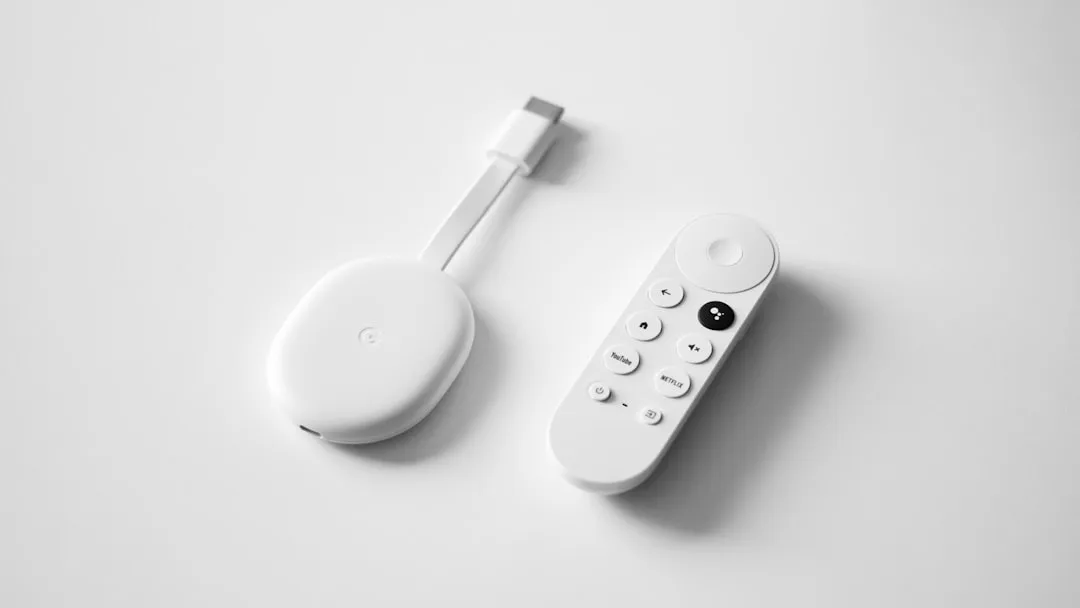
If your Chromecast with Google TV (4K) is stuttering, buffering, or rebooting, thermal throttling is the likely culprit. To mitigate this, ensure the device has adequate airflow, use the provided power brick rather than a TV USB port, and keep the dongle away from hot surfaces or direct heat sources like high-wattage TV backlights.
The Chromecast with Google TV (4K) represents a fascinating intersection of aggressive miniaturization and the relentless pursuit of high-bitrate content. When Google launched this device, the goal was clear: provide a seamless, AI-driven interface that felt like a premium experience without the premium price tag. However, the operational reality of packing a quad-core ARM Cortex-A55 processor into a plastic shell no larger than a key fob creates a perfect storm for thermal mismanagement.
The Physics of Miniature Computing and Thermal Dissipation
At the heart of the Chromecast 4K issue is the fundamental challenge of cooling electronics that lack active ventilation. In a workstation or a modern gaming PC, we rely on case fans, heat sinks, and thermal paste to manage the heat generated by the CPU and GPU. In the Chromecast, the heat has nowhere to go. The device relies entirely on passive dissipation—radiating heat through its dense, plastic chassis.
When you stream 4K HDR content via AV1 or HEVC codecs, the decoder hardware works at peak efficiency. This produces significant heat. Once the internal temperature hits a pre-programmed threshold, the system initiates "thermal throttling." It doesn't just stop; it begins to underclock the CPU and drop frame rates or resolution to reduce power draw and, consequently, heat generation.
Users often mistake this for a Wi-Fi connection issue. They see a spinning loading icon and assume their ISP is failing them. In reality, the chip is simply slowing down to prevent physical damage to the silicon—a silent, digital self-preservation mechanism.
Power Delivery: The Often Overlooked "Hidden" Variable
One of the most persistent issues discussed on subreddits like r/Chromecast and various XDA-Developers forums involves the common practice of powering the device through a television's USB port. It is a clean, cable-free solution that looks great on social media setups, but it is an operational nightmare.
Most television USB ports are designed for low-power peripherals—a thumb drive, a keyboard, or a simple mouse. They rarely output a steady, clean 5V/1.5A required for the Chromecast 4K to operate at its full performance potential. When the device is under-powered, it struggles to maintain high-bitrate streams, leading to power fluctuations that generate even more heat through resistive losses.
The Golden Rule: Always use the included Google power brick. If you are using a third-party hub for Ethernet expansion (which many power users do to overcome Wi-Fi congestion), ensure your power supply (PD brick) is providing at least 18W to 30W. Skimping on the power supply here is the fastest way to trigger a "boot loop" or force the device into a state of permanent instability.
Understanding the "Streaming-Tech" Bottlenecks
Beyond thermal limits, the architecture of the Chromecast 4K involves a complex interplay between the Android TV OS, the launcher, and the third-party apps we install.
- Memory Pressure: With only 2GB of RAM, the device is perpetually on the brink of exhausting its memory. When you add a heavy background app like a VPN or an accessibility service, the system has to "swap" tasks more frequently, which increases the CPU workload and, you guessed it, raises the temperature.
- The "Ambient Mode" Trap: Many users leave their devices on the beautiful, high-resolution screensaver mode for hours. While visually pleasing, this mode pulls high-res imagery from the cloud and processes it continuously. For a device already sitting behind a hot TV panel, this is effectively "overclocking" for no reason.
Field Report: The Case of the "Hidden" Dongle
A recurring theme in support threads, specifically in GitHub discussions regarding custom launchers, is the "hidden" installation. Users take great pride in cable management, hiding the Chromecast deep behind the TV or wrapping it in bundles of HDMI cables.
From a thermal dynamics perspective, this is disastrous. By wrapping the device in cables, you are creating an insulating blanket. Plastic, as a material, is an insulator. By surrounding it with other wires and keeping it in a dead-air space between the TV and the wall, you are creating a "heat soak" zone.
One user on a popular technical forum documented this by using an infrared thermometer to compare the surface temperature of the device when exposed to open air versus when tucked behind a wall-mounted panel. The difference was a staggering 12 degrees Celsius.
Debating the "Design vs. Function" Controversy
There is a loud contingent of users who argue that Google should have designed a larger, vented device. They point to competitors like the Apple TV 4K, which, while more expensive, features a significantly larger form factor and better passive heat management.
However, the counter-argument from an industry analyst perspective is the "price point barrier." The Chromecast with Google TV is a commodity item. To keep the price low enough for mass adoption, Google had to make engineering compromises. They didn't target the home theater enthusiast with a $300 custom installation; they targeted the average user who wants to turn a dumb TV into a smart one for under $50.
The industry controversy here isn't that the device is "broken"—it’s that it’s being pushed beyond its design envelope by enthusiasts who expect $200 performance from a $50 piece of hardware.
Practical Workarounds for the Scaling Problem
If you are encountering consistent thermal throttling, consider these field-tested methods, which go beyond the standard "unplug it and plug it back in" advice:
- The HDMI Extender Extension: The device comes with a short HDMI extension cable. Do not skip this. Using it moves the device further away from the back of the TV, which acts as a giant radiator.
- Vertical Orientation: If possible, orient the dongle so it is not lying flat against the back of the television. Even a slight tilt can help with natural convection airflow.
- Disabling Unnecessary Background Processes: Go into "Developer Options" and restrict the background process limit. This is a "power user" workaround, but it effectively lowers the idle CPU load.
- External Cooling: While it sounds absurd for a media stick, some users have experimented with small, USB-powered fans mounted in the cabinet behind the TV. While this is an extreme "hack," it completely solves the throttling issue for users living in high-ambient-temperature environments (like tropical climates).
The Software Perspective: Is the Firmware Fighting You?
We must also address the "Google TV" interface itself. The recommendation engine—that prominent, image-heavy carousel at the top of the screen—is a resource hog. It is constantly fetching metadata, video thumbnails, and personalized trailers.
In some versions of the firmware, this interface has been known to spike CPU usage unexpectedly. If you find your device is hot even when you aren't streaming, it’s likely the OS fighting to keep that UI reactive. Using a third-party launcher is a common workaround in the community to strip away these resource-intensive elements, resulting in a much cooler, snappier experience.
Maintaining Trust in the Ecosystem
The failure of a piece of hardware is often the beginning of a loss of trust in the entire ecosystem. When a user experiences a crash in the middle of a film, they don't blame the heat; they blame Google.
As we see more devices move toward this ultra-compact, high-performance profile, we are going to see more of these "hidden" failures. The industry is currently trapped in a cycle: we want smaller devices that do more, but physics dictates that heat must be managed. Until we see a shift in semiconductor efficiency or a move toward active cooling for high-end sticks, the burden of "thermal management" rests with the consumer.
Why does my Chromecast 4K reboot randomly during high-quality 4K streams?
Most random reboots are a result of the device hitting a thermal shutdown threshold. When the internal silicon reaches a dangerous temperature, it will force a reboot to prevent damage. This is often exacerbated by using a low-power USB port on your TV instead of the dedicated power brick.
Does using a USB-C hub with Ethernet increase heat?
Yes, significantly. Ethernet adapters and USB hubs add extra controllers and components that generate their own heat. Additionally, they often draw more power from the device. If you use a hub, ensure it is a high-quality unit and that you are providing adequate external power to it, otherwise, you are inviting thermal and power instability.
Is it safe to leave my Chromecast on 24/7?
While it is designed to be in "standby," it is technically never truly off. It stays connected to the Wi-Fi and the cloud. If you are in a very warm room, it is better practice to power cycle the device occasionally or ensure it has proper ventilation. It won't catch fire, but it will degrade the long-term performance of the flash storage and CPU.
Does a "Factory Reset" fix overheating issues?
Not directly. A factory reset will clean out accumulated cache files and potentially remove "heavy" apps that are running in the background, which might lead to lower CPU usage. However, if the overheating is caused by environmental factors (like poor airflow behind the TV), a reset will not solve the physical problem.
Are there any "thermal mods" for the Chromecast 4K?
The community has tried everything from attaching small adhesive heatsinks to the back of the chassis to using thermal pads that conduct heat to a larger metal plate. While these work, they technically void your warranty. Only attempt this if you are comfortable with hardware modification and understand that the cosmetic look of the device will be altered.
Why doesn't Google just update the software to fix this?
Software updates can optimize CPU scheduling, but they cannot change the laws of thermodynamics. If the chip is physically too small to dissipate the heat generated by 4K/60fps HDR processing, no firmware update can fully mitigate it. Software can only help by lowering the performance ceiling, which effectively makes your 4K streamer less of a "4K" device.
How do I know if my device is actually overheating?
You can install a third-party "CPU Monitor" app from the Play Store. If you see your temperatures consistently climbing above 80-85°C while streaming, you are definitely in the throttling zone. If you notice stuttering exactly when these temperatures peak, you have confirmed that heat is the cause of your playback issues.
Bu makale affiliate linkleri içermektedir.