Quick Answer: If your Chromecast with Google TV 4K is stuck in a boot loop, the most effective fixes are: force a factory reset by holding the physical reset button for 25+ seconds, re-flash firmware via recovery mode, or starve the device of power for 60 seconds before a cold restart. Most boot loops trace back to a corrupt OTA update, insufficient power, or storage fragmentation.
There's a specific kind of frustration that hits when you sit down to watch something and your Chromecast just... cycles. The Google logo appears. A loading spinner. Blank screen. Google logo again. You wait, because sometimes it just takes a moment. Then the logo again. You're in a boot loop, and the device has no intention of stopping on its own, a frustrating experience similar to when a Roku Ultra is stuck in a reboot loop.
This is not a rare edge case. Search Reddit's r/Chromecast or r/googlehome and you'll find thread after thread — some from 2021 when the 4K model launched, some from last week — describing exactly this behavior. The community has been diagnosing, patching, and working around this problem for years. Google's official support documentation is, charitably speaking, incomplete. The real knowledge lives in forum posts and GitHub issue threads.
What follows is an attempt to consolidate that knowledge: what actually causes boot loops on the Chromecast with Google TV 4K, what the documented fixes are, where those fixes fail, and what to realistically expect when you're dealing with a device that has decided it no longer wants to finish booting.
Why the Chromecast with Google TV 4K Gets Stuck in Boot Loops
Understanding the failure mode matters before you start pressing buttons.
The Chromecast with Google TV 4K runs a full Android TV-derived OS (Google TV) on Amlogic S905X3 silicon with 8GB of eMMC internal storage. That 8GB figure is the first thing you should know, because it's tight. After the OS occupies its partition, apps, cached content, and update packages compete for whatever remains. When that storage fills — or fragments badly — the system can fail to complete a boot sequence.
The OTA Update Problem
The single most common trigger for boot loops is a failed over-the-air firmware update, much like the PS5 Error SU-1014 where the console gets stuck in an update loop. Google has pushed multiple OTA updates to the device since 2020, and a non-trivial number of them have caused boot loop situations in the field.
The failure mode typically looks like this: the device downloads an update in the background, schedules a reboot to apply it, reboots — and then discovers midway through the update application that it cannot write to storage, or that a partition has become corrupted. The device then enters A/B partition recovery behavior, but if both slots are compromised or the recovery partition itself is damaged, you get the cycling behavior, much like when an LG G4 OLED gets stuck on its logo in a boot loop.
A thread on r/Chromecast titled "Update last night bricked my Chromecast 4K - constant reboot loop" (posted March 2022) accumulated over 400 upvotes and 200 comments, most of them from users experiencing identical symptoms after the same OTA version. Google never officially acknowledged that update as problematic. The thread was eventually locked after a moderator noted the factory reset procedure in the sidebar.
Insufficient or Unstable Power
The second most common cause is power. The Chromecast with Google TV 4K ships with a USB-C power adapter rated at 5V/1.5A. That's 7.5 watts. It's enough — barely — under normal operating conditions. But the Amlogic S905X3 is not a frugal chip, especially during boot, when it's initializing storage controllers, loading the OS, verifying partition integrity, and spinning up background services simultaneously.
If you're powering the device via the TV's USB port instead of the included wall adapter, you're likely getting less than 7.5W. Many TV USB ports deliver 5V/0.5A, which is 2.5W. That's a recipe for a corrupted write during storage initialization, which produces — you guessed it — a boot loop.
This has been documented repeatedly. A GitHub issue filed against the "cros-board-eel" tracking repository noted that Chromecast 4K units showed dramatically higher boot failure rates when powered from passive USB ports. The fix required no code changes; the hardware just needed adequate power.
Storage Fragmentation and Cache Corruption
The 8GB eMMC gets full. It's not a question of if, it's when. Google TV installs apps automatically in some cases, caches significant amounts of streaming metadata, and stores update packages before applying them. Users who install Netflix, Disney+, HBO Max, YouTube, and a handful of games can find themselves with less than 1GB free relatively quickly.
When the system tries to boot with a critically full storage partition, the dalvik cache rebuild — which happens on every significant OS update — can fail partway through, leaving corrupted runtime files. The device reads those files on next boot, encounters errors, and restarts. Repeat indefinitely.
Real Field Reports: What Users Actually Experience
The community documentation here is more useful than anything Google has published.
Scenario A — The Morning After an Update: User powers on TV at 7am. Chromecast shows "Google TV" splash, spins for 90 seconds, goes dark, restarts. This repeats 8-10 times. User tries unplugging and replugging. No change. The update from the previous night applied partially and corrupted the system partition. Fix: factory reset via button hold. Time to resolution: 30 minutes, including setup time.
Scenario B — The Slow Degradation: Over several months, a user installs more and more apps. Performance gradually degrades. One day the device takes 4 minutes to boot instead of 45 seconds. Eventually it stops completing the boot at all. The symptom builds slowly rather than appearing suddenly. Fix: factory reset, then disciplined reinstall of only essential apps. Root cause: storage saturation plus dalvik cache issues.
Scenario C — The Phantom Boot Loop: Device boots fine when the user is watching. After sitting idle overnight and going into deep sleep mode, it fails to wake and instead reboots into a loop. This is subtler and initially misdiagnosed as a sleep/wake bug. Actual cause: a third-party app (often identified as an older version of Plex or Kodi sideloaded via APK) was triggering a crash on resume that cascaded into reboot behavior. Fix: factory reset plus avoiding the specific app version.
Scenario D — Hardware Failure After 18-24 Months: Some users, particularly those in warmer climates or with poor TV cabinet ventilation, report boot loops that no software fix resolves. The device gets warm during normal operation — the S905X3 in an unventilated dongle form factor is not thermally luxurious — and after extended use, eMMC wear can reach a point where writes fail at the hardware level. Factory resets don't help because the storage itself is degraded. This is end-of-life behavior, and the only resolution is replacement.
The Actual Fixes, In Order of Least to Most Destructive
Fix 1: Hard Power Cycle (Start Here)
This sounds too simple. Do it anyway.
- Unplug the USB-C power cable from the device (not just the TV).
- Wait a full 60 seconds. Not 10. Not 30. Sixty.
- Plug back in directly to the included wall adapter.
- Watch one full boot cycle before intervening.
This resolves a meaningful subset of boot loops that are caused by the power management controller getting into a bad state. It costs nothing and takes a minute.
Fix 2: Force Factory Reset via Reset Button
This is the procedure Google documents, sort of. What they under-document is the required duration.
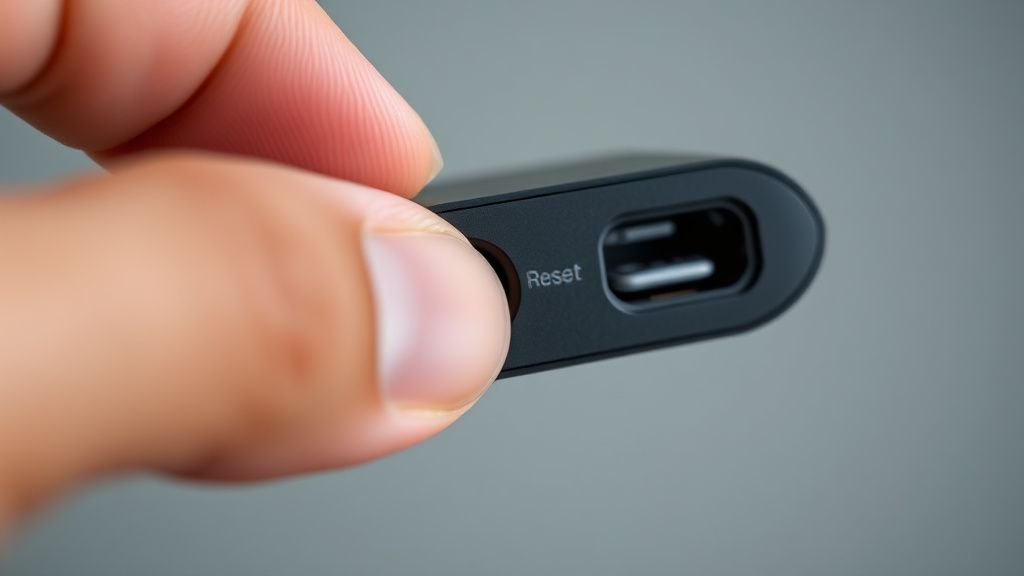
The reset button is located on the bottom edge of the Chromecast dongle, the flat side that contains the USB-C port. It's a small physical button, not a pinhole — you can press it with a fingernail.
Procedure:
- With the device plugged in and in its boot loop state, locate the reset button.
- Press and hold the reset button continuously.
- The status LED (on the same edge as the reset button) will begin blinking orange.
- Continue holding. Do not release when it blinks orange.
- After approximately 25-30 seconds of continuous holding, the LED will turn solid white.
- Release the button.
- The device will perform a factory reset and reboot. This process takes several minutes.
The critical detail that causes people to fail this procedure: they release when they see the orange blinking. That's too early. You need to hold until solid white. Multiple community guides, including a detailed walkthrough on the Chromecast subreddit wiki, specifically call this out as the most common failure point.
Fix 3: Recovery Mode Firmware Re-flash
If the factory reset doesn't work — meaning the device still boot loops after the LED turned white and the reset procedure completed — you're dealing with a more deeply corrupted state. This requires accessing recovery mode.
How to Access Recovery Mode:
- Unplug the device completely.
- Hold the reset button.
- While holding the reset button, plug the power back in.
- Continue holding the reset button until you see "Entering recovery mode" text on the display (you need the Chromecast connected to a TV to see this).
- Release.
From recovery mode, you have options to wipe cache partition, wipe data/factory reset, and — on some firmware versions — apply update from storage. The wipe cache partition option is worth attempting first, as it's less destructive than a full factory reset and specifically targets the dalvik cache and temporary file corruption that causes many boot loops.
Re-flashing Firmware: Google does not publicly distribute flashable firmware images for consumer Chromecast devices in the way that, say, Amazon does for Fire TV devices. This is a genuine limitation and a recurring frustration in the community. There is no official "download firmware and sideload via recovery" path.
What does exist: community-maintained ADB-based tools and, in some cases, EDL (Emergency Download Mode) procedures for the Amlogic platform. These are not officially supported and carry real risk of further damaging the device if executed incorrectly. They're documented on the XDA Developers forum under the Chromecast 4K board section. Approach with appropriate caution.
Fix 4: Factory Reset via ADB (If You Can Get a Window)
Some boot loops are not complete — the device gets far enough into the boot process that ADB (Android Debug Bridge) becomes briefly accessible over the network before it crashes and restarts. If you can catch this window, you can trigger a factory reset programmatically.
This requires:
- ADB installed on a computer on the same network.
- The Chromecast's IP address (check your router's DHCP table).
- Developer options to have been previously enabled on the device (if not, this won't work).
adb connect [CHROMECAST_IP_ADDRESS]:5555
adb shell recovery --wipe_data
The timing is tricky. You may need to attempt the ADB connect command multiple times, catching the brief window when the network stack is up. Users on the XDA thread for this device have described writing simple bash loops to retry the connection continuously until it succeeds.
Counter-Criticism and Debate: Is This Google's Problem to Fix?
There's a legitimate argument — made periodically in the community — that boot loop susceptibility on the Chromecast 4K reflects deliberate product design decisions that Google hasn't been sufficiently held accountable for.
The 8GB storage allocation was criticized at launch. Tech reviewers noted in 2020 that 8GB was already tight for the use case, and Google TV's tendency to aggressively cache content made it more so. Google's response, implicitly, was that users shouldn't be installing dozens of apps on a streaming dongle. The product is designed for a curated set of first-party streaming services and light third-party app use. Heavy sideloading or installing 20+ apps is "off-label" use.
This argument has some merit technically but ignores how people actually use these devices. The Google Play Store is available and promoted. Sideloading is not blocked. The device runs Android. People install apps. Pretending they won't is a design fiction.
The counter-argument from Google's direction (never stated explicitly, reconstructed from product decisions): the Chromecast 4K is priced at $49. It is not a high-margin product. The BOM (bill of materials) constraints are real. 8GB was the economic choice. The device serves the majority of users adequately. Edge cases that push the storage limits fall outside the design envelope.
That's a coherent internal product logic. It doesn't help the person whose device is stuck in a boot loop at 10pm on a Friday, with Google support offering a scripted response about factory resets.
A more pointed criticism: Google's OTA update process for this device has caused boot loops directly, on multiple separate firmware versions, without acknowledgment or communication. The 2022 update issue wasn't a user error or edge case. It was an update that Google pushed that broke devices. The community solved it. Google moved on.
Preventing Future Boot Loops: Operational Discipline
After going through a factory reset and setup, these practices reduce recurrence risk:
Storage Management
- Keep at least 1.5-2GB of free storage at all times. Check under Settings → System → About → Storage.
- Regularly clear cache for individual apps via Settings → Apps → [App Name] → Clear Cache.
- Consider running a full storage audit every few months. Apps accumulate local data faster than most users expect.
Power Supply Discipline
- Always use the included Google power adapter, or a verified 5V/2A (10W) USB-C adapter. Not the TV's USB port.
- If you're using a USB-C hub or extension cable, verify it supports adequate power throughput. Some cheap cables introduce voltage drop.
Update Awareness
When a new OTA update notification appears, it's worth spending 60 seconds on r/Chromecast to see if early adopters are reporting issues. Boot loops from bad OTA updates tend to surface within hours of rollout. Waiting a week after an update is available before applying it is a legitimate risk management strategy on a device with this history.
Thermal Management
If the Chromecast is mounted behind the TV in a tight cabinet or enclosed space, it runs hotter. Hotter means more eMMC wear over time. Better airflow — even just ensuring the dongle isn't sandwiched directly against other hot components — extends the storage lifespan.
When to Stop Troubleshooting and Replace the Device
There's a point at which continued troubleshooting is irrational. Specifically:
- You've completed two separate factory resets via the button procedure.
- You've cleared the cache partition via recovery mode.
- The device continues to boot loop after both procedures.
- The device is more than 24 months old.
At this point, the probability of eMMC hardware failure is meaningful. No software fix resolves a physically worn storage chip. The device costs $49 new (or frequently less during sales). The time cost of continued troubleshooting exceeds the replacement cost.
This is a frustrating answer because it essentially means the device has a finite lifespan that some users will hit faster than others, depending on usage patterns and operating environment. But it's the realistic answer.
For users who want more storage headroom and better thermal performance, the Chromecast with Google TV HD variant uses similar silicon but the broader ecosystem of Android TV streaming sticks in the $50-100 range — NVIDIA Shield TV, Fire TV Stick 4K Max — generally offer more robust hardware at higher price points.
The Broader Ecosystem Context: Streaming Device Boot Reliability
Boot loops are not unique to Chromecast. Fire TV devices have documented boot loop issues. Roku has had models with persistent reboot problems (the Roku Express 4K had community-reported issues in 2021-2022). Apple TV rarely boot loops, and when it does, the recovery path via iTunes/Finder is dramatically better documented and supported.
The difference is support infrastructure. Apple's recovery process is well-documented, tested, and reliable. Google's process is partially documented, community-completed, and works most of the time. Amazon's process falls somewhere in the middle.
The pattern is consistent: the $30-50 streaming dongle segment is where manufacturers accept higher failure rates as economically rational given the price point. The support investment doesn't match the ASP (average selling price). Users who hit the failure modes are expected to self-serve via community resources or replace the device.
This is not cynical speculation
Bu makale affiliate linkleri içermektedir.