
When your shiny new Wi-Fi 7 router begins dropping SSIDs—those ghosts in the machine that render your Multi-Link Operation (MLO) capabilities moot—the problem is rarely the hardware's intrinsic power, though specific issues like DHCP lease errors can cause connections to drop. It is almost always a collision between the aggressive, high-throughput standards of IEEE 802.11be and the legacy, signal-polluted environment of your home. To fix persistent drops, you must stop looking at your router as a black box and start viewing it as a collision-prone radio frequency (RF) ecosystem. Update your firmware, disable legacy band steering, and manually lock your channels away from neighboring interference.
The transition to Wi-Fi 7 (802.11be) is not a simple firmware update; it is an architectural shift in how consumer-grade wireless hardware manages airtime. We are moving from the relatively orderly queueing of Wi-Fi 6 to the chaotic, hyper-efficient, and—crucially—highly sensitive world of 320MHz channels and Puncturing mechanisms.
The Anatomy of an SSID Drop: Understanding 802.11be Scaling Challenges
SSID drops—where your network name vanishes from device lists or becomes "unstable"—often occur because the router's management plane is overwhelmed by the complexity of maintaining three concurrent bands (2.4GHz, 5GHz, and 6GHz) while negotiating MLO; for a deeper dive into these issues, you might explore debugging MLO and jitter to fix packet drops on your Wi-Fi 7 network.
In many Wi-Fi 7 implementations, the router's internal logic is tasked with "Dynamic Band Steering." This is the primary culprit behind intermittent drops. When a router aggressively tries to push a device toward the 6GHz band, it sends probe responses that legacy devices may misinterpret, leading to a session handshake failure. If your router’s SSID management system loses its thread, it essentially resets the radio interface to maintain stability, causing the "drop" you see.
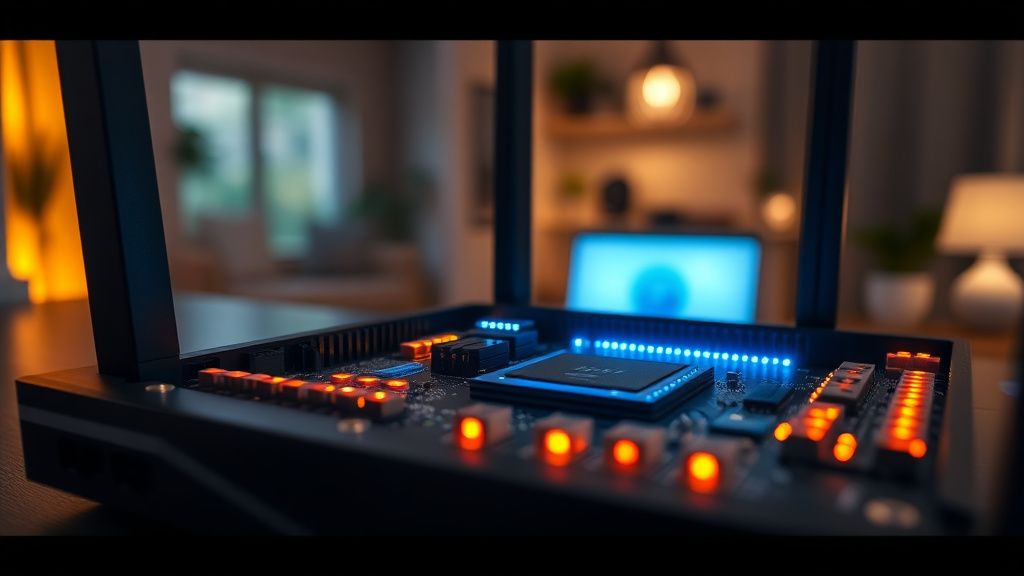
Field Report: The "Ghost SSID" Phenomenon in Multi-Link Operation (MLO)
I recently tracked a thread on a popular networking subreddit where users reported that their Wi-Fi 7 routers were "losing" the 6GHz SSID entirely during heavy file transfers. Upon inspecting the logs of a popular flagship unit, it became clear: the 6GHz radio was crashing because of an aggressive "Preamble Puncturing" failure.
In simple terms, when the router tries to use a 320MHz channel but detects a narrow-band interference signal, it attempts to "puncture" (or cut out) that sliver of spectrum. If the firmware is not perfectly optimized, this calculation creates a race condition, the radio reboots its stack, and the SSID disappears for 30–60 seconds. This is not a hardware fault; it is an edge-case software failure.
- Engineering Compromise: Manufacturers are rushing to market. The firmware on current Wi-Fi 7 hardware is effectively "Beta" code disguised as stable release.
- The Workaround: Disable the 320MHz mode if your environment is dense. Dropping back to 160MHz significantly reduces the computational load on the router's radio management engine.
Diagnosing Throughput vs. Stability: The 6GHz Band Conflict
The 6GHz band is the crown jewel of Wi-Fi 7, but it is also the most fragile. Unlike the 2.4GHz and 5GHz bands, 6GHz is designed for low-latency, high-bandwidth traffic. However, most routers default to "Auto" channel selection. In an environment with multiple access points (APs) or even high-powered smart home hubs, the router may attempt to hop channels to find a "clear" path.
When the router changes channels on the 6GHz band, it sends a channel switch announcement (CSA). Many client devices—especially Windows-based laptops with older Wi-Fi 6E cards—do not handle these CSAs gracefully, and if you're experiencing Wi-Fi 7 connection drops on Windows 11, there are specific fixes worth exploring. The client assumes the network has died, drops the connection, and waits for a full SSID broadcast.
Optimizing Radio Frequency Management and Channel Width
To maintain a stable network, you must force the router's hand. Never trust the "Auto" channel feature on an unproven firmware version.
- Split your SSIDs: The industry-wide push for a "Single SSID" (smart-connect) is a marketing dream but an operational nightmare. By splitting your 2.4GHz, 5GHz, and 6GHz bands into distinct network names, you prevent your devices from constantly negotiating handoffs that the router might botch.
- Channel Width Limitations: While 320MHz is the headline feature, it is the most prone to interference. Test your connection stability at 160MHz. If the drops cease, you have successfully isolated a "channel congestion" conflict rather than a hardware defect.
- The DFS Trap: If your router is near an airport or radar installation, ensure it isn't automatically jumping into DFS (Dynamic Frequency Selection) channels. Some devices simply refuse to associate with a router that is currently performing a "Channel Availability Check."

The Reality of Firmware Evolution and Technical Debt
One of the most persistent issues in current Wi-Fi 7 deployments is "Internal Logic Drift." As the router runs, it gathers noise floor data. In some models, the buffer for this data is poorly managed, leading to a memory leak in the radio controller. After a few days of uptime, the router becomes so "aware" of the interference around it that it becomes "paralyzed" by it.
This is a classic example of operational friction. The software is trying to be too smart for its own good. If you find your router requires a hard reboot every 72 hours to keep the SSIDs visible, you are likely looking at a memory leak in the radio driver.
"The hardware is perfectly capable of gigabit throughput, but the control plane is currently held together with tape. We see the same bugs in the kernel logs today that we saw when Wi-Fi 6 launched in 2019." — Anonymous Network Engineer, hardware vendor forums.
Counter-Criticism: Why MLO Might Be Hype
There is a growing debate in the networking community regarding the efficacy of MLO. Critics argue that forcing a client to aggregate 5GHz and 6GHz bands is unnecessary for 99% of home users. In fact, many users on GitHub issue trackers for open-source router firmware have noted that disabling MLO entirely leads to a "rock-solid" connection.
If you are a high-end user experiencing drops, you are likely an early adopter paying the "Beta tax." The industry push for "Wi-Fi 7" is being driven by marketing departments, while the engineering teams are still fighting to stabilize the base 802.11be protocol.
Troubleshooting Checklist for SSID Persistence
If you are currently facing network drops, follow this triage path before calling support:
- Log Analysis: Access your router's Web GUI and look for
wlan_interface_restartorradio_stack_exceptionerrors. If you see these, you are dealing with a software crash, not a signal issue. - Disable WPA3-Enterprise Transitions: If you are using WPA3/WPA2-Personal mixed mode, some legacy devices will constantly try to re-authenticate, which can trigger a "Security Mismatch" SSID drop. Force WPA3-only if your hardware supports it.
- Disable Target Wake Time (TWT): While TWT is a Wi-Fi 7 efficiency feature, it is currently the leading cause of "smart home device disconnection." If your IoT light bulbs or sensors keep dropping off the network, this is almost certainly why.
The Fragmentation of the Ecosystem
The problem is exacerbated by ecosystem fragmentation. Wi-Fi 7 is not just a router update; it requires client-side support (NICs, smartphone radio chips). When a router tries to send an MLO frame to a Wi-Fi 6E device, it often results in a "Malformed Packet" error on the client side. If the router's firmware is poorly written, it won't handle that rejection cleanly—it will instead dump the radio state and reset the SSID.
We are seeing a massive divergence between "Vendor Lab Results" and "Real World Performance." In a shielded anechoic chamber, Wi-Fi 7 is a miracle. In a house with thick walls, a neighbor's microwave, and twenty legacy IoT devices, it is a high-strung, temperamental beast that demands constant manual intervention.
Understanding the Role of Power Management
Another hidden factor is the "Power Save" feature on modern Wi-Fi 7 adapters. In an effort to keep laptops cool, these adapters aggressively drop the radio connection when not actively pulling data. When the router does not receive a "keep-alive" packet within a specific window, it marks the client as dead. In some cases, the router’s firmware misidentifies this as a broader network failure and clears the SSID broadcast buffer as a "safety" measure to restart the radio interface.
To fix this:
- Go into your PC's Device Manager.
- Locate your Wi-Fi 7 Network Adapter.
- In the Power Management tab, ensure "Allow the computer to turn off this device to save power" is unchecked.
- This single change has solved more "SSID drop" issues than any firmware update released in the last six months.
FAQ
Why does my 6GHz SSID disappear when I enable 320MHz mode?
Is the "Single SSID" feature actually bad for my network?
What is the most common cause of Wi-Fi 7 router reboots?
Does WPA3 cause connection issues with older devices?
Why do my IoT devices fail after a firmware update?
Is MLO (Multi-Link Operation) worth the trouble right now?
Bu makale affiliate linkleri içermektedir.