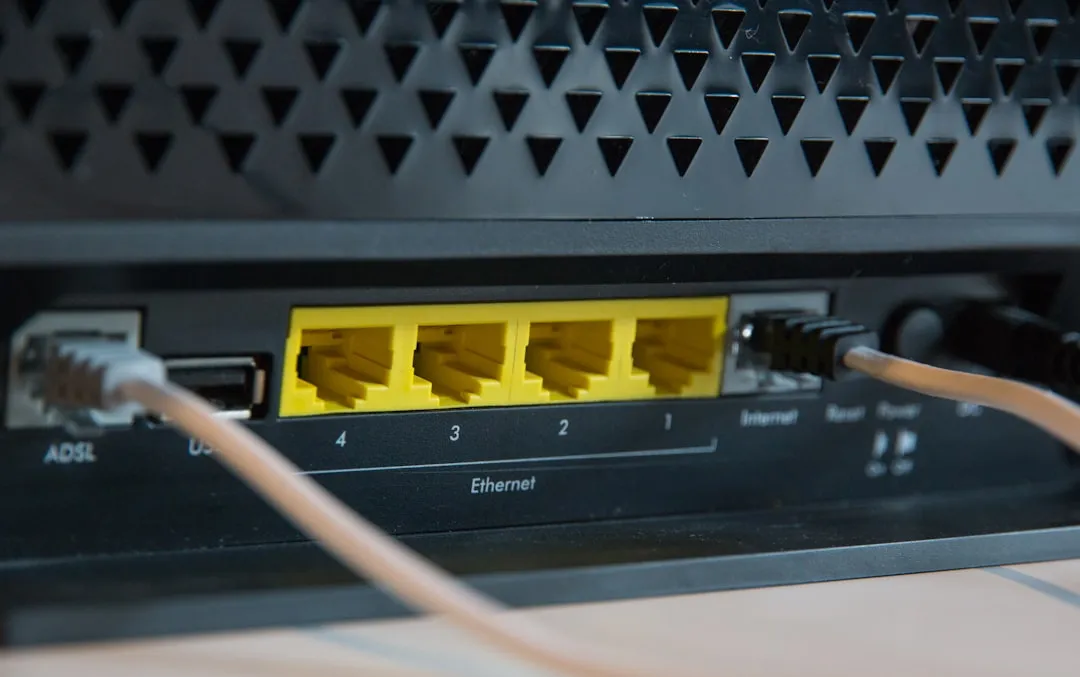
The Wi-Fi 7 (802.11be) transition is, by all accounts, a masterclass in aggressive marketing meeting fragile engineering. When you encounter a DHCP (Dynamic Host Configuration Protocol) failure on a cutting-edge router, you aren't just dealing with a simple network setting; you are likely hitting a wall where high-speed multi-link operation (MLO) logic clashes with aging client device firmware, legacy lease-time management, and the sheer computational overhead required to maintain 320MHz channels. If your devices are stuck on "Obtaining IP address" or defaulting to a 169.254.x.x link-local address, the issue rarely lies in the radio hardware itself, but in the brittle handshakes happening inside the router’s firmware stack.
Decoding the DHCP Failure in High-Throughput Wireless Networks
DHCP is a fundamental legacy protocol—it was never designed for the complexity of a modern Wi-Fi 7 environment. When a router negotiates a connection with a client, the process seems instantaneous, but it involves a complex dance: Discover, Offer, Request, Acknowledge (DORA). In the world of Wi-Fi 7, where routers are managing massive traffic loads, the DHCP server process often finds itself deprioritized or interrupted by high-priority frame processing for MLO or 4K-QAM modulation packets. If you're experiencing related issues, a technical deep dive into why your Wi-Fi 7 is dropping packets might be insightful.
When you see a failure to pull an IP, it is often because the router's internal DHCP lease table is fragmented or locked. On many early-adopter Wi-Fi 7 units, we see issues where the router simply "forgets" to release a lease from a device that hasn't reconnected in days, filling the subnet pool to capacity. Such scenarios are indicative of persistent DHCP lease conflicts that can stall your Wi-Fi 7 network. This is common in households with dozens of smart home devices—the "IoT clutter" factor.
Real Field Reports: The "Ghost Device" Phenomenon
On technical forums like r/HomeNetworking and various GitHub issue trackers for OpenWRT-based firmwares, a recurring theme has emerged among early adopters of Wi-Fi 7 hardware. Users are reporting that their routers are assigning duplicate IPs because the DHCP server is failing to verify the ARP cache against the active lease file.
One notable thread on Hacker News recently dissected a specific failure:
"My Wi-Fi 7 tri-band AP works perfectly for the first 48 hours. Then, it hits a wall. My phone, my laptop, and my smart plugs all stop getting IPs. If I manually assign a static IP on the client, the traffic flows through the router like normal. This proves the radio path is fine, the routing is fine, but the DHCP daemon is essentially dead."
This is not a radio hardware flaw; it is a software state-machine failure. The router’s firmware has likely entered a "zombie state" where the DHCP service is still running but failing to respond to broadcast requests (DHCPDISCOVER) because the packet buffer is congested with management frames from the high-bandwidth 6GHz band.
Troubleshooting and Remediation: Beyond the Reboot
The instinctual fix—rebooting the router—is a temporary bandage that masks the underlying instability. To actually fix this, you need to audit your local network environment.
1. Audit Lease Times and Subnet Limits
If your DHCP lease time is set to "Forever" or even 24 hours, you are courting disaster. In modern, crowded environments, change the lease time to 2 hours. This forces a aggressive cleanup of the IP pool. If your DHCP range is limited to 192.168.1.100 - 192.168.1.200 (100 addresses), you are likely running out of IPs due to the sheer number of transient connections from smartphones, tablets, and smart-bulbs that reconnect with a new randomized MAC address every few minutes.
2. The IPv6 Conflict
Wi-Fi 7 routers prioritize IPv6, but many ISPs and older client devices handle IPv6 DHCP-PD (Prefix Delegation) poorly. If your router has "SLAAC" or "Stateless" mode enabled, it might be ignoring legacy IPv4 requests while it struggles to build an IPv6 routing table. Try disabling IPv6 temporarily to see if the DHCP failure resolves. If it does, you’ve identified a dual-stack implementation bug in your router’s firmware.
Engineering Compromises and Hardware Limitations
The Wi-Fi 7 standard introduces Multi-Link Operation (MLO), which allows a device to communicate across multiple frequency bands simultaneously. While this is a breakthrough for latency, it adds massive pressure to the router's CPU. In several consumer-grade routers, the DHCP server is handled by the main application processor (the "brain"), while the Wi-Fi traffic is handled by dedicated NPUs (Network Processing Units).
When the NPU is overwhelmed by massive 6GHz traffic, the hand-off to the DHCP server often gets dropped. This is a classic "inter-process communication" (IPC) failure. From a user's perspective, the Wi-Fi bars are full, but there is "No Internet." The router is physically connected, but logically isolated from your devices.
Counter-Criticism: Is Wi-Fi 7 Just Too "Hot"?
Critics in the wireless engineering community have argued that the rush to market with Wi-Fi 7 has led to "Firmware-as-a-Beta-Test."
"We are seeing manufacturers push hardware that isn't ready for the sheer state-tracking requirements of MLO. You can't just slap a Wi-Fi 7 chipset on a board and expect the existing Linux kernel DHCP modules to handle the concurrent request rate without crashing. They need to rewrite the networking stack from the ground up to support the throughput, but they're still using legacy codebases from the Wi-Fi 6 era."
This debate highlights a fundamental tension: marketing departments want to ship "Wi-Fi 7" labels, but the infrastructure under the hood—the firmware—is often a spaghetti mess of backported drivers. Users who pay premium prices for "next-gen" connectivity are, in effect, acting as unpaid QA testers for these massive technical debt loads.
Advanced Workarounds for Persistent Failures
If you are a power user and the stock firmware continues to fail, you have three professional-grade options:
- Static IP Reservations: Map the MAC address of every critical device (TV, NAS, PC) to a fixed IP inside the router's "Address Reservation" or "DHCP Static Mapping" table. This bypasses the dynamic allocation logic for your high-traffic devices, ensuring that even if the DHCP server struggles, your devices maintain their link.
- External DHCP Server: If your router allows it, disable the built-in DHCP server and run a dedicated DHCP server on a Raspberry Pi or a Home Server using Pi-hole or Kea. This offloads the entire management layer from the router’s CPU to a machine that can handle the request queue more gracefully.
- VLAN Segmentation: By isolating your IoT devices onto a separate VLAN (Guest Network), you can force the router to manage the DHCP pool for your high-bandwidth devices separately from the "chatter" of dozens of smart sensors, preventing the DHCP table from getting corrupted by lower-tier traffic.
The Future of Network Stability
Will these failures vanish as manufacturers push "Stability Updates"? Probably not. The complexity of Wi-Fi 7 is here to stay. As we move toward 6GHz-heavy environments, the traditional "Plug and Play" router model is dying. We are entering an era where home networks require the same level of care and maintenance as corporate local area networks (LANs).
The takeaway for the consumer is clear: Don't trust the default "Auto" settings. If your Wi-Fi 7 router is failing at DHCP, it is a sign that the automated internal processes are failing to keep up with your specific environment. It is a technical call to action—manual configuration is the only way to squeeze the advertised reliability out of this bleeding-edge technology.
Why does my Wi-Fi 7 router show "Connected, No Internet" specifically after a firmware update?
Firmware updates often reset the lease table or, more importantly, update the underlying Wi-Fi driver, which can cause conflict with cached DHCP leases on your client devices. Perform a "Forget Network" on your client devices and reboot them to force a clean handshake with the updated router state.
Is the DHCP failure caused by my ISP or my Router?
If you have a separate Modem and Router, check the Modem's status. If the Modem is in "Bridge Mode," your router is solely responsible for DHCP. If the Modem is a "Gateway" (Combo Unit), it might be fighting with your Wi-Fi 7 router for IP address assignment. Ensure only one device is acting as the DHCP server.
Why do my IoT devices fail to connect while my PC stays connected?
IoT devices often use older 802.11 standards and have very poor handling of DHCP NAK (Negative Acknowledge) packets. When the Wi-Fi 7 router tries to optimize its bandwidth, it may drop older device requests, leading to IP conflicts. Assigning static IPs to these devices is the most reliable workaround.
Does turning off "Smart Connect" (Band Steering) help with DHCP issues?
Absolutely. Band Steering often forces devices to move between bands (2.4/5/6GHz). Every time a device is forced to switch bands, it has to re-authenticate and re-request an IP. In a congested environment, this creates a DHCP storm. Separating your bands into unique SSIDs stops this "ping-pong" effect and stabilizes IP assignment.
How do I check if my DHCP table is actually full?
Most routers have a "Client List" or "DHCP Table" view in the admin panel. If you see dozens of entries with names like "Unknown" or "ESP-xxxxxx" that you don't recognize, your DHCP range is being poisoned by randomized MAC addresses. Increase your lease time or set up a strict whitelist of known devices.
Could a hardware defect be the cause of my DHCP failure?
While rare, early-run Wi-Fi 7 chips had some documented thermal issues where the processor would throttle under load, causing it to drop DHCP responses. If your router is hot to the touch and the issues happen during high-bandwidth usage (e.g., 8K streaming), ensure it is well-ventilated before assuming it is a pure software bug.
Is it safe to use a third-party DHCP server?
It is safe, but it increases your network's dependency. If the device hosting your DHCP server goes offline, every device in your house will lose connectivity. Only use this method if you have a highly reliable 24/7 machine like a dedicated server or a hardened Raspberry Pi setup.
Bu makale affiliate linkleri içermektedir.