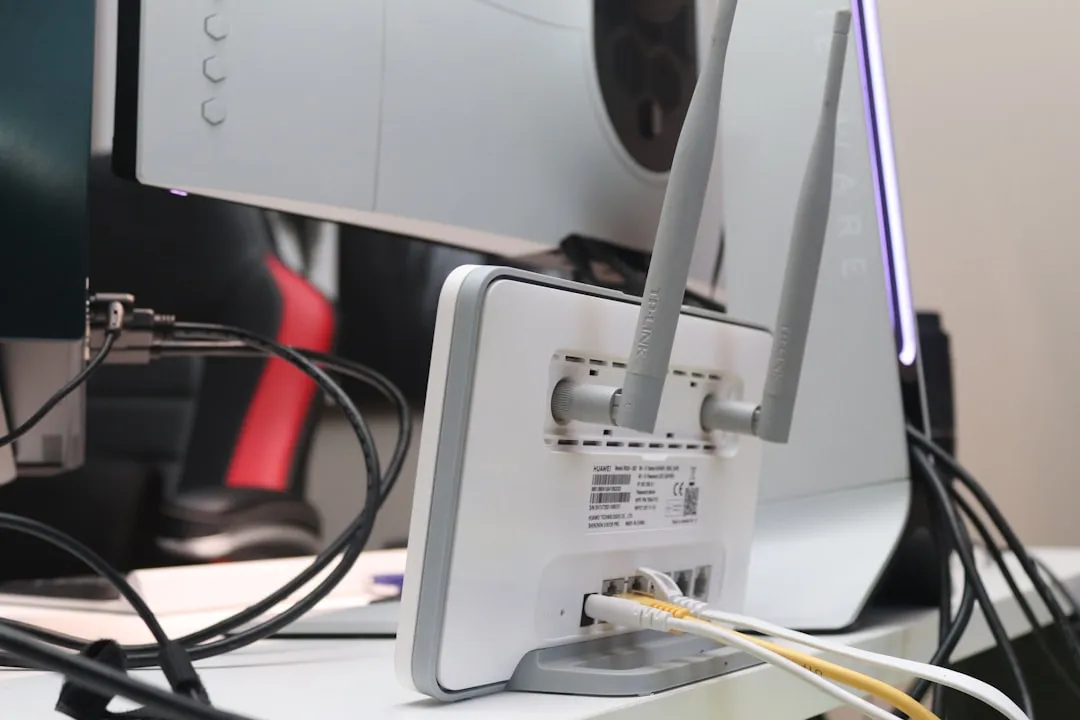
If you are experiencing DNS resolution failures on a cutting-edge Wi-Fi 7 network, the issue rarely lies with the 802.11be protocol itself. Instead, it is almost always a layer-7 conflict between your router’s MLO (Multi-Link Operation) handling and your ISP’s aging upstream recursive resolvers. To fix this, bypass ISP-assigned DNS in your router’s WAN settings, force a flush on your local DHCP lease, and verify that your internal MTU settings aren't causing packet fragmentation during the DNS handshake.
The Wi-Fi 7 Paradox: Why High-Speed Networks Still Get "DNS Probe Finished"
We are currently in a strange period of technological transition. Wi-Fi 7 (802.11be) promises multi-gigabit throughput, extreme low latency, and 320 MHz channel widths. Yet, the moment you open a browser, you are met with the classic, infuriating "DNS_PROBE_FINISHED_NO_INTERNET" error. It is a jarring reminder that no matter how fast your physical layer is—even with 4096-QAM modulation—the entire internet still relies on a fundamentally slow, fragile, and often misconfigured mapping system: the Domain Name System (DNS).
When a user upgrades to a flagship Wi-Fi 7 router, they expect a seamless transition. Instead, they often face "DNS timeouts" that look like hardware failure. The reality? Many modern Wi-Fi 7 routers, in their push to optimize MLO—a feature that allows a client to aggregate multiple bands (2.4GHz, 5GHz, and 6GHz) simultaneously—often struggle with packet ordering. If your DNS queries are getting lost in the shuffle of high-speed MLO handoffs, your connection feels broken, even if the signal strength is hitting -50dBm.
Unmasking the Culprit: ISP Recursive Resolvers vs. Modern Hardware
Most ISP-provided DNS servers are, frankly, archaic. They are designed for reliability and mass-scale filtering, not for the split-second response times required by modern real-time applications. When you pair a high-performance router like an ASUS ROG Rapture GT-BE98 or a TP-Link Archer BE900 with a standard ISP DNS, the discrepancy in speed becomes apparent.
The router tries to negotiate a 6GHz connection while simultaneously pinging the DNS server. If the DNS server is unresponsive or slow to handle the high volume of parallel queries that modern browsers generate, the router flags the connection as "dropped." This isn't a Wi-Fi 7 bug; it’s an infrastructure mismatch.
Why Flushing Your Local Cache is a Temporary Band-Aid
You have likely read forum threads on Reddit's r/HomeNetworking suggesting ipconfig /flushdns. While this clears the local cache on your Windows or macOS machine, it does nothing if the upstream recursive resolver is the bottleneck. If you find yourself doing this multiple times a day, you aren't fixing a bug; you are masking a degradation in the upstream path.
Configuring Advanced WAN DNS Settings
To stop these failures, you must take control of the resolution chain. Relying on "Automatic" settings is a luxury your network can no longer afford.
- Enter your Router’s Web Interface: Access your gateway (usually 192.168.1.1 or 192.168.50.1).
- Navigate to WAN Settings: Do not stay in the "Wireless" or "MLO" tabs. The issue is almost exclusively in how the router talks to the outside world.
- Override DNS Servers: Replace the ISP-assigned addresses with reliable, low-latency alternatives.
- Cloudflare (1.1.1.1): Generally the fastest for gaming and general browsing.
- Google Public DNS (8.8.8.8): Highly resilient, though slightly more privacy-intrusive.
- Quad9 (9.9.9.9): Excellent if you prioritize security and threat blocking.
Real Field Reports: The "MLO Instability" Controversy
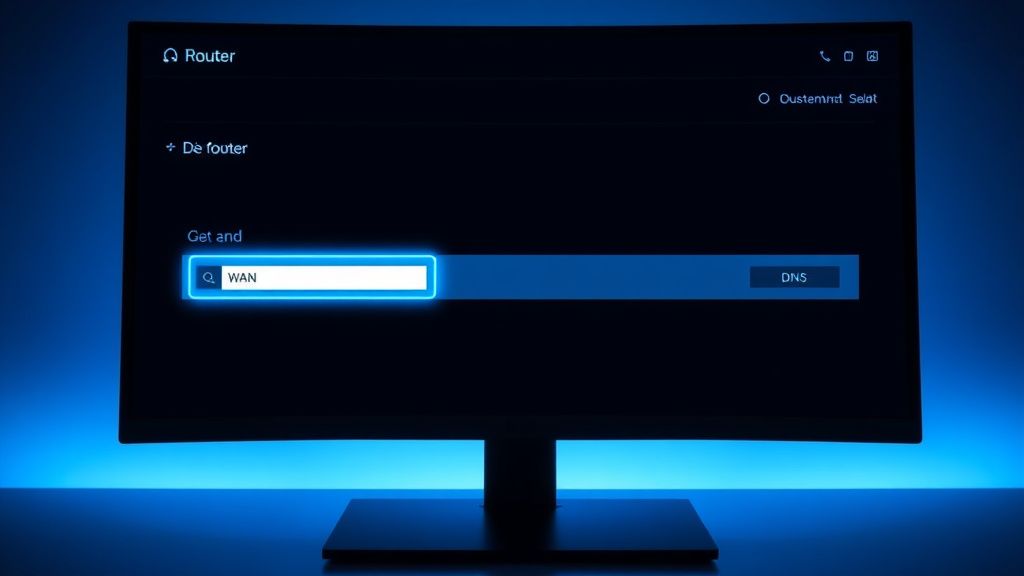
The adoption of Wi-Fi 7 has been rife with controversy regarding Multi-Link Operation. On various enthusiast forums, including the SNBForums (SmallNetBuilder), users have reported "DNS blackouts" when switching between 5GHz and 6GHz bands.
- The User Narrative: "I upgraded to a BE router and suddenly my DNS queries time out every time I walk into the living room."
- The Technical Analysis: The device, in trying to perform a seamless MLO handover, momentarily drops the session state. If the DNS request is mid-flight, it gets discarded.
- The Fix: Some users have had to disable "Smart Connect" or specific MLO features to stabilize the connection. This is a massive compromise—you are effectively neutering the main selling point of your Wi-Fi 7 hardware just to make it function like a standard Wi-Fi 6 unit.
Counter-Criticism: Is the DNS the Real Problem?
There is a segment of the networking community that argues the "DNS error" on Wi-Fi 7 is actually a symptom of Bufferbloat. When your router is processing massive packets on the 6GHz band, the latency spike—if not managed by SQM (Smart Queue Management)—can make small, time-sensitive packets (like DNS queries) wait too long in the buffer.
If your router does not have advanced QoS or SQM configured, the "DNS error" is essentially a timeout triggered by congestion, not by the domain name resolution itself. This is why users who upgrade their firmware often find that the "DNS issues" disappear—not because the DNS implementation changed, but because the vendor patched the buffer handling in the wireless driver.
Security Implications: DNS over HTTPS (DoH) vs. DoT
In the world of Wi-Fi 7, you should consider moving beyond standard DNS. Implementing DNS over HTTPS (DoH) or DNS over TLS (DoT) inside your router settings prevents ISP tampering and keeps your queries encrypted.
However, be warned: hardware-level DoH is taxing on older router CPUs. If your router is not sufficiently powerful, running DoH for every single device on your network can actually increase latency, leading back to the very issues you are trying to solve. For home networks with 30+ devices, it is often better to run DoH on a dedicated device, like a Raspberry Pi running Pi-hole or AdGuard Home, rather than forcing the router to act as a proxy.
When to Suspect Hardware Failure
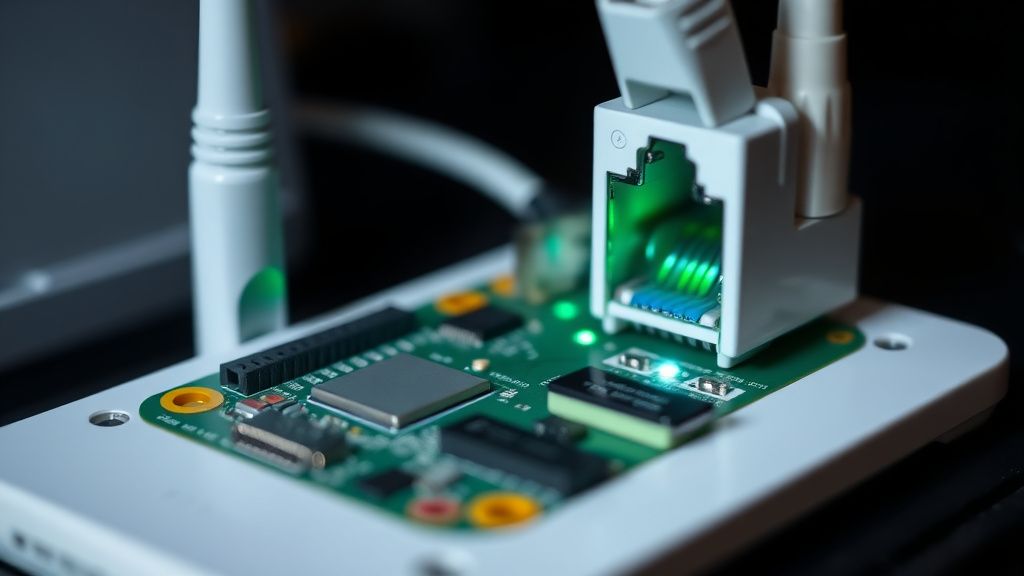
If you have set your DNS manually, updated your router firmware to the latest revision (check GitHub or the manufacturer’s support portal for "beta" builds if the official release is dated), and still face intermittent connectivity, your router might be suffering from Thermal Throttling. Wi-Fi 7 radios run exceptionally hot.
Many high-end BE routers now have integrated active cooling. If the fan is jammed with dust or if the thermal paste on the SOC (System-on-a-Chip) has degraded, the router will drop packets under heavy load. If you lose connection during a high-bandwidth task (like a 4K stream or a file download) and your DNS fails simultaneously, check the router's internal temperature logs if available.
Fragmentation and MTU Issues
Another edge-case to consider is the MTU (Maximum Transmission Unit). If your ISP is using a PPPoE connection and your router is set to an MTU of 1500, you are likely suffering from fragmentation. While this doesn't explicitly break DNS, it can break the UDP packets that DNS uses, causing responses to be dropped because they are "too large" to pass through the connection without fragmentation.
Try lowering your WAN MTU to 1492. This is a common workaround for DSL or fiber-based PPPoE connections that often causes strange "Internet connection exists but websites won't load" scenarios.
Checklist for Troubleshooting
- Static DNS: Set 1.1.1.1/8.8.8.8 at the router level.
- Firmware: Check for specific Wi-Fi 7 driver patches.
- Bufferbloat: Enable SQM/QoS if your upload/download speeds are saturated.
- MTU: Adjust to 1492 if you are on a PPPoE connection.
- MLO Stability: If troubleshooting persists, test by splitting the 5GHz and 6GHz bands into separate SSIDs to rule out MLO handover errors.
FAQ
Why do I get DNS errors even after changing my DNS servers?
Is MLO (Multi-Link Operation) causing my connection to drop?
Should I use DNS over HTTPS (DoH) on my router?
Could a bad ethernet cable cause DNS errors?
Why do my mobile devices have DNS issues but my PC doesn't?
Bu makale affiliate linkleri içermektedir.