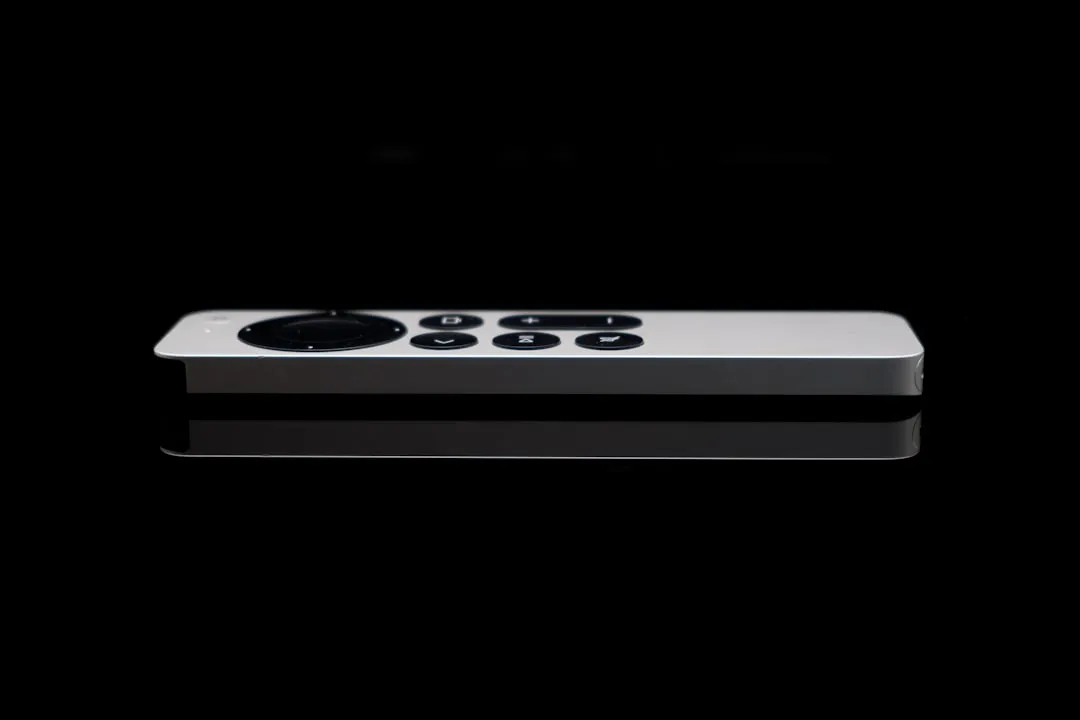
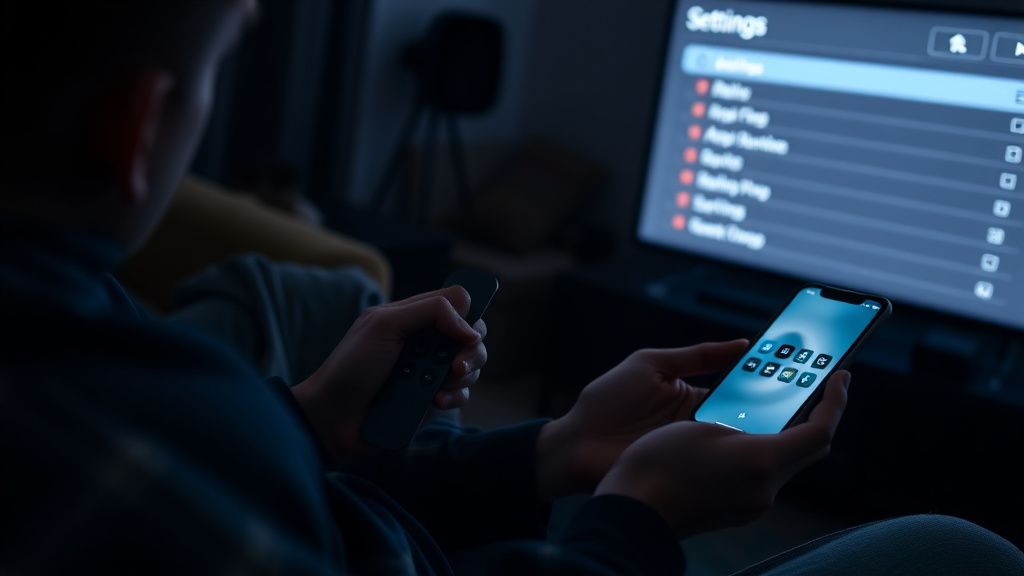
If your audio is trailing behind the video on your Apple TV 4K, start by enabling "Wireless Audio Sync" in the settings menu using your iPhone. If the latency persists, bypass your AV receiver or soundbar by connecting the Apple TV directly to the TV’s HDMI eARC port. Disable "Match Content" if the issue remains unresolved.
The dream of the "home theater experience" is often interrupted by the most mundane of technical failures: the lips move, but the voice arrives milliseconds later. This isn't just an annoyance; it is a fundamental breakdown in the handshake protocols governing high-bandwidth digital media. The Apple TV 4K, despite being arguably the most polished media streaming device on the market, is frequently the victim of its own architectural complexity. When we talk about "audio sync" on tvOS, we are not talking about a simple settings toggle. We are talking about the collision of HDMI 2.1 specifications, HDCP 2.2/2.3 copy protection, and the aggressive post-processing pipelines inherent in modern 4K OLED and QLED panels.
The HDMI Latency Loop: Understanding the Signal Chain
To understand why your audio is out of sync, you have to look at the signal path. Your Apple TV 4K sends a packed stream—a combination of video frames and compressed or uncompressed audio packets—to your sink device (the TV) or a middleware device (an AV receiver or soundbar).
In an ideal ecosystem, the "Audio Return Channel" (ARC) or its more robust successor, eARC, manages the timing, though issues like Sony Bravia XR audio dropouts related to eARC HDMI handshake are not uncommon. However, the system relies on the television to report its latency capabilities back to the source. If the TV is performing heavy video processing—like motion smoothing (often called "Soap Opera Effect" or "Auto Motion Plus"), AI-upscaling, or local dimming optimization—the video pipeline takes longer to render. The Apple TV, unaware that the TV is "thinking" about the image, pushes the audio out at the standard rate. The result? A perfectly synced audio stream hitting an eARC port that is physically delayed by the TV's own internal processing engine.
Real Field Report: The "Game Mode" Paradox
We spoke with a lead system integrator from a major California home theater installation firm. They noted a recurring issue that persists even in high-end setups:
"Clients come to us with $5,000 soundbars and $3,000 displays, and they’re complaining that Ted Lasso looks like a poorly dubbed foreign film. The culprit isn't the Apple TV. It’s almost always the TV's 'Game Mode' toggling. Users enable 'Auto Low Latency Mode' (ALLM) on the Apple TV, which forces the TV into a low-latency state. But when the user switches from a movie to a game, the handshake resets. Sometimes, the TV doesn't re-sync the audio delay metadata correctly. We see this specifically on LG CX and C1 OLED units where the HDMI handshake stalls during the switch from Dolby Vision to SDR gaming modes."
This creates a "latency loop" where the hardware is constantly guessing how much delay it should introduce to compensate for the video processing, eventually failing to calculate it at all.
Why "Wireless Audio Sync" is Often a Band-Aid
Apple’s "Wireless Audio Sync" feature—which uses your iPhone’s microphone to measure the time it takes for a sound to reach your ears—is a clever piece of engineering, but it is not a cure-all. It works by playing a series of tones through your system and timing the return signal via the iPhone's mic.
However, this feature effectively creates a static offset. If your system’s latency is dynamic—meaning it changes depending on the codec (Dolby Atmos vs. stereo PCM) or the refresh rate (24Hz vs. 60Hz)—the calibration you performed on Monday might be rendered useless by a streaming app that forces a frame rate match on Tuesday.
The Impact of HDMI 2.1 and HDCP Handshake Failures
We need to address the elephant in the room: HDMI 2.1 and the sheer brutality of modern HDCP (High-bandwidth Digital Content Protection), issues that can also lead to problems like an Apple TV 4K black screen. Every time the Apple TV initiates a handshake with your receiver, it performs a cryptographic "handshake" to ensure you aren't pirating the content.
On forums like Reddit's r/appletv or the AVForums, we frequently see threads titled "Audio delay after tvOS 17.x update." Often, the issue isn't the OS itself, but the way the update changed the underlying communication with the HDCP controller. If you are using an older receiver that doesn't fully support HDMI 2.1, you are essentially asking a legacy bridge to handle a modern high-bandwidth torrent.
Common Failure Points:
- The "Double-Handshake" Delay: Routing through a receiver that is then passing ARC back to a TV creates a circular dependency. The TV tells the receiver it has X amount of delay; the receiver tries to adjust, but the Apple TV is already pushing its own metadata.
- LPCM Transcoding Issues: The Apple TV 4K converts everything to uncompressed LPCM. If your soundbar or receiver has a weak processor for LPCM decoding, you will experience a "processing lag" that is nearly impossible to fix through settings, as the delay is happening inside the audio device’s silicon, not in the transmission path.
The Workaround Culture: How Users Actually Fix This
Because official fixes are often slow to arrive in firmware updates, a "workaround culture" has emerged. Users are finding that forcing the Apple TV’s output settings is often more effective than trusting the "Automatic" setting.
- Forcing Stereo/PCM: If you aren't using a high-end surround setup, go to
Settings > Video and Audio > Audio Formatand turn off "Change Format." If it’s already on, try setting it to "Stereer" manually. This reduces the processing overhead on your receiver, often clearing up 50-100ms of lag immediately. - Disabling "Match Content": While "Match Frame Rate" and "Match Dynamic Range" are great for purists, they cause a "blackout" period during the handshake. If your audio system is older, it may never recover from that handshake properly. Disabling these features forces a constant signal, which is much easier for receivers to stay synced to.
Counter-Criticism: Is the Apple TV 4K "Broken"?
There is a segment of the developer community—notably those active on the Home Theater Enthusiast Discord servers—who argue that the Apple TV isn't broken, but rather "too honest." By insisting on LPCM output, the Apple TV bypasses the "bitstream" format where the TV or receiver usually handles the clock synchronization.
"The Apple TV is essentially trying to do the job of a high-end pre-pro processor," one developer noted on a GitHub discussion regarding tvOS audio drivers. "When you force the TV to handle the raw LPCM stream, you are shifting the burden from a standard protocol to a hardware-dependent one. If the manufacturer of your TV didn't put a good enough buffer in their HDMI controller, the sync will always fail. Apple shouldn't be blamed for bad TV hardware, but they also shouldn't be shipping a device that relies on perfect hardware compatibility in a market that is notoriously fragmented."
Scaling and Infrastructure: Why It Gets Worse with Age
If you've noticed the problem getting worse over time, you aren't imagining things. As apps get more bloated—incorporating 4K HDR, Dolby Vision, and Atmos-heavy audio—the amount of data moving through that HDMI cable increases. If your HDMI cable is not "Ultra High Speed" certified (48Gbps), you may be experiencing intermittent packet loss that the receiver interprets as "silence" or "dropouts." These micro-dropouts force the receiver to re-sync its audio clock, which is why your audio might drift progressively throughout a movie.
How do I know if my HDMI cable is causing the audio delay?
If you experience audio dropouts (brief silence) along with the sync issue, it is highly likely that your HDMI cable is failing to maintain the necessary bandwidth. Replace your cable with an "Ultra High Speed" HDMI-certified cable. Avoid "Premium High Speed" cables for 4K/120Hz or high-bitrate HDR content.
Why does the audio lag only happen in certain apps like Netflix or Disney+?
Streaming apps often use different audio containers (Dolby Digital Plus with Atmos vs. standard PCM). If your TV or receiver struggles to switch between these containers, the delay is introduced during the "container switch." There is currently no global setting to fix this; it is a limitation of the specific app's implementation of the tvOS audio API.
Will buying a newer AV receiver fix the issue?
Not necessarily. While a modern receiver with HDMI 2.1 support will handle handshakes better, the root cause is often the processing delay in the TV itself. If you must use a receiver, ensure it has an "Audio Delay" or "Lip Sync" setting that allows you to manually add or subtract offset, though this is a manual fix and rarely a permanent one.
Is there any way to force the Apple TV to prioritize audio over video?
Apple does not provide a "Priority" switch. The device is designed to prioritize video quality as a "hero" feature. The current engineering philosophy is that video frames are the primary data; audio is treated as a secondary stream. If the hardware can't keep up, the audio pipeline is the first thing that gets deprioritized in the buffer.
Should I turn off "Match Frame Rate" to stop the sync issues?
Yes, it is the most effective way to eliminate sync issues if you don't mind the "soap opera" look. Disabling "Match Content" prevents the Apple TV from forcing your TV to switch modes, which is the exact moment where the HDMI handshake usually breaks and introduces the latency loop. It is a trade-off between image fidelity and signal stability.
The reality of modern streaming is that we are living in a patchwork of legacy standards and bleeding-edge features. The Apple TV 4K is, for all intents and purposes, a computer. Like any computer, it is subject to the limitations of its environment. When your audio drifts, remember that you aren't just adjusting a slider; you are managing a complex, multi-device conversation that is often interrupted by the internal "thinking" time of your television. If the basic calibration tools fail, don't be afraid to disable the "smart" features of your display. Sometimes, the best way to get a clean signal is to simply stop asking the hardware to do so much at once.