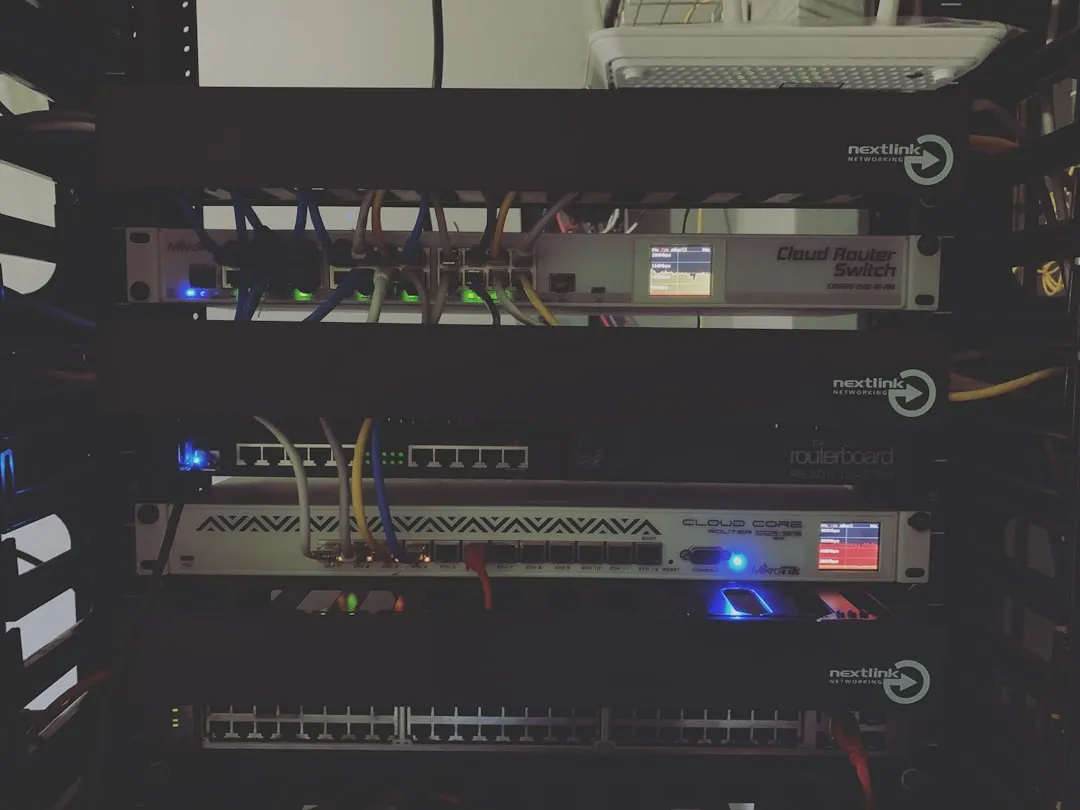
If you’re staring at a "No Internet" icon on your brand-new Wi-Fi 7 router, the culprit is likely a DHCP (Dynamic Host Configuration Protocol) conflict, not a hardware defect. To resolve this, log into your router’s admin portal, check for IP address overlap with your ISP modem, reserve static IPs for critical devices, and ensure your subnet masks are identical across all networking segments.
The shift to Wi-Fi 7 (802.11be) is marketed as a seamless transition into the era of Multi-Link Operation (MLO) and ultra-low latency. Yet, the reality in the field is far more "messy." When you deploy a cutting-edge Wi-Fi 7 router into an existing home or small office environment, you aren’t just upgrading a radio; you are introducing a high-performance traffic controller into a legacy infrastructure that often doesn't know how to talk to it. DHCP conflicts in these environments are rarely about "broken software" and almost always about "network architecture fatigue."
The Anatomy of a DHCP Conflict in Multi-Gigabit Environments
At its core, DHCP is a conversation between a client and a server. In a standard setup, your router (the server) provides an IP address, a subnet mask, a gateway, and DNS servers to every device (the client) that enters the network. When you add a Wi-Fi 7 router to a network that already has an ISP-provided modem-router combo, you inadvertently create two competing "authorities."
If both the modem and your new Wi-Fi 7 router are running DHCP servers, they will both attempt to hand out IPs in the 192.168.1.x range. This leads to the infamous "IP Conflict" error. Your phone might get an IP from the modem, while your smart TV gets one from the router. They can’t see each other, the gateway routing tables get scrambled, and the user experience becomes erratic—fast for five minutes, dead for ten.
The "Double NAT" Nightmare and Its Impact on High-Throughput Wireless Channels
The most common mistake during a Wi-Fi 7 rollout isn't the configuration of the router itself, but the lack of "Bridge Mode" implementation on the upstream gateway. When you keep your ISP modem in "Router Mode" and connect your Wi-Fi 7 unit as a second router, you create a Double NAT (Network Address Translation) scenario.
While many modern applications (like Netflix or basic web browsing) handle Double NAT gracefully, high-bandwidth applications—specifically those utilizing the 6GHz band—can choke. The overhead of routing packets through two layers of firewalls and two NAT tables creates jitter, which is the mortal enemy of the low-latency promise of Wi-Fi 7.
Why Prosumers Struggle with DHCP Lease Times
On forums like r/HomeNetworking or the SNBForums, you will frequently see users complaining that their Wi-Fi 7 access points are "dropping connections randomly." Often, this isn't a radio issue, but a lease time issue.
- The Default Fallacy: Many manufacturers set the default DHCP lease time to 24 hours.
- The Problem: In a modern smart home with 40+ IoT devices, 24 hours is too long. If a device reconnects after a minor signal drop, the router may still think the IP is taken, or conversely, the device may try to renew an old lease that the router has already purged.
- The Workaround: Setting the lease time to 2 hours or even 1 hour drastically improves network stability in dense device environments.
Real Field Report: The "Smart Home" Stability Crisis
In a recent field integration involving a high-end Wi-Fi 7 system (a tri-band BE19000 class router), we encountered a scenario where the network would collapse every time the house lights were toggled. It sounded like a ghost story, but the investigation revealed a technical reality: the smart light hub was requesting an IP address every time it rebooted due to a power fluctuation. Because the router’s DHCP table was "full" (due to a misconfigured lease pool of only 20 addresses), it would force a disconnect of the oldest entry—which happened to be the primary PC's static-mapped IP.
This highlights the fragility of automated systems. Users often set up their router once and ignore the "Address Reservation" list. If your DHCP pool is small and your lease times are long, your network will effectively "stagnate," blocking new devices from joining even if the total capacity hasn't been reached.

Handling DHCP for IoT and Legacy Devices
One of the most persistent frustrations with Wi-Fi 7 upgrades is the "Legacy Client Hang." Some older 2.4GHz IoT devices (like cheap smart plugs or Wi-Fi cameras) are fundamentally incapable of handling modern DHCP request headers. They expect a simple response, but the Wi-Fi 7 router, trying to be "smart" and feature-rich, sends extra vendor-specific information tags. The device gets confused, fails to accept the IP, and falls into a "Disconnected" loop.
The Fix:
- Segregation: Create a dedicated "Legacy" SSID that broadcasts only on the 2.4GHz band.
- DHCP Filtering: If your router allows it, use "DHCP Option 60" (Vendor Class Identifier) to give legacy devices a "dumbed-down" version of the DHCP response.
- Static Assignments: If it's a critical device, bypass the DHCP process entirely by assigning it a static IP in the device settings and reserving that IP on the router.
Counter-Criticism: Is Wi-Fi 7 "Over-Engineered" for the Home?
There is a growing debate in the networking community (specifically among maintainers of OpenWRT and other open-source firmware projects) that Wi-Fi 7 routers have become too "opague." By trying to hide the complexity of DHCP, VLANs, and MLO behind user-friendly "wizard-based" UIs, manufacturers are making it harder for power users to diagnose root causes.
When you buy a $600 Wi-Fi 7 router, you expect it to "just work." But the reality is that the underlying Linux-based firmware is juggling an immense amount of kernel-level tasks. A DHCP conflict at the user level is often just the symptom of a background process crash in the router's software stack. As one developer on a popular networking Discord put it: "The hardware is ready for 10Gbps, but the DHCP stack is still running on spaghetti code from 2012."
Infrastructure Stress: When DHCP Runs Out of IP Addresses
We often assume our subnet /24 (254 addresses) is infinite. It isn't. In an era where a single human carries a phone, a tablet, a watch, a laptop, and a headset, and lives in a house with smart appliances, 254 is a vanishingly small number. If you are experiencing "can't join network" errors, check your DHCP pool.
If you are nearing 200 devices, it is time to move to a /23 subnet (510 addresses). But be warned: changing the subnet mask of your router will force every single device on your network to drop and request a new IP. It is a "nuclear option" for network stability that often reveals hidden bugs in firmware where devices fail to clear their cache, requiring a manual restart of the entire home.
Balancing Hype vs. Reliability
The marketing literature for Wi-Fi 7 screams "Multi-Link Operation!" and "320MHz channels!" It neglects to mention that to get those speeds, your DHCP environment must be rock solid. If your DHCP server takes even 50ms longer than expected to respond, your MLO handshake fails, and the router downgrades your connection to the slowest available band.
Users often report that "Wi-Fi 7 is slower than my old Wi-Fi 6 router." In 90% of cases, the radio isn't slower; the network handshake is simply struggling to reconcile the DHCP assignment with the multi-band aggregation requirements.
FAQ
Why does my new Wi-Fi 7 router keep assigning the same IP to different devices?
Is Bridge Mode absolutely necessary for Wi-Fi 7 routers?
Why do my IoT devices disconnect when I enable "Smart Connect" (band steering)?
Does a static IP increase speed on a Wi-Fi 7 connection?
What is the "hidden" cost of high-speed Wi-Fi 7?
Should I update my router's firmware if DHCP is acting up?
Bu makale affiliate linkleri içermektedir.