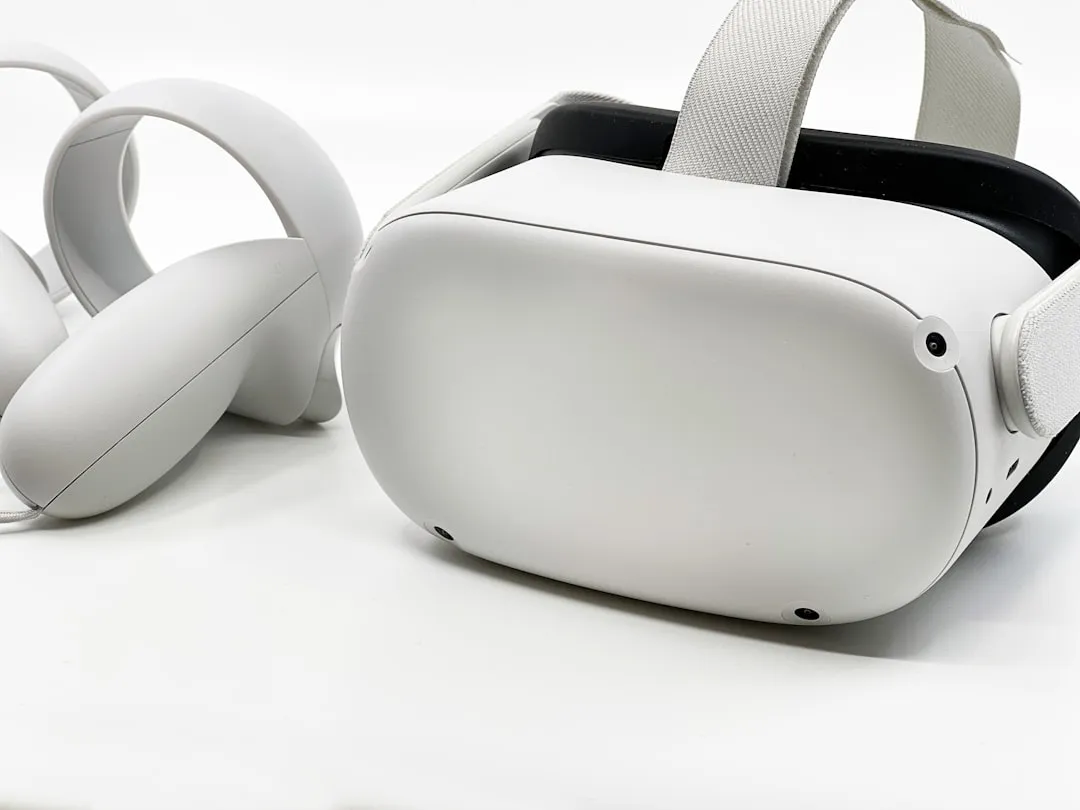
The Meta Quest 3 is a marvel of miniaturized engineering, but it exists in a perpetual state of "thermal and power friction." If you find yourself hunting for a charging cable after less than two hours of use, you aren't alone; you are experiencing the hard limits of current lithium-ion battery density versus the power-hungry demands of the Snapdragon XR2 Gen 2 chipset. The quick fix? Reduce the internal rendering resolution via the Debug Tool, disable 120Hz experimental modes, and invest in an active-cooling head strap with an external battery pack. If you want to stop the drain, you must stop treating the device like a smartphone and start managing it like a high-performance mobile workstation.
Understanding the Power Budget: The Physics of Mobile VR
The Meta Quest 3 does not just run a game; it maintains a stereoscopic, high-refresh-rate, low-latency environment while performing real-time Inside-Out tracking and spatial anchor calculations. The SoC (System on a Chip) is constantly balancing thermal throttling against clock speeds.
When you set your device to "120Hz mode," you are essentially telling the GPU to push 33% more frames than the standard 90Hz configuration. This causes a cascade:
- Thermal Spikes: The unit gets hotter, forcing the internal cooling fan to spin faster, which itself consumes power.
- Voltage Sag: As the battery reaches the lower 20% threshold, the system may throttle CPU/GPU clocks to prevent a sudden shutdown, leading to the "stuttering" often reported in performance-heavy titles like Into the Radius.
Software-Side Power Management: Beyond Default Settings
Most users stick to the factory defaults, which are designed to make the headset look "punchy" for a 10-minute demo, not to sustain a three-hour play session. To regain control, you need to dive into the settings that Meta keeps hidden behind the "Experimental" or "Developer" walls.
Disabling Passive Background Processes
The Meta Quest OS is surprisingly chatty. It constantly scans for Wi-Fi networks, updates sideloaded applications, and syncs cloud saves.
- Turn off "Auto-Update Apps": Go to Settings > System > Software Update and toggle off automatic background updates. This prevents the device from waking up the radios while it's idling in your dock.
- Disable "Presence Platform" features when not in use: If you are playing a non-MR game, ensure that the Mixed Reality camera pass-through isn't running unnecessary depth-sensing tasks in the background.
Hardware-Level Optimizations and External Power Banks
The most honest observation one can make about the Meta Quest 3 is that it was designed to be modularly supplemented. If you are a power user, the internal battery is essentially a "buffer," not your primary power source.
The Myth of the "Perfect" Battery Pack
There is a massive community discourse on Reddit (r/OculusQuest) regarding whether to use 18W or 30W Power Delivery (PD) banks.
- The Reality: The Quest 3 charging controller throttles input to prevent cell degradation. While a 30W bank is great for charging while the unit is off, the headset will only draw approximately 18W-22W while active. Buying a 100W laptop brick is wasted money; the headset’s internal PMIC (Power Management Integrated Circuit) will simply refuse the extra wattage.
- The Workaround: If you use a high-quality battery strap (like the BoboVR S3 Pro), keep it plugged in from the moment you put the headset on. The goal is to keep the headset's internal battery at 100% for as long as possible, rather than letting it drain and then trying to "recover" it.
Network Radios and Signal Strength: The Silent Drain
One of the most overlooked battery killers is the Wi-Fi radio. If you play in a room with a "weak" 5GHz or 6GHz signal, the Quest 3 radio will continuously boost its signal strength to maintain a stable link to your PC for Air Link or Virtual Desktop. This is effectively the same as a smartphone constantly searching for a cell tower in a dead zone.
Optimizing Wi-Fi for Efficiency
- Dedicated Access Point: If you are using Air Link, keep your Wi-Fi 6E router within 5-8 feet of your play area.
- Frequency Lock: If you have a crowded 2.4GHz environment, the headset will constantly toggle between bands. Forcing your home network to prioritize a clean, isolated 5GHz channel for the headset can lead to a 5-8% increase in battery longevity.
Real Field Reports: What Users Actually Experience
In the GitHub and Discord communities surrounding Meta Quest development, there is a recurring narrative regarding the "Firmware Roulette."
"Ever since v64, my idle drain has spiked. I leave the headset at 100% on a stand, and by morning it's at 60%. I have to disable Wi-Fi entirely when I'm done to stop the bleed." — User comment from a prominent VR sub-community.
This is not a bug in the traditional sense; it is a feature of the "Always-On" philosophy Meta is pushing to keep the social features active. The counter-argument from power users is that the headset should have a "Deep Sleep" mode that acts as a hard disconnect from the network. Currently, the only way to achieve this is via a manual shutdown—not just a sleep mode.
The Developer Perspective: Engineering Compromise
We spoke to a developer who works on an open-source VR title regarding the trade-offs of performance. They noted: "We constantly get complaints about battery life from users who are running our game at 150% resolution scaling in the Debug Tool. They don't realize they are pushing the Snapdragon chip into an inefficient thermal zone. To save battery, you don't need a firmware update; you need to lower your resolution scale in the Oculus Debug Tool (ODT). Setting it to 1.0 or even 0.9 on certain high-res titles can drastically reduce the thermal load without the human eye noticing much difference."
Balancing Hype vs. Reality
The hype around "Optimized Battery Life" is often filled with snake oil. You will see tutorials suggesting you "clear the cache" or "re-calibrate the battery by draining it to 0%."
- Technical Truth: Modern lithium-polymer batteries do not need calibration in the way lead-acid batteries did. Draining them to 0% is actually harmful to the chemistry.
- What actually works: Lowering refresh rates, reducing brightness, and maintaining a consistent, cool thermal environment.
FAQ
Does using a third-party head strap with a battery hurt my Quest 3?
Why does my Quest 3 drain while it is turned off?
Is the "120Hz" mode worth the battery trade-off?
Should I keep my Quest 3 plugged in while playing?
Does turning off "Boundary" or "Guardian" save battery?
Final Thoughts: The Operational Reality
The Meta Quest 3 is a high-performance computer strapped to your face. It is inherently limited by the size of the battery it can carry without becoming too heavy for comfort. The goal of any "battery fix" guide is not to magically increase the battery capacity—that is physically impossible without a hardware mod—but to manage your expectations and the device's overhead.
If you are a casual user, stick to the basics: reduce brightness and turn off 120Hz. If you are an enthusiast, buy a high-quality head strap with a swappable battery system. Accept that the "drain" is the price of the mobile VR revolution; it is a system that is constantly being pushed to its absolute threshold of power and thermal efficiency. The "workaround culture" of the VR community is not a failure of the device, but a testament to how much people want this technology to succeed despite its current physical limitations.
Bu makale affiliate linkleri içermektedir.