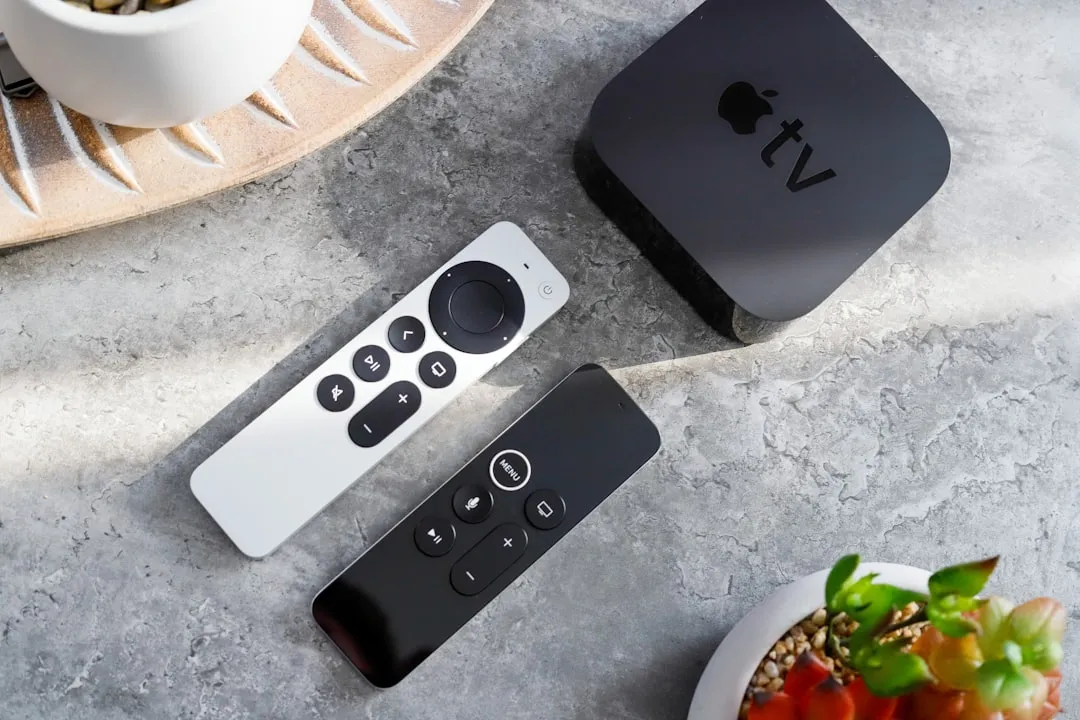
To resolve Apple TV 4K frame rate mismatch jitters, navigate to Settings > Video and Audio > Match Content and ensure "Match Frame Rate" is set to "On." If the issue persists, verify your HDMI cable bandwidth (48Gbps Ultra High Speed recommended), bypass legacy AV receivers to isolate handshake failures, and force a manual refresh rate of 59.94Hz if the display remains unstable.
The promise of Apple TV 4K was simple: a "set it and forget it" cinematic experience that treats your television like a professional reference monitor. The reality, as any enthusiast crawling through the AVS Forum or Reddit’s r/appletv will tell you, is a jagged landscape of HDMI handshakes, micro-stutter, and black-screen dropouts that often leaves users searching for solutions on how to fix Apple TV 4K frame rate and sync issues. The "Match Frame Rate" feature, while technically elegant, is the single most common failure point in the modern living room ecosystem.
The Physics of the Mismatch: Why 24p vs. 60Hz Creates Judder
At its core, the jitter you perceive is a mathematical conflict between the source material and the display panel’s refresh clock. Most cinematic content is mastered at 23.976 frames per second. Most televisions, when forced into a static UI mode by the Apple TV, default to 60Hz.
When a 23.976fps source is injected into a 60Hz container, the television must perform a "3:2 pulldown." This means it repeats every fourth frame to fill the gaps, creating an uneven cadence. The human eye, sensitive to this non-linear motion, perceives it as a subtle but persistent stutter—a "hitch" in every panning shot. When you enable "Match Frame Rate," the Apple TV sends an HDMI command (via CEC) to the TV to switch its entire panel refresh rate to 23.976Hz to match the file. The jitter disappears, but the handshake latency—that 2-second black screen you see before a movie starts—begins.
Understanding HDMI Handshake Failures and Bandwidth Bottlenecks
The modern HDMI 2.1 ecosystem is, frankly, fragile. When the Apple TV requests a refresh rate change, it triggers a negotiation process between the Apple TV, your AV receiver (AVR), and the display panel. If any link in this chain—the cables, the receiver’s firmware, or the TV's EDID (Extended Display Identification Data) table—is slightly out of spec, the screen will either stay black or revert to a default, stuttery 60Hz mode.
- The Cable Lie: Many "4K" cables sold in big-box stores are not 48Gbps Ultra High Speed certified. They may handle static 4K/60Hz, but they fail during the rapid-fire negotiation of a refresh rate switch.
- AVR Passthrough: Many mid-range receivers struggle with the metadata handshake required for HDR and variable refresh rates. If you suspect your jitter is caused by a hardware bottleneck, physically remove the receiver and plug the Apple TV directly into the TV’s HDMI input. Use eARC to route audio back to your sound system, especially if you're dealing with persistent HDMI eARC handshake failures. If the jitter vanishes, your receiver is the culprit.
Real Field Reports: The "Always On" vs. "Match Content" Dilemma
On the Apple TV subreddits and various developer mailing lists, a recurring debate exists: Should you keep "Match Content" on, or rely on the Apple TV’s internal processing?
"I spent six hours troubleshooting why my Apple TV 4K (3rd Gen) was dropping signal whenever I started a Netflix title," writes a user on a prominent tech forum. "It turned out that the 'Match Dynamic Range' was conflicting with my TV’s internal Dolby Vision 'Bright' mode, causing a double-handshake failure that just resulted in a frozen frame."
This is a common "edge-case" problem. Some TVs, particularly older LG OLEDs and certain Sony Bravia models, have aggressive power-saving or HDMI-optimization features that interpret the refresh rate switch as a signal loss. When the Apple TV switches to 24p, the TV sees the drop in signal, tries to "re-sync" its internal processing, and by the time it wakes up, the frame rate mismatch logic has crashed.
Analyzing the "Broken Promise" of Frame Rate Matching
The industry struggle with frame rate matching is a microcosm of the fragmentation in the display market. While Apple forces the refresh rate change, app developers (Netflix, Disney+, HBO Max) have their own internal players.
- The API Conflict: Apple provides the API for matching, but some streaming apps ignore it or implement their own "overlay" player, which can override the system settings.
- The User Experience Tax: For the average user, the "black screen" transition is often perceived as a bug, not a feature. Consequently, many users turn it off to avoid the annoying pause, opting for the jittery 60Hz experience instead. This is a design failure where the "correct" technical solution (matching the frame rate) ruins the "social" experience of seamless viewing.
Technical Solutions: Beyond the Toggle
If you are dealing with persistent jitter, the standard toggle isn't enough. You need to verify the entire pipeline.
- Forcing 59.94Hz vs. 60Hz: In your Apple TV video settings, check the "Format" section. Many displays prefer 59.94Hz over a clean 60Hz. If your TV settings allow, check for "Motion Smoothing" or "Soap Opera Effect" settings—these must be disabled at the TV level, regardless of what the Apple TV is doing, or they will exacerbate the jitter by attempting to guess frames that aren't there.
- EDID Override and Handshake Resets: If the handshake is consistently failing, power cycle the entire chain. Unplug the TV, AVR, and Apple TV from the wall. Plug the TV in first, then the AVR, then the Apple TV. This forces a clean re-discovery of the HDMI capabilities.
- The "Workaround" Culture: If you find that "Match Frame Rate" makes your TV screen go black for too long, you are forced to choose between jitter and convenience. Most advanced users prefer setting the Apple TV to 4K SDR and enabling "Match Content" (both Range and Frame Rate). This keeps the UI snappy and allows the content to dictate the display’s state.
Karşılıklı Eleştiri: Is Apple’s Implementation Actually Flawed?
Critics often point out that Apple’s implementation of "Match Frame Rate" is too binary. It lacks a "Smooth Transition" buffer. When you look at how dedicated media servers like Zidoo or Zappiti handle frame rate switching, they have specific firmware hooks to hide the black screen during the transition. Apple, in its pursuit of a unified, closed-system design, refuses to implement a transition overlay.
Furthermore, the lack of a "Custom Refresh Rate" tool for power users is a glaring omission. Many PC enthusiasts can tweak their output to a decimal-perfect 23.976Hz, whereas the Apple TV forces an OS-level interpretation of the source.
Why does my screen go black for a few seconds when I start a movie?
This is a normal, if annoying, function of the "Match Frame Rate" feature. Your Apple TV is telling your television to physically change its refresh rate to match the frame rate of the video. The black screen is the period where your TV is resynchronizing its electronics to the new signal.
Is my HDMI cable the cause of my jitter issues?
It is a likely culprit. Many older or "standard" 4K cables do not have the bandwidth to maintain a stable handshake during a resolution or refresh rate change. Always use a cable explicitly labeled "Ultra High Speed" (48Gbps). If you have a long run (over 3 meters), consider an Active Optical HDMI cable.
Why is there still jitter even after I enabled "Match Frame Rate"?
If the feature is enabled but you still see stutter, your television is likely performing its own post-processing. Check your TV’s settings for "Motion Smoothing," "Judder Reduction," or "De-Blur" features and turn them all OFF. These features attempt to insert frames, which conflicts with the perfectly timed frames provided by the Apple TV.
Should I set my Apple TV to 4K HDR or 4K SDR?
Most professional calibrators recommend setting the Apple TV to 4K SDR, 60Hz (or 59.94Hz). By enabling "Match Content" (both Frame Rate and Dynamic Range), the Apple TV will only switch to HDR/Dolby Vision and the correct frame rate when you actually open a movie. This keeps the UI from looking artificially bright or "washed out."
Does the "Match Frame Rate" setting work with all apps?
Technically, yes, but it relies on developers using the standard Apple media player APIs. Some apps (notoriously certain local news apps or poorly optimized international streaming services) use custom playback engines that ignore these system-level requests. If an app doesn't trigger the match, the Apple TV stays at your default system refresh rate.
Are there any software bugs specific to recent tvOS versions?
Yes. It is common for major tvOS updates to break handshake profiles with specific TV models. If you notice jitter starting immediately after a major OS update, check the manufacturer’s support page for a firmware update for your television. Often, the TV needs a patch to handle the Apple TV's new way of requesting the handshake.
Final Thoughts on Scaling and Ecosystem
The struggle with jitter on an Apple TV is a reminder that even the most "polished" tech stacks are essentially built on legacy protocols. We are trying to push massive amounts of data through an HDMI standard that was designed in a different era. While Apple’s approach is the most stable of the mainstream streamers, the "operational reality" is that you must be prepared to manually tune your hardware. If you are experiencing constant failure, start with the physical chain—cables and receiver bypass—before you waste time adjusting software toggles. The silicon is rarely the problem; the connection is almost always the point of failure.