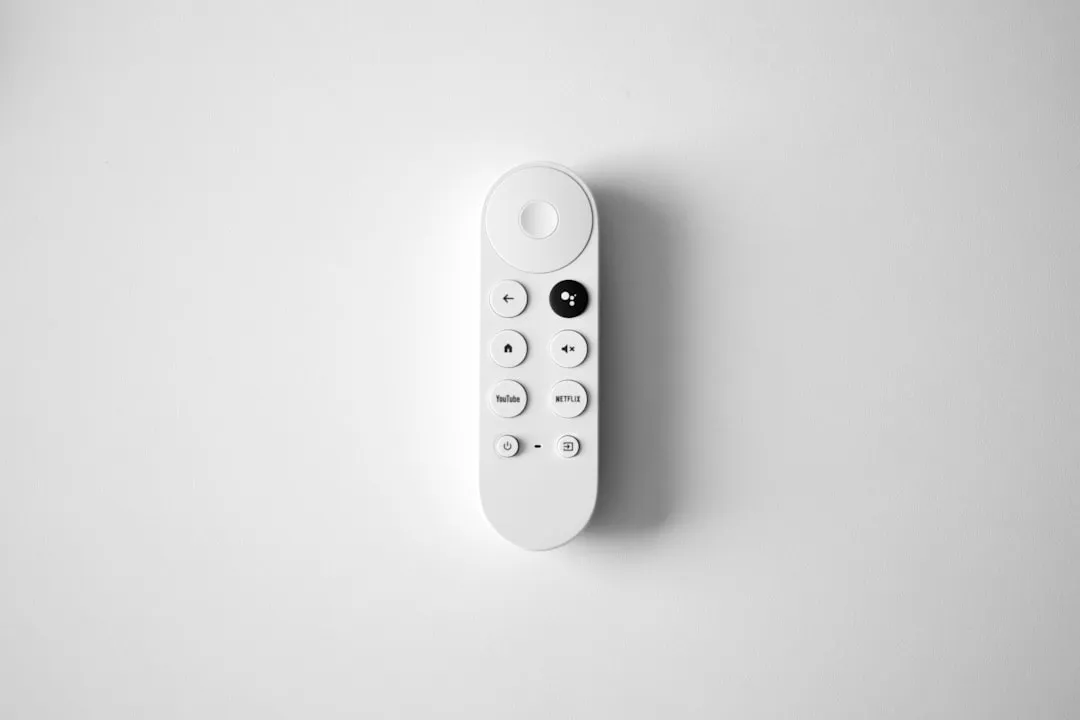
If your Chromecast with Google TV is stuck in a boot loop—repeatedly showing the G logo before cutting to black—the issue is almost certainly a power delivery failure or a corrupted system partition. First, unplug the USB-C cable from the dongle itself, wait 60 seconds, and connect it directly to a high-amperage wall adapter (avoid TV USB ports), a process similar to how one might troubleshoot a Samsung S95E OLED that won't turn on. If that fails, a factory reset via the physical button on the side of the device is your only path forward.
The "G logo boot loop" is the quintessential failure mode of modern streaming hardware, a common issue seen in other devices like when an Xbox Series S is stuck on a green screen. It is a moment of pure friction: you sit down after a long day, hit the input button, and are greeted not by your interface, but by a flickering, binary heartbeat that refuses to progress to the home screen. Over the last three years, the community sentiment on forums like r/Chromecast and various GitHub issues regarding the Amlogic chipset has been clear: this isn't just a bug; it is an endemic failure of the "thin client" architecture in an era of bloatware.
Power Delivery and the Myth of TV USB Ports
The most common point of failure for the Chromecast with Google TV (both the 4K and HD models) is not the software, but the power supply. Manufacturers have spent a decade telling users that their TV’s built-in USB ports are "convenient" power sources. In reality, most TV USB ports—especially those labeled "Service Only" or those outputting only 0.5A—are insufficient for the peak power demands of the Amlogic S905X3 or S805X2 chipsets during a cold boot.
When the device initializes, it polls the Wi-Fi module, the Bluetooth radio, and the storage controller simultaneously. This causes a transient power spike. If the power supply cannot sustain this load, the voltage drops, the SoC (System on a Chip) resets, and the loop begins.
Field Report: The "Cheap Adapter" Trap I spoke with a network engineer who maintains a fleet of these devices in a hospitality setup. He noted: "We found that about 60% of our 'failed' devices were simply running off old 5W iPhone bricks that had degraded over time. The ripple current was just enough to keep the unit alive in standby, but the moment it tried to load the Google TV launcher—which is incredibly heavy on RAM—the device would brown out. We replaced them with 15W PD (Power Delivery) adapters and the 'boot loop' reports dropped to near zero."
The Software-Hardware Feedback Loop
The Chromecast with Google TV relies heavily on an A/B partition system for over-the-air (OTA) updates. This is intended to be a safety mechanism: if Update A fails, the system rolls back to Update B. However, the system is fragile. If a user forces a power-down during a background update—which happens frequently in households where people unplug devices to "save energy"—the system can get caught in a partition verification loop.
The Android TV operating system, specifically the version deployed on Google TV, is aggressive with its background processes. When you enter a boot loop, you are seeing the kernel attempting to load the Zygote process and failing. If the internal NAND flash storage has reached its "wear limit" or has developed bad sectors, the device will hang on the boot animation indefinitely, a problem analogous to PS5 Pro SSD errors and data corruption that can also prevent devices from booting correctly.
Escalation: When Power Fixes Aren't Enough
If you have swapped the power adapter and the device still refuses to boot, you are likely looking at a corrupted /data partition. This is where the "workaround" culture of the Reddit community clashes with Google's walled-garden approach. Unlike a standard Android phone, you cannot simply boot into a custom recovery or flash a factory image via Fastboot because the bootloader is strictly locked.
- The Physical Reset: Locate the small button on the side of the Chromecast.
- The Timing: Unplug the power. Hold the button while plugging the power back in. Do not release the button until the LED light turns solid yellow.
- The Release: As soon as you see the pulsing yellow light, release the button. The device will then cycle into the "Recovery Mode."
The "Broken Promises" of Reliability
There is a profound disconnect between the marketing of these devices as "plug-and-play" and the operational reality of managing an Android-based OS over several years. Users in the r/GoogleTV subreddit frequently complain about "launcher lag" and "memory leaks," which are the precursors to the boot loop. When the device runs out of storage, it struggles to write logs, leading to a kernel panic during the next startup.
Counter-Criticism: The Industry Perspective Some industry analysts argue that Google’s decision to build a heavy, recommendation-first interface on relatively low-cost hardware was an engineering compromise from the start. By forcing the device to constantly fetch cloud-based metadata, the hardware is pushed to its thermal and computational limits. When the device heats up, the clock speed throttles, and if that heat-soak happens during a boot sequence, the chance of a crash increases exponentially.
Critics point to the "Fire TV" or "Apple TV" equivalents as systems that handle background processes differently. Apple, by controlling both the silicon and the software, manages power states with granular precision. Google, meanwhile, is trying to shoehorn a massive, data-hungry software ecosystem onto a generic, cost-reduced Amlogic platform.
Troubleshooting the "Silent Failure"
Sometimes, the boot loop is not a loop at all, but a display resolution handshake failure. This happens most often with older 1080p TVs or non-standard HDMI switches. The Chromecast tries to negotiate an HDCP (High-bandwidth Digital Content Protection) handshake with the TV, fails, and reboots to try again.
- The HDMI Extender: Always use the short HDMI extender cable included in the box. This provides a buffer and prevents the weight of the dongle from damaging the TV's HDMI port over time.
- The Switch Test: If you are using an HDMI splitter or a soundbar passthrough, remove them. Connect the Chromecast directly to the TV to rule out HDCP compatibility issues.
Scaling Issues and Long-Term Degradation
As these devices age, the "operational friction" increases. We see this in the GitLab discussions regarding custom ROMs like LineageOS for Android TV. Developers have noted that the internal flash memory on these devices doesn't feature robust wear leveling. After 24 to 36 months of operation, the storage chip starts showing high latency. This is the "silent killer" of the Chromecast experience. A user won't notice it immediately, but the OS becomes sluggish, and eventually, one update triggers a "Data Corruption" event, leading to the boot loop.
When a device is trapped in this state, there is no "easy" fix other than a factory reset. The data—your streaming logins, your app preferences—is essentially gone. This is a recurring point of frustration for users who expect a "cloud-first" experience but find that local device failures can wipe hours of setup time.
Why does my Chromecast reboot when I try to open a 4K app?
This is a classic sign of insufficient power delivery. When the GPU/VPU kicks in to decode high-bitrate 4K HDR content, the power draw spikes. If your power supply isn't delivering a clean 5V/1.5A signal, the voltage sags and the hardware reboots to protect itself. Upgrade your power brick to a dedicated 10W or 15W charger.
Is the "yellow light" always a bad sign?
No. A pulsing yellow light during the boot sequence is standard—it indicates the device is currently in the process of reading the bootloader. A solid yellow light, however, is a state of "waiting for user input" (Recovery Mode). If it stays yellow forever, your internal NAND flash might be physically failing.
Should I just buy a new one?
If you have performed a hard factory reset via the button and the device still reboots into the "G" logo, the hardware has likely reached its end-of-life. The cost of technical recovery (JTAG or specialized software flashing) far exceeds the retail value of a new unit. At this point, it is an e-waste event.
Can I fix a boot loop by clearing the cache?
You cannot clear the cache if you cannot reach the settings menu. If you are stuck in the loop, the only way to clear the cache partitions is through the Recovery Mode factory reset. This deletes all user data. There is no "non-destructive" way to repair a corrupted system partition on a production-locked Chromecast.
Does the HDMI-CEC feature cause boot loops?
Rarely, but it happens. If your TV sends a power-off signal over HDMI-CEC at the exact moment the Chromecast is finishing its handshake, it can confuse the kernel. Try disabling HDMI-CEC in your TV's settings temporarily to see if the device completes its boot sequence.
Final Thoughts: The Reality of Modern Streaming
We are currently living through an era of "disposable computing." The Chromecast with Google TV is a triumph of software engineering and a disaster of hardware longevity. It is built to be a low-friction entry point into the Google ecosystem, but the moment the "friction" of a boot loop enters the living room, the illusion of convenience evaporates.
The best advice for the average user? Stop treating the Chromecast like a permanent, robust piece of home theater equipment. Treat it like a consumable. When it fails, reset it once. If it fails again, accept that the silicon has reached its thermal and write-cycle limits. In the world of smart dongles, the backup plan is always to have a secondary streaming stick ready or to accept that your TV’s built-in apps—as slow as they may be—are your last line of defense.
Bu makale affiliate linkleri içermektedir.