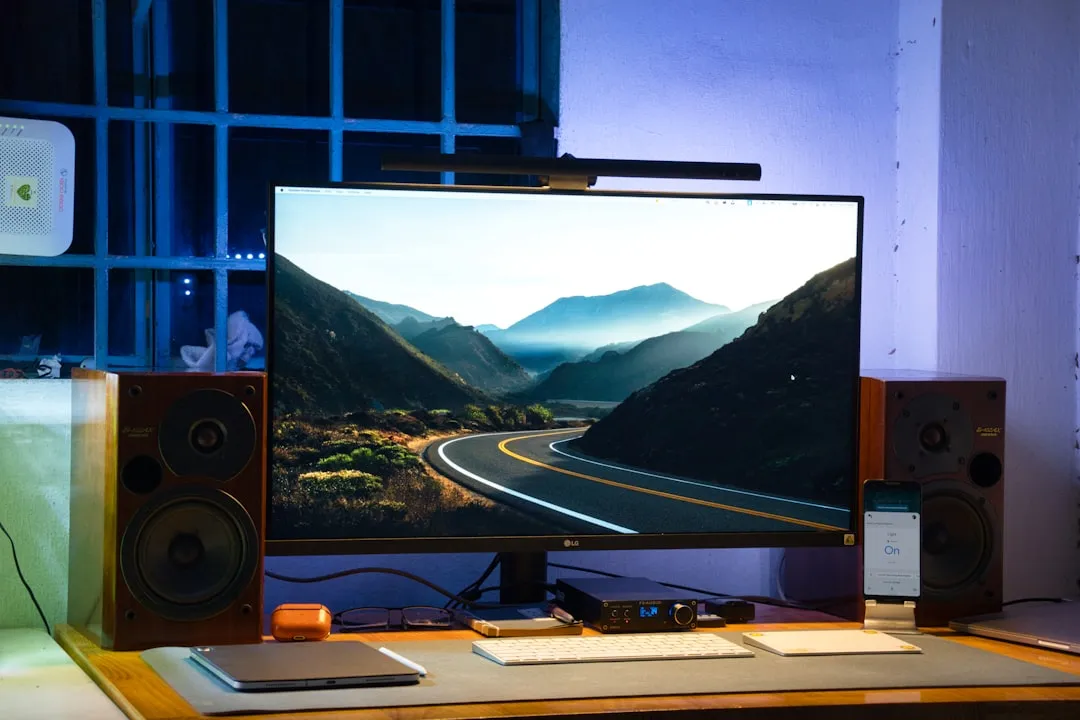
If your LG OLED panel—specifically within the G-series lineage—is exhibiting a persistent green tint, you are likely witnessing a combination of panel uniformity variance and suboptimal factory white balance calibration. While "green tint" is often cited as an inherent characteristic of WOLED technology due to the green-heavy subpixel structure, it can frequently be mitigated through service menu adjustments or 2-point/22-point White Balance (WB) calibration using professional-grade colorimeters.
The Anatomy of the Green Tint: Understanding WOLED and Panel Variance
The "Green Tint" phenomenon is not a defect in the traditional sense; it is a byproduct of how LG Display manufactures their White OLED (WOLED) panels. Unlike RGB OLEDs, WOLED uses a white light source filtered through color filters. The primary culprit is often the "White" subpixel being slightly dominant or the interplay between the blue OLED stack and the yellow phosphor.
In the community—specifically on forums like AVSForum and ResetEra—users often refer to this as the "green uniformity issue." It is most visible in near-black scenes (the 2% to 5% gray patches) and solid white or light-gray test patterns. When you see a green cast on a snow-covered landscape or a dark subway tunnel in a movie, your brain is detecting a shift in the chromaticity coordinates (x, y) of the white point.
The Reality of Factory Calibration: Why Your TV Doesn't Look "Right"
Manufacturers like LG calibrate G-series units to a specific "Standard" or "ISF" target in a controlled environment. However, achieving a truly consistent picture can be challenging, especially when dealing with issues like LG C4 OLED dimming. However, this environment rarely matches the ambient lighting or the specific spectral sensitivity of your living room. The G-series, being a flagship tier, undergoes more rigorous testing than the C-series, but even then, "panel lottery" remains a brutal reality.
When a panel leaves the factory, it is tuned to be "average." If your panel leans green, it is because the specific chemical deposition on your unique TFT backplane resulted in a slightly different white-point response than the reference panel. Most users who notice this tint are "enthusiasts"—people who spend hours staring at 5% gray slides to find flaws. If you aren't looking for it, you might never see it. But once you see it, the human brain—highly sensitive to skin tones—will never unsee it.
Diagnostic Phase: Differentiating Between Tint and Uniformity
Before reaching for the service remote, you must differentiate between tint (a global color shift) and vertical banding (which looks like dirty lines).
- Uniformity vs. Tint: If the screen has dark vertical streaks, that is banding, and no amount of calibration will fix it. That is a physical panel uniformity issue.
- The Gray Slide Test: Download a set of standard 5%, 10%, and 20% gray patterns. If the entire screen has a uniform green hue that shifts to neutral as you go brighter, it is a calibration issue.
- Viewing Angles: WOLED panels have a natural color shift when viewed off-axis. If the green tint disappears when you move to the center or sides, it’s a physical characteristic of the polarizer, not an error.
Tools of the Trade: Hardware Requirements for Precision
If you are serious about fixing this, you cannot rely on your eyes. Human vision adapts to ambient light, making it a terrible reference tool. You need:
- Colorimeter: An X-Rite i1Display Pro or Calibrite Display Plus.
- Software: Portrait Displays Calman Home for LG or the open-source alternative, HCFR.
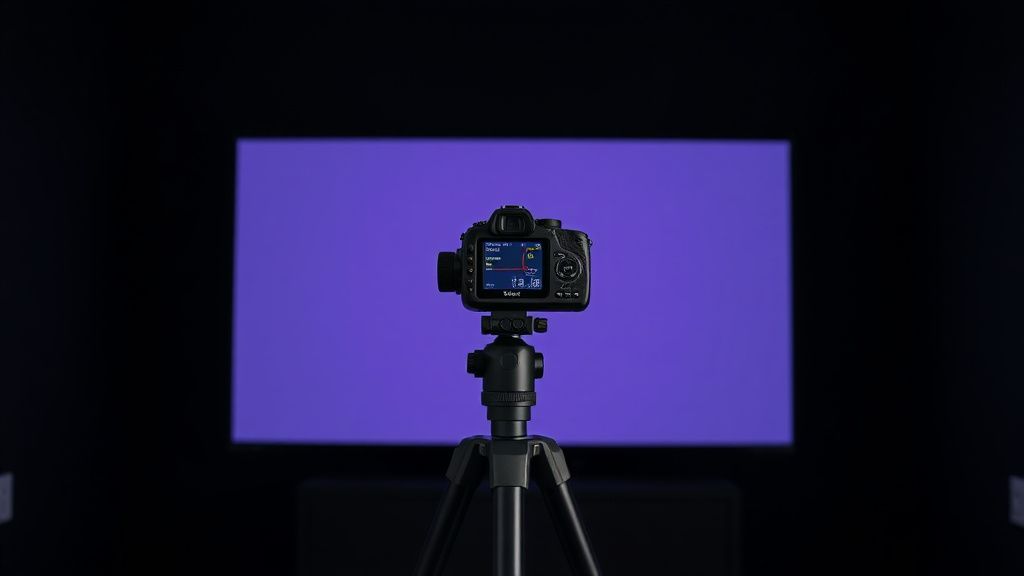
- Pattern Generator: A physical device like a VideoForge Pro or a reliable software-based pattern generator (PGenerator) running on a Raspberry Pi.
The Calibration Process: Step-by-Step Technical Intervention
If your green tint is egregious, you are essentially trying to offset the White Balance (WB) by reducing the Green gain in the drive.
1. Entering the Service Menu
Warning: This can void your warranty if you touch the wrong settings. Accessing the LG Service Menu usually requires an LG Service Remote (MKJ39170828) or an Android app with IR blaster capabilities.
- Navigate to the "White Balance" section.
- Note the current values before changing anything! Take photos. If you don't, you have no way to revert to the factory state.
2. 2-Point White Balance Adjustment
This is where the magic happens. You adjust the "High" (100% white) and "Low" (typically 20% or 30% gray) points.
- If the colorimeter reports a positive delta (x,y shift) toward green, you must reduce the Green High/Low gain.
- Keep the Red and Blue values stable. Adjusting them will alter your warm/cool balance, which you might prefer to keep fixed to D65.
3. 22-Point Adjustments
This is "surgical" calibration. If your green tint only appears in the 5%–15% range, you only adjust the 5%, 10%, and 15% IRE points. Do not touch the mid-tones if they are already neutral.
Real Field Reports: The "Workaround" Culture
Community sentiment on forums like AVSForum is divided. User PanelSniffer88 (a frequent contributor to OLED threads) notes: "I spent three days trying to calibrate out a green tint on my G4. I succeeded in removing the tint at 5% gray, but I introduced a magenta hue in the 70% range. I ended up reverting to factory settings and just accepting that OLEDs have quirks."
This highlights the "Calibration Compromise." Often, fixing one error introduces another because the panel’s gamma response is not perfectly linear. You are fighting the physics of the OLED stack.
Another developer on a GitHub issue thread regarding open-source calibration tools remarked: "The biggest problem isn't the TV, it's the lack of standardization in HDR metadata. One movie looks perfect, the next one looks tinted because the color grading was pushed in a specific direction during post-production. Don't blame the hardware for a bad master."
The Myth of the "Magic Fix"
There is a persistent rumor on Reddit and Discord that "running a manual pixel refresher fixes the tint." This is generally false. The Pixel Refresher is designed to compensate for differential aging (burn-in), not to correct the factory white balance of a brand-new panel. Running it excessively can potentially reduce the lifespan of your organic pixels. Do not use it as a "repair tool" for calibration issues.
The Institutional Conflict: Manufacturer vs. Consumer
Why doesn't LG just ship them perfect? The cost-to-benefit ratio of per-unit manual calibration on an assembly line is astronomical. Companies prioritize "average performance for the average consumer." If a TV is slightly green, 95% of users will think it looks "vibrant" or "bright." Only the 5% of enthusiasts care about a D65 white point.
Furthermore, as OLED panels age, the blue subpixels decay faster than red and green. If LG calibrated for absolute perfection on day one, the panel would likely drift further away from neutral as it hit the 1,000-hour mark.
FAQ: Addressing Common Doubts
Is the green tint covered under warranty?
Usually, no. Unless the tint is extreme—what manufacturers call "out of spec"—it is considered a characteristic of the panel technology. LG's support documentation often labels minor uniformity issues as "within manufacturing tolerances."
Will my panel get better with time?
Yes and no. The initial "break-in" period of 100-200 hours allows the chemical composition of the OLED stack to stabilize. You may find that a slight green tint diminishes once the panel has been cycled through several power-down compensation cycles.
Can I use the "Warm 50" setting to fix it?
"Warm 50" is the closest factory setting to the D65 standard, but it is a global adjustment. It won't fix specific luminance-based tinting. It is, however, the best starting point for any serious user before they dive into professional calibration.
Why do some units have it and others don't?
This is the "Panel Lottery." It comes down to the chemical vapor deposition process on the glass substrate. No two panels are identical at the microscopic level, leading to slight variations in light transmission through the color filters.
What is the biggest risk of manual calibration?
The biggest risk is "crushing blacks." If you over-correct in the service menu, you may lose shadow detail, causing dark scenes to look like a solid black void rather than a scene with depth and nuance. Always calibrate to a reference standard, not to your subjective preference.
Final Analysis: Is It Worth The Trouble?
The pursuit of the perfect image is a rabbit hole. If you find yourself spending more time looking at gray patterns than watching films, you have lost the plot. The G-series OLED is, objectively, one of the best consumer displays on the planet. The green tint issue is a technical nuance in a complex system. Use a basic calibration disk to set your black levels and white balance via the user menu, and if it still bothers you, look into professional calibration services. Sometimes, paying a professional who has the right tools and years of experience is cheaper—and infinitely less stressful—than trying to outsmart a million-dollar factory production line in your living room.
Bu makale affiliate linkleri içermektedir.