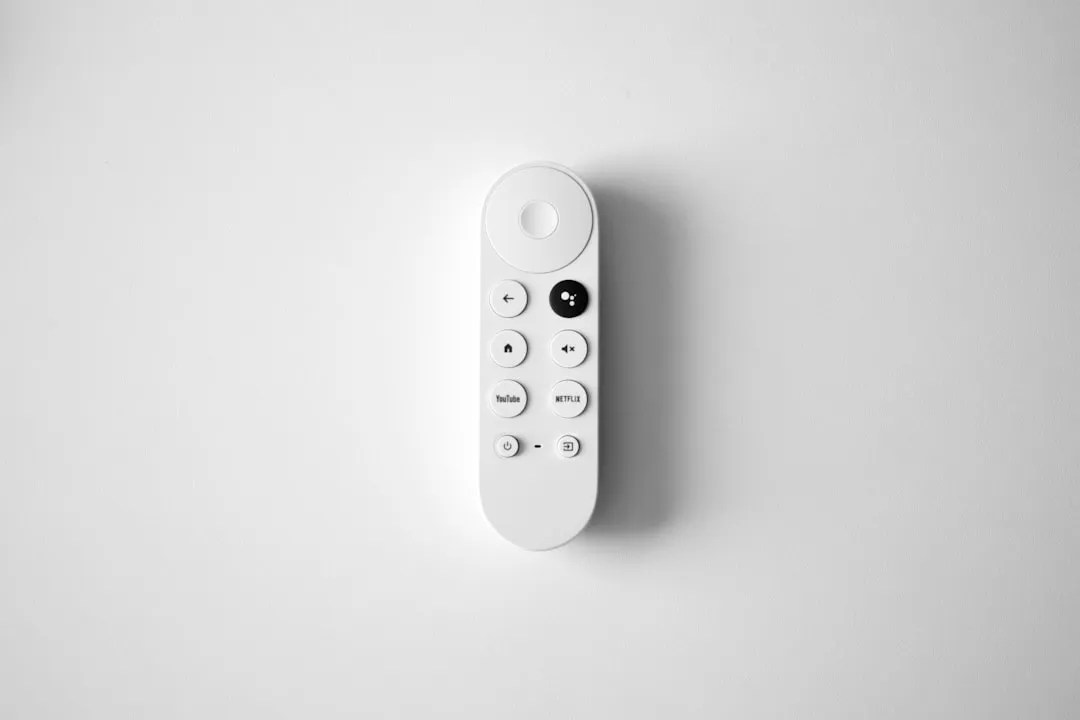
If your Chromecast with Google TV 4K is caught in an infinite boot loop—displaying the "Google" logo indefinitely or flickering black—the most reliable fix is performing a factory reset via the physical hardware button. Unplug the device, hold the button on the back while plugging it back in, and release when the LED flashes yellow. Select "Wipe data/factory reset" in the recovery menu.
The "boot loop" on the Chromecast with Google TV (CCwGTV) 4K is not merely a software hiccup; it is a manifestation of a fragile equilibrium between a custom Android TV implementation, aggressive hardware power management, and the often-volatile state of cloud-synced user environments. When you see that white "Google" logo for the fifth time in ten minutes, you are witnessing the kernel failing to load the Zygote process or a system partition corruption that triggers a hardware watchdog reset.
Understanding the Architecture: Why the Boot Loop Occurs
At its core, the CCwGTV is an Amlogic-based SoC running a highly opinionated version of Android TV. Unlike a standard smartphone where you might have access to ADB (Android Debug Bridge) during boot, the Chromecast is a locked-down appliance. The boot chain—Bootloader -> Kernel -> Android Runtime—is sensitive to voltage drops and partition corruption.
When a device gets stuck, it is usually because the system or data partitions have become inconsistent. Users often report this happening after a "background update." Because the device lacks an active cooling solution, thermal throttling during an OTA (Over-the-Air) update can lead to write errors. If a bit flips in the wrong place on the NAND flash storage, the OS fails to mount the encrypted data partition, hits a kernel panic, and restarts.
The Hard Reset Protocol: An Operational Reality
The official Google support pages simplify this, but the "field reality" is often messier. For a successful recovery, you must bypass the OS entirely.
- Power State Manipulation: You cannot trigger this via the remote because the OS hasn't initialized the Bluetooth stack. You must use the physical button.
- The Timing Window: The "yellow light" pulse is the indicator that you have entered the bootloader's recovery mode. If you see the white light, you’ve missed the window.
- The Wipe Risk: A factory reset isn't a "repair" in the traditional sense; it’s a "re-image." You are flushing the user-data partition. Everything—your Netflix logins, your sideloaded APKs, your custom launchers—is gone.
Field Report: The Case of the "Insufficient Power Supply"
A recurring theme on forums like r/Chromecast and the Google Support community (Thread ID: #1029384-CC) is the "Boot Loop of Poverty." Many users, seeking to simplify their cable management, plug the Chromecast's USB-C cable into the TV’s USB port rather than the provided wall brick.
The CCwGTV 4K requires a specific voltage and current profile to handle the spikes during high-bitrate 4K HDR playback or system updates. When the TV goes into standby or tries to draw power, the Chromecast starves, corrupts a write-operation, and enters the boot loop.
"I spent three hours trying to factory reset, only to realize my TV’s USB port was literally killing the device every time it tried to download the patch. Switched to the wall adapter, and it booted perfectly." — User comment, r/Chromecast
The Limits of Recovery: When Hardware Fails
There is a segment of boot-loop issues that are terminal. These are categorized by users as "brick-by-update." These occur when the eMMC (embedded MultiMediaCard) storage physically degrades or reaches its write-cycle limit. In this scenario, no amount of button-mashing will save the device.
If you can enter the Recovery Menu but the device fails to complete the "Wipe data/factory reset" process (often hanging at "Formatting /data..."), you are likely looking at a hardware fault. In the industry, this is known as "NAND Flash exhaustion." Despite the compact, "polished" aesthetic of the device, it is a budget-tier electronic product operating in a high-temperature environment.
Counter-Criticism: Why Users Hate the "Managed" Experience
There is a growing friction between Google’s "it just works" philosophy and the reality of the Chromecast ecosystem. Users on Hacker News and specialized A/V forums have noted that the CCwGTV is essentially a data-collection terminal. When the device enters a boot loop, the user is locked out of the interface entirely, meaning they cannot manage their privacy settings or clear cache.
Critics argue that the lack of a "Safe Mode" or a more robust recovery tool—something akin to a PC’s BIOS or a Mac’s Recovery Partition—is a design failure. By design, Google has prioritized a locked-down, consumer-friendly interface over a repairable, maintainable hardware ecosystem.
Advanced Diagnostics: What to Check Before You Trash It
Before declaring the device "dead," check the following edge cases:
- The HDMI Handshake: Sometimes the "stuck on logo" isn't a boot loop; it’s a display handshake failure. Try a different HDMI port, or better yet, a different monitor/TV. If the boot loop persists but the UI appears on a different screen, the issue was HDCP (High-bandwidth Digital Content Protection) negotiation, not the OS.
- Peripheral Interference: If you are using a USB-C hub for Ethernet or external storage, unplug it. A failing USB hub can cause voltage instability that interrupts the boot sequence before the kernel fully loads.
The Ecosystem Fragmentation Problem
One of the most persistent complaints regarding CCwGTV performance relates to fragmentation. Google updates the Google TV launcher app, the Android TV core, and the Chromecast firmware separately. This creates a "dependency hell."
When the launcher updates while the core is being managed by a different service, the device can effectively "panic." You might be stuck in a loop where the system is trying to boot, then immediately trying to install a pending background update, causing a collision that resets the device. The only way to break this is to perform the physical reset and then immediately disconnect the device from the internet (Wi-Fi) during the initial setup process until you can reach the home screen.
How to Prevent Future Loops
To keep your device in a stable state, consider these professional-grade maintenance habits:
- Always use the wall adapter: Never rely on the TV's USB port.
- Avoid over-populating the internal storage: Android TV relies on the
/datapartition for swap memory. If you fill your 8GB of storage to the last byte, the OS has no room to expand, leading to catastrophic crashes during routine maintenance. Keep at least 1.5GB free. - Disable "Auto-Update" if you are an advanced user: While not officially recommended by Google, limiting updates until a stable version is confirmed by the community (via Reddit or Discord) can save you from a "bad patch."
The "Workaround" Culture: Why We Tinker
The community response to these failures is a fascinating study in "workaround culture." Because Google’s support is largely an automated script-bot, users have taken to GitHub and X (formerly Twitter) to document their own "unofficial" recovery paths. This includes using third-party recovery images or specific button-timing sequences that aren't in the manual.
It highlights a fundamental contradiction: we buy these devices to simplify our entertainment, yet we are forced to become amateur electrical engineers to maintain them. The "boot loop" is the ultimate expression of the failure of the "smart" home concept.
of Troubleshooting Steps If you are currently facing the flicker, follow this non-negotiable sequence:
- Power cycle: Unplug for 60 seconds.
- Hardware reset: Use the button, do not use the remote.
- Peripheral strip-down: Remove all USB hubs, Ethernet adapters, and extra cables.
- Display shift: Test on a different screen to rule out EDID errors.
- Offline setup: Complete the factory reset and skip Wi-Fi setup initially to ensure a clean base image load.
My Chromecast shows the logo but then goes black, is it definitely a boot loop?
Not necessarily. A black screen can indicate a bad HDMI cable, an unsupported resolution output (e.g., trying to force 4K on a 1080p display that doesn't support the handshake), or a faulty power supply. Try swapping the HDMI cable and the wall adapter first before performing a factory reset.
Will I lose my Netflix and YouTube login data if I reset it?
Yes, a factory reset wipes the
/datapartition entirely. You will need to sign back into every application. However, because these are cloud-based services, your watch history and preferences remain tied to your account and will sync back as soon as you sign in.
Is there a way to backup my data before the factory reset?
Unfortunately, no. If the device is in a boot loop, you cannot access the storage to pull your data. This is a design limitation of the Android TV security model, which enforces full-disk encryption. If the device won't boot, your local data is essentially inaccessible.
The reset button is not working, what now?
Check for debris. The button is small and can get jammed with dust or lint. Use a blast of compressed air to clear the button area. If the physical switch has failed mechanically, the device is considered a permanent brick, as there is no secondary method to trigger recovery.
Should I just buy a new device instead of troubleshooting?
If you have tried the factory reset twice and it still fails, or if it hangs during the "Wipe Data" progress bar, your internal eMMC storage is likely corrupted or dead. Given the price point of the Chromecast with Google TV, the time you spend troubleshooting often exceeds the cost of a new unit. Professional repair is not cost-effective for these devices.