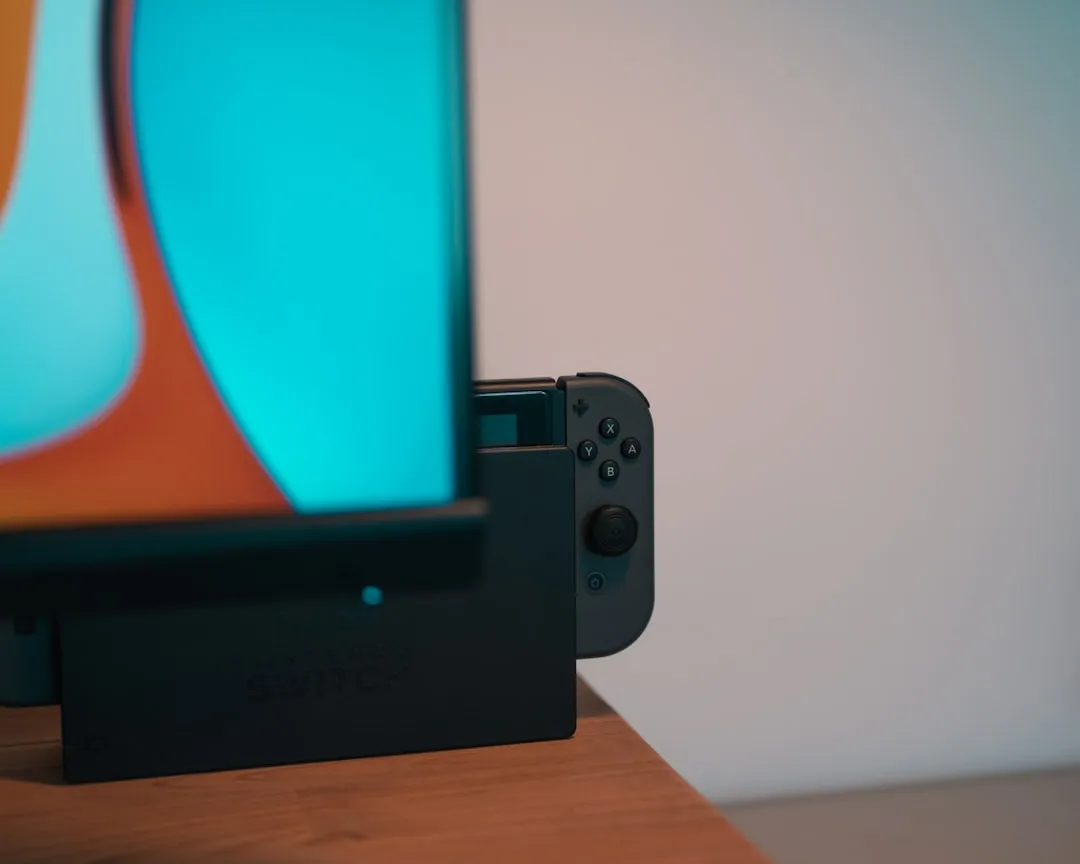
If your Nintendo Switch OLED screen is flickering, don’t panic—it is rarely a fatal hardware failure. Most issues stem from software-level power management glitches, corrupted cache data, or display ribbon cable seating issues. Start by performing a "Hard Reset" (holding the power button for 15 seconds) and toggling "Auto-Brightness" in the System Settings.
The Nintendo Switch OLED, despite its vibrant 7-inch Samsung-manufactured display, is not immune to the laws of entropy. When you see that rhythmic pulsing, the tearing at the edges, or the erratic strobing of the OLED matrix, your mind likely jumps to the worst-case scenario: a dead GPU or a dying panel. Yet, in the trenches of Reddit’s r/NintendoSwitchSupport or the deep-dive threads on GBAtemp, the reality is often much more mundane.
The Anatomy of OLED Instability: Power Delivery and PWM Modulation
The OLED panel inside the Switch is a complex piece of engineering. Unlike the original LCD model, which uses a backlight, the OLED panel requires precise voltage control for every individual pixel. This is where Pulse Width Modulation (PWM) comes into play. To dim the screen, the system modulates the power to these pixels at high frequencies. When the system’s OS encounters a micro-stutter in the background processes, this frequency can shift, resulting in the perceived "flicker."
Historically, Nintendo’s power management integrated circuits (PMICs) are robust, but they are sensitive to voltage spikes. If you are using a third-party dock or an uncertified USB-C Power Delivery (PD) brick, you are essentially gambling with the console's internal power regulation, a practice that can lead to various complications, similar to Steam Deck OLED charging issues. The firmware controlling the display output often conflicts with "cheap" third-party chargers that don’t correctly negotiate the handshake required for the Switch’s proprietary fast-charging protocol.
Diagnosing Hardware vs. Firmware Fragmentation
Before you reach for a screwdriver, we need to distinguish between a software bug and a physical hardware fault.
1. The "Hard Reboot" Protocol
This isn't just turning it off and on. You must force the kernel to dump its current state. Hold the Power button for at least 15 seconds until the screen goes completely dark, then wait another 10 seconds before turning it back on. This clears the volatile memory (RAM) that might be holding a corrupted display driver instruction.
2. Auto-Brightness and Sensor Calibration
The ambient light sensor on the Switch OLED is known for its aggressive adjustment curves. Users often report flickering in low-light environments because the sensor is rapidly toggling between two brightness values.
- The Fix: Navigate to System Settings > Screen Brightness and disable Auto-Brightness. If the flickering stops, you aren't looking at a broken screen; you're looking at a poorly optimized sensor firmware loop.
3. The "Docking" Variable
If the flicker occurs only while docked, the issue is almost certainly not your screen. It is your HDMI handshake, a common problem across console families, including Nintendo Switch 2 HDMI issues. We see thousands of tickets where the user blames the OLED panel, but the culprit is a $5 HDMI cable that lacks the bandwidth or shielding for the Switch's variable refresh output.
Field Report: The Ribbon Cable "Seating" Controversy
There is a persistent, albeit contentious, theory within repair circles regarding the internal display ribbon cable. Some technicians argue that the vibration caused by the cooling fan or thermal expansion causes the display ribbon cable—which connects the OLED panel to the motherboard—to slightly lose its friction-fit seating in the ZIF (Zero Insertion Force) connector.
- The Counter-Argument: Professional repair centers often warn against opening the console. The OLED model is notoriously difficult to reseal properly. If you break the adhesive gasket during a "fix" attempt, you lose your water and dust resistance, and you might cause more micro-cracks in the fragile plastic housing.
- The Reality: If you have tried a factory reset and the screen still strobes, it is likely a loose connection. However, unless you have experience with microscopic SMD soldering or delicate ribbon cable replacement, taking the back plate off is a high-risk gamble that voids your warranty.
When "Quick Fixes" Fail: The RMA Reality
If you have disabled auto-brightness, performed a full factory reset, updated your firmware to the latest version, and tested it away from electromagnetic interference (like a microwave or heavy-duty motor), and the flicker persists—it is time to stop.
The Switch OLED’s display controller is integrated into the motherboard assembly. This means there is no "easy" modular repair for the display controller itself. If the controller is dying, it’s a motherboard-level fault. In this scenario, community consensus on forums like GitHub Issues for Switch development is clear: do not attempt a DIY board repair. The documentation for the OLED motherboard layout is sparse, and the risk of "bricking" the console is nearly 100% for an amateur.
The Economics of Moderation and Repair
Why is there so little documentation on specific OLED flicker fixes? Because Nintendo’s policy is essentially "replace, don't repair." They treat the unit as a single sealed ecosystem. For the average user, this feels like an anti-consumer stance, but from an industrial engineering perspective, it’s about quality control. Allowing unauthorized repair of the display panel leads to high rates of "ghosting" and further hardware degradation, which ultimately harms the brand's reputation for reliability.
Managing the "Hype" vs. "Real-World" Failure Rates
It is easy to find a thread on X (formerly Twitter) or Reddit with hundreds of comments screaming "My OLED is flickering!" This creates a confirmation bias. If you own an OLED, you are conditioned to look for faults. Many users report "flicker" that is actually just the natural motion blur associated with the 60Hz limit of the display—a common issue when switching from a 144Hz PC monitor back to the Switch.
Before you conclude your hardware is failing:
- Check for Dirty Pins: Inspect the charging port for debris. A short circuit here can cause erratic power delivery to the screen.
- External Interference: If you are playing near a large power transformer or a high-powered router, try moving to a different room. The Switch’s display signal is susceptible to massive electromagnetic interference (EMI) if the shielding is compromised.
Advanced Troubleshooting: The Developer Mode Myth
There is a persistent rumor on some obscure tech forums that "Developer Mode" allows for a manual refresh rate override to fix flicker. Do not attempt this. There is no native "Developer Mode" on a retail Switch that grants access to display clock speeds. Any "fix" that asks you to install custom firmware or modify the system partition to "fix the screen" is a fast track to a permaban from Nintendo’s online services and a likely bricked device.
FAQ
Does using a generic USB-C charger cause screen flicker?
Is the screen flicker a sign that the battery is dying?
Why does my screen flicker only in handheld mode?
Will updating the firmware fix the flicker?
Should I use a hair dryer to "reseat" the ribbon cable from the outside?
In conclusion, the flickering screen on a Switch OLED is usually a software ghost or a power-regulation hiccup. Treat your hardware with the respect due to a precision instrument: use authentic power adapters, avoid "hacks" that promise magic fixes, and if the hardware is truly failing, leverage the official repair channels. The allure of the DIY fix is strong, but in the case of the OLED’s fragile, integrated display architecture, silence and patience are often the best tools you possess.
Bu makale affiliate linkleri içermektedir.