
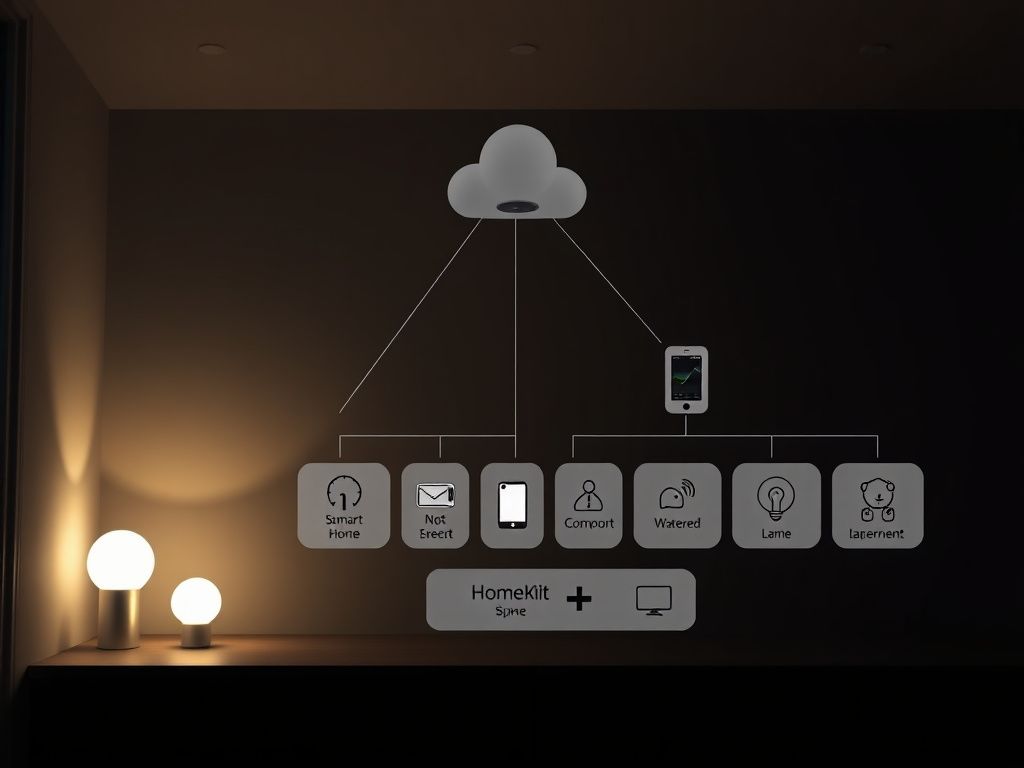
Frequent Philips Hue disconnects from Apple HomeKit are typically caused by network instability, specifically with the mDNS (Bonjour) protocol that devices use to discover each other. Other common culprits include outdated firmware on the Hue Bridge or Home Hub (Apple TV/HomePod), Wi-Fi and Zigbee channel interference, or problematic router settings.
The "No Response" error in the Apple Home app is a frustratingly common sight for many smart home enthusiasts. You reach for your iPhone to dim the lights for movie night, only to be met with a grayed-out, unresponsive tile. While both Philips Hue and Apple HomeKit are mature platforms, the bridge connecting them can be fragile. This guide, designed for iOS 17.5 and beyond, will move beyond the simple "reboot your router" advice and delve into the architectural and network-level reasons for these disconnects, providing solutions that create long-term stability.
Understanding the Hue & HomeKit Communication Chain
Before we start troubleshooting, it's critical to understand how these systems actually talk to each other. Think of it as a four-part relay race. If any runner fumbles the baton, the whole race fails.
- Hue Bulbs & Accessories: These devices don't use Wi-Fi. They communicate using a low-power mesh network protocol called Zigbee.
- Philips Hue Bridge: This is the central translator and the most critical piece. It's physically connected to your router via an Ethernet cable. It speaks Zigbee to your lights and speaks IP (your home network's language) to everything else.
- Your Router: This manages all the IP traffic in your home, assigning addresses and directing communication between your iPhone, the Hue Bridge, and your Apple Home Hub.
- Apple Home Hub (HomePod or Apple TV): This is the brain of your HomeKit setup. It's the device that remains at home, managing your automations, and providing remote access. It communicates directly with the Hue Bridge over your local network.
The disconnection problem almost always occurs between steps 2, 3, and 4. The Zigbee network between the Bridge and the bulbs is typically rock-solid. The failure point is almost always on the IP network, where your router and Home Hub fail to maintain a stable line of communication with the Hue Bridge.
Level 1: Foundational System Checks
Let's start with the basics. Overlooking these foundational steps is a common mistake that leads to hours of unnecessary network diagnostics.
Ensure All Software is Current
As a first principle of system stability, ensuring every component is running the latest firmware is non-negotiable. Manufacturers constantly release patches that fix connectivity bugs, improve security, and enhance performance.
- iOS/HomePodOS: Go to
Settings > General > Software Updateon your iPhone and ensure your Apple TV and HomePods are also up to date. HomeKit architecture improvements are often bundled into these updates. - Philips Hue App: Open the Hue app and go to
Settings > Software update. The app will check for updates for your Bridge and all connected lights and accessories. Allow it to complete any pending updates. Experts note that mismatched firmware versions between the Bridge and accessories can introduce unpredictable behavior.
The Architect's Reboot Sequence
Simply unplugging everything at once and plugging it back in is chaotic. A structured reboot sequence allows each device to re-establish its network identity and services properly. Follow this exact order, waiting 60 seconds between each step:
- Power off your Router.
- Power off your Philips Hue Bridge.
- Power off your primary Apple Home Hub (e.g., the Apple TV in your living room).
- Wait a full minute.
- Power on your Router. Wait for all its lights to become stable, indicating it has fully connected to the internet.
- Power on your Philips Hue Bridge. Wait for all three blue lights to be solid.
- Power on your Apple Home Hub.
This sequence ensures the network foundation (the router) is solid before the critical clients (the Bridge and Home Hub) come online and request IP addresses and start broadcasting their services.
Level 2: Advanced Network & Interference Tuning
If the basics didn't solve the problem, it's time to put on our network architect hat. The issue likely lies in the invisible radio frequency environment of your home or in specific, advanced router settings.
The Zigbee vs. Wi-Fi Channel Conflict
This is one of the most common yet least understood causes of Hue instability. Both the Hue's Zigbee network and your home's 2.4 GHz Wi-Fi network operate in the same crowded 2.4 GHz radio frequency band. If they're using overlapping channels, they can effectively jam each other, leading to dropped packets and the "No Response" error.