
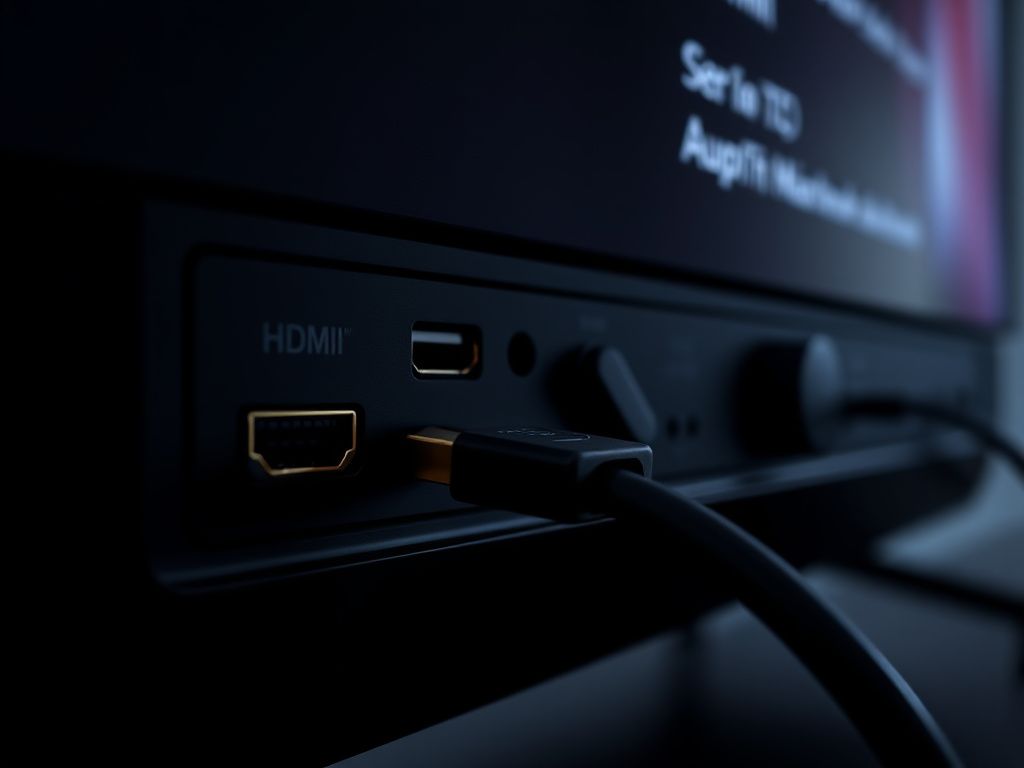
Your LG TV keeps switching to HDMI 2 because a connected device, like a gaming console or soundbar, is using a feature called HDMI-CEC (or "Simplink" in LG's terms) to tell the TV to change inputs. The fastest way to fix this is to go to Settings > All Settings > General > Devices > HDMI Settings and turn off Simplink (HDMI-CEC).
You settle in for the evening, ready to dive into the latest episode on your LG's built-in Netflix app. You grab the Magic Remote, click on the app, and just as that iconic "tudum" sound plays... flick. The screen goes black. A moment later, you're staring at the home screen of your PlayStation or the logo of your soundbar, stuck on the HDMI 2 input.
This isn't a random glitch; it's a classic case of smart technology being a little too smart. As someone who's worked on embedded systems, I can tell you this is a common battle for control happening right inside your HDMI cables.
This isn't a defect but a feature working exactly as designed, just with frustrating results. Let's walk through the solutions, from the simplest toggle to a full reset, to give you back control of your TV for good.
The Core of the Problem: What is HDMI-CEC (Simplink)?
Before changing any settings, it helps to know what's actually causing the issue. The culprit is almost always HDMI-CEC, which stands for Consumer Electronics Control.
Think of it as a hidden communication line running alongside the audio and video signals in your HDMI cable. It lets your devices give commands to each other. When it works well, it’s magic. You turn on your Xbox, and your TV and soundbar automatically power on and switch to the right inputs. That’s the convenience it’s designed for.
LG calls its version of this technology "Simplink."
The problem starts when one of your devices gets a little too assertive. It might be a gaming console waking from rest mode to download an update, a soundbar checking its connection, or a streaming box that decides it's the most important device in the room. This device sends an "Active Source" command over the HDMI-CEC channel, effectively shouting, "Hey, look at me!" Your LG TV, being an obedient screen, does as it's told and switches to that device's HDMI port. If that device is plugged into HDMI 2, that's where your TV will go, every single time.
5 Ways to Stop Your TV From Switching Inputs
Let's tackle this step-by-step. Start with Solution 1, as it solves the problem for the vast majority of people. If it doesn't work, or if you need the features that Solution 1 disables, just continue down the list.
Solution 1: Disable Simplink (HDMI-CEC) - The Main Fix
This is the most direct and effective solution. By turning off Simplink, you're cutting that command channel between your devices. They'll no longer be able to boss your TV around. Your video and audio will still work perfectly, but that "smart" control layer will be gone.
Step-by-Step Guide:
- Press the Settings (gear icon) button on your LG Magic Remote.
- Navigate to All Settings (the three vertical dots) and select it.
- Open the General menu.
- Select Devices, then HDMI Settings.
- Find the toggle for Simplink (HDMI-CEC) and switch it to Off.
The Trade-Off: Be aware, turning off Simplink also disables ARC/eARC (Audio Return Channel). If you use a soundbar connected via HDMI, this means the sound from your TV's built-in apps can no longer travel back to the soundbar through that cable. You'll also lose the ability to control your PlayStation with the TV remote. If ARC/eARC is a must-have for your setup, skip this fix and move to Solution 3.
Solution 2: Turn Off Auto Device Detection
Sometimes, the TV's own discovery process can trigger the switch. LG's webOS actively scans connected devices to identify them and set up the universal remote. This scan can accidentally "wake up" a device, causing it to send the very HDMI-CEC command you're trying to stop.
Step-by-Step Guide: